> ## Documentation Index
> Fetch the complete documentation index at: https://docs.attention.com/llms.txt
> Use this file to discover all available pages before exploring further.
# Find and Review Your Calls
> Browse every recorded call in your workspace, narrow the list with filters, and open a call to review it.
**All Calls** lists the conversations Attention has recorded, imported or received as uploads. Use it to find a call, check its status at a glance and open it for the full review.
## 1. Open All Calls
Go to **Conversations → All Calls**.
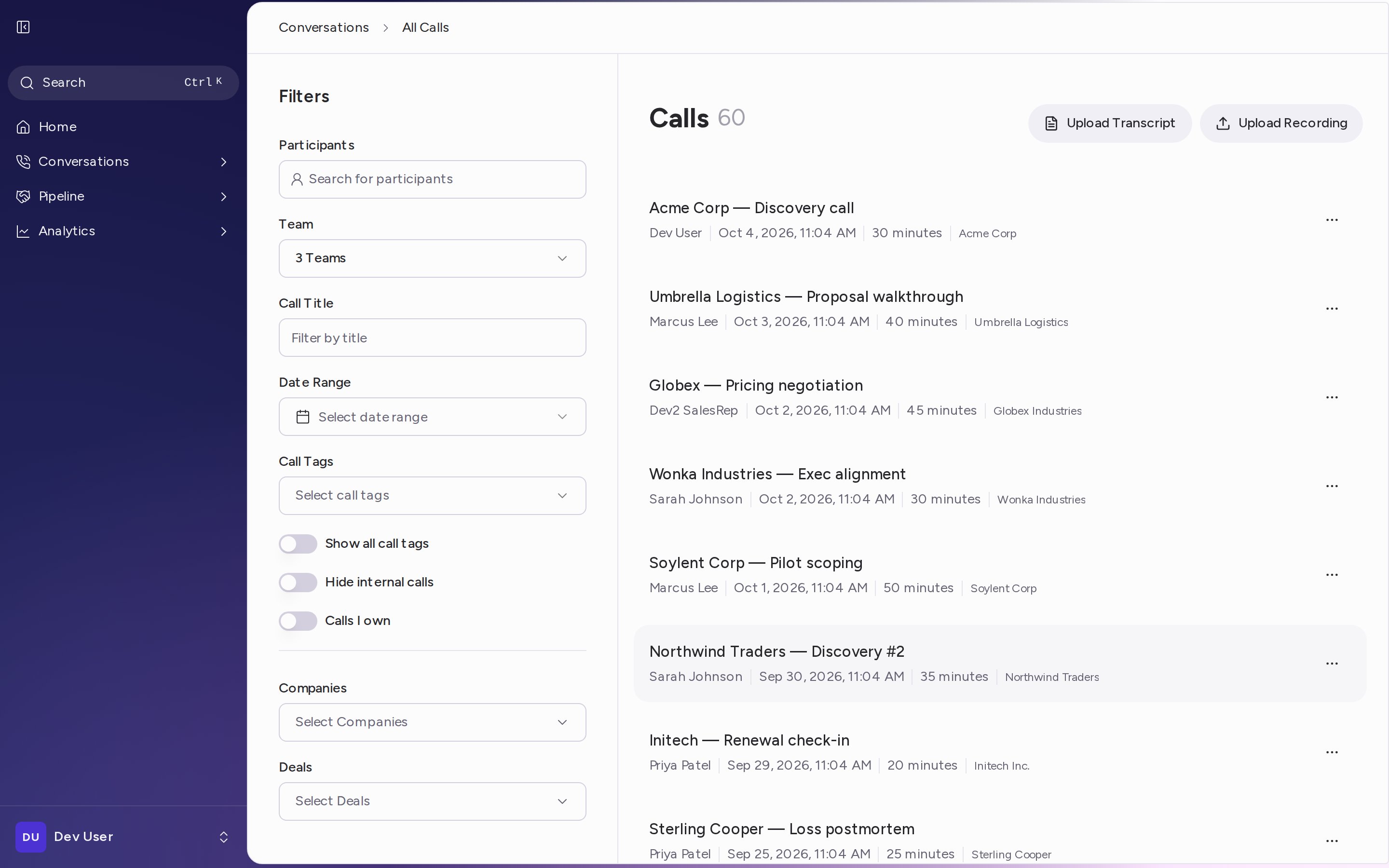
The header shows **Calls** and the number of calls that match your current filters. More calls load as you scroll.
 ## 2. Read the list
Each row shows:
* The call title.
* The call owner, the date and the duration.
* The linked opportunity, when the call has one.
* The call's tags. Click **more** to see every tag on a row.
Badges next to the details tell you more about the call:
* **Private** — the owner or an admin made the call private, so other team members can't view it.
* **Internal** — everyone on the call is from your organization.
* **Transcript Only** — the call has a transcript but no recording, for example an uploaded transcript.
A call that is still uploading shows **Uploading...** and opens once it finishes.
When new calls that match your filters come in while the page is open, a notification appears. Click **Load new** to add them to the list.
## 3. Filter the list
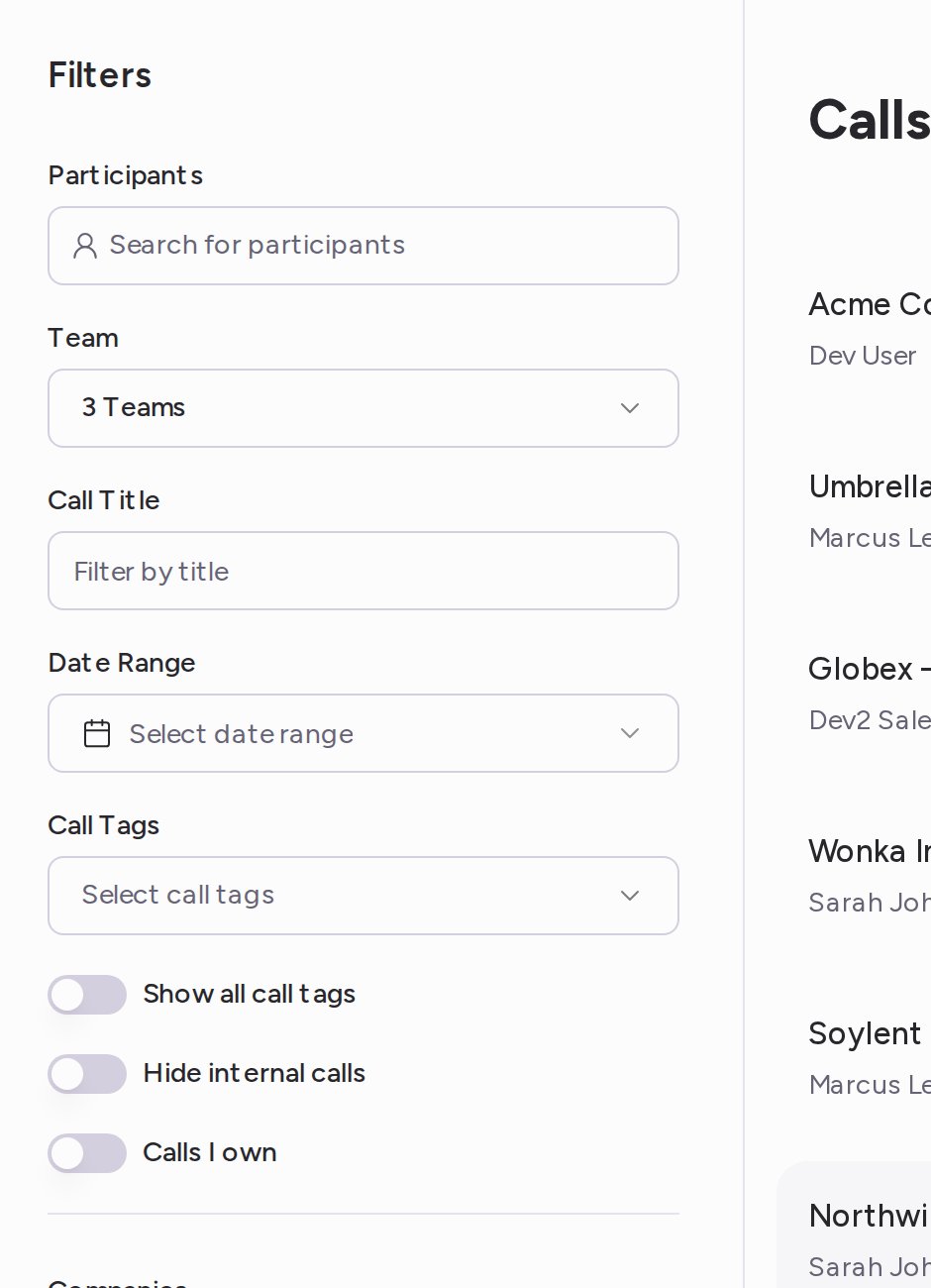
Use the **Filters** panel on the left. On smaller screens, click **Filters** above the list to open it.
* **Participants** — pick people from **People at my organization** or **Customers** to see calls they joined.
* **Team** — pick one or more teams. This filter appears when you belong to more than one team.
* **Call Title** — type words from the call's title.
* **Date Range** — choose **Today**, **Yesterday**, **Past week**, **This week**, **This month**, **Past month** or **Custom Date Range**.
* **Call Duration** — choose **1 to 5 minutes**, **6 to 15 minutes**, **16 to 30 minutes** or **>30 minutes**. To set your own range, click **Custom range**, enter a **Minimum (minutes)**, a **Maximum (minutes)** or both, and click **Apply**.
* **Call Tags** — expand a tag category and check the values you want. Check **Not Set** to find calls where that tag is empty. Tags come from your [call labels](/workspace-setup/call-labels).
* **Show all call tags** — show every tag on each row instead of a shortened list.
* **Hide internal calls** — leave out calls with only people from your organization.
* **Calls I own** — show only the calls you own.
When your workspace has a CRM connected, the panel also has one field for each CRM object Attention syncs. Pick a record to see the calls linked to it. See [CRM Auto Update](/core-features/crm-sync) for how calls get linked.
## 2. Read the list
Each row shows:
* The call title.
* The call owner, the date and the duration.
* The linked opportunity, when the call has one.
* The call's tags. Click **more** to see every tag on a row.
Badges next to the details tell you more about the call:
* **Private** — the owner or an admin made the call private, so other team members can't view it.
* **Internal** — everyone on the call is from your organization.
* **Transcript Only** — the call has a transcript but no recording, for example an uploaded transcript.
A call that is still uploading shows **Uploading...** and opens once it finishes.
When new calls that match your filters come in while the page is open, a notification appears. Click **Load new** to add them to the list.
## 3. Filter the list
Use the **Filters** panel on the left. On smaller screens, click **Filters** above the list to open it.
* **Participants** — pick people from **People at my organization** or **Customers** to see calls they joined.
* **Team** — pick one or more teams. This filter appears when you belong to more than one team.
* **Call Title** — type words from the call's title.
* **Date Range** — choose **Today**, **Yesterday**, **Past week**, **This week**, **This month**, **Past month** or **Custom Date Range**.
* **Call Duration** — choose **1 to 5 minutes**, **6 to 15 minutes**, **16 to 30 minutes** or **>30 minutes**. To set your own range, click **Custom range**, enter a **Minimum (minutes)**, a **Maximum (minutes)** or both, and click **Apply**.
* **Call Tags** — expand a tag category and check the values you want. Check **Not Set** to find calls where that tag is empty. Tags come from your [call labels](/workspace-setup/call-labels).
* **Show all call tags** — show every tag on each row instead of a shortened list.
* **Hide internal calls** — leave out calls with only people from your organization.
* **Calls I own** — show only the calls you own.
When your workspace has a CRM connected, the panel also has one field for each CRM object Attention syncs. Pick a record to see the calls linked to it. See [CRM Auto Update](/core-features/crm-sync) for how calls get linked.
 ### Default filters
The list opens with filters already set for you:
* Admins and managers see the calls of their primary team and the teams under it.
* Other users see the calls of their primary team, with **Participants** set to themselves once they've been on a call.
## 4. Save or reset your filters
As soon as you change a filter, two buttons appear at the top of the panel:
* **Save filters** — keep this selection as your default view. The list opens with it next time.
* **Reset** — go back to your saved view, or to the default filters if you haven't saved one.
## 5. Open a call
Click a row to open the call. The call page shows the recording and the transcript, with tabs for the rest of the review:
* **CRM** — the fields Attention filled in for your CRM. See [CRM Auto Update](/core-features/crm-sync).
* **Coaching** — scorecard results and talk tracks. See [Review Scorecards on a Call](/core-features/scorecards-on-a-call).
* **Insights** — the summary and other insights. See [Generate Call Insights](/core-features/call-insights).
* **Snippets** — short clips to share. See [Share Snippets from a Call](/core-features/snippets).
* **Email** — a follow-up email drafted from the call. See [Send Follow-Up Emails with Templates](/core-features/email-templates).
* **Comments** — notes for your team at a moment in the call. See [Leave and Manage Comments](/core-features/comments).
### Default filters
The list opens with filters already set for you:
* Admins and managers see the calls of their primary team and the teams under it.
* Other users see the calls of their primary team, with **Participants** set to themselves once they've been on a call.
## 4. Save or reset your filters
As soon as you change a filter, two buttons appear at the top of the panel:
* **Save filters** — keep this selection as your default view. The list opens with it next time.
* **Reset** — go back to your saved view, or to the default filters if you haven't saved one.
## 5. Open a call
Click a row to open the call. The call page shows the recording and the transcript, with tabs for the rest of the review:
* **CRM** — the fields Attention filled in for your CRM. See [CRM Auto Update](/core-features/crm-sync).
* **Coaching** — scorecard results and talk tracks. See [Review Scorecards on a Call](/core-features/scorecards-on-a-call).
* **Insights** — the summary and other insights. See [Generate Call Insights](/core-features/call-insights).
* **Snippets** — short clips to share. See [Share Snippets from a Call](/core-features/snippets).
* **Email** — a follow-up email drafted from the call. See [Send Follow-Up Emails with Templates](/core-features/email-templates).
* **Comments** — notes for your team at a moment in the call. See [Leave and Manage Comments](/core-features/comments).
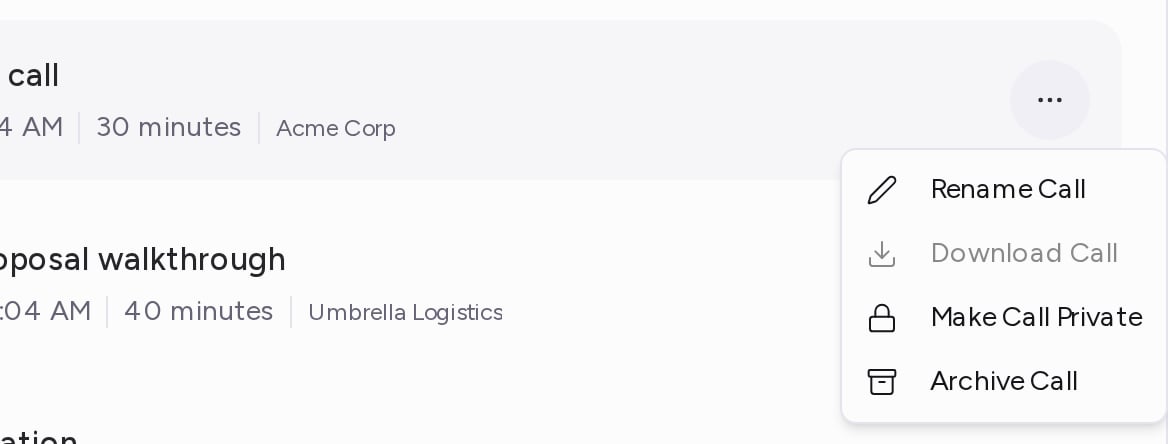 You can also act on a call without opening it. Click **⋯** at the end of the row and choose **Rename Call**, **Download Call**, **Make Call Private** (or **Make Call Public**) or **Archive Call**.
## Add a call by hand
To add a call that Attention didn't record, click **Upload Recording** or **Upload Transcript** at the top of the list. See [Upload a recording](/core-features/get-attention-into-calls#upload-a-recording).
This documentation is built and hosted on [Mintlify](https://mintlify.com), a developer documentation platform.
You can also act on a call without opening it. Click **⋯** at the end of the row and choose **Rename Call**, **Download Call**, **Make Call Private** (or **Make Call Public**) or **Archive Call**.
## Add a call by hand
To add a call that Attention didn't record, click **Upload Recording** or **Upload Transcript** at the top of the list. See [Upload a recording](/core-features/get-attention-into-calls#upload-a-recording).
This documentation is built and hosted on [Mintlify](https://mintlify.com), a developer documentation platform.