> ## Documentation Index
> Fetch the complete documentation index at: https://docs.attention.com/llms.txt
> Use this file to discover all available pages before exploring further.
# Navigate a Call Page
> Find your way around a call page and manage the call: rename, archive, transfer, change its language and download it.
Every call in **Conversations → All Calls** opens on its own page. This page explains where things are and what you can do from it.
## Layout
The page has two parts:
* **Video and transcript**, on the left. The call title, owner, date and labels sit above the video. Use the **Video** and **Transcript** toggle at the bottom to switch between the recording and the transcript.
* **The tab panel**, on the right. It holds the call's analysis and tools.
The tab panel opens on the first tab. These are the tabs, each with its own guide:
| Tab | What it's for |
| - | - |
| **CRM** | Review and sync the fields Attention filled in. See [CRM Auto Update](/core-features/crm-sync). |
| **Coaching** | Scorecard results for the call. See [Scorecards on a Call](/core-features/scorecards-on-a-call). |
| **Insights** | Ask questions about the call. See [Generate Call Insights](/core-features/call-insights). |
| **Snippets** | Create and share clips. See [Share Snippets from a Call](/core-features/snippets). |
| **Email** | Draft a follow-up email. See [Send Follow‑Up Emails with Templates](/core-features/email-templates). |
| **Comments** | Leave timestamped comments. See [Leave and Manage Comments](/core-features/comments). |
### Read the transcript next to the video
To read the transcript while you watch, open the transcript and click **View with video**. The transcript moves next to the video and the tab panel closes. Click **View with analysis** to bring the tab panel back. You can also press **Shift + V** to switch between the two views.
The side-by-side view is available on larger screens.
## Rename the call
1. Click the pencil icon next to the call title, or double-click the title.
2. Type the new name.
3. Press **Enter** or click anywhere outside the title to save. Press **Esc** to cancel.
The new title appears in **All Calls** and everywhere else the call is listed.
## Call actions
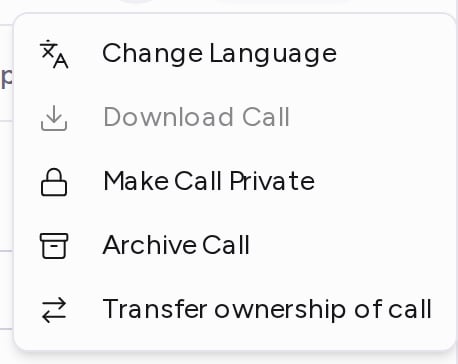
The rest of the actions are in the **⋯** menu next to the **Share** button, at the top of the page.
 ### Change the call's language
If the call was transcribed in the wrong language, re-transcribe it:
1. Click **⋯ → Change Language**.
2. Pick the language the call was spoken in.
3. Click **Re-transcribe**.
Attention re-transcribes the call in that language and replaces the current transcript. It takes a few minutes. A banner shows on the call while it runs, and the transcript updates on its own when it's ready.
To keep the transcript as it is and only watch with subtitles in another language, use [translated subtitles](#watch-with-translated-subtitles) instead.
### Transfer the call to someone else
1. Click **⋯ → Transfer ownership of call**.
2. Under **New call owner**, choose a user.
3. Click **Transfer call**.
The call moves to the new owner and their team, and Attention recalculates its scorecards based on the new owner. If the new owner is on a different team, Attention also recalculates the CRM fields and labels with that team's setup.
If the new owner isn't on your team, Attention asks you to confirm with **Yes, transfer call**, since you may lose access to the call once it moves.
### Archive the call
1. Click **⋯ → Archive Call**.
2. Click **Archive** to confirm.
Once archived, the call and all of its snippets can no longer be reviewed.
There's no option in the app to unarchive a call.
## Watch with translated subtitles
Subtitles let you follow a call in another language without changing its transcript.
1. In the video controls, click the gear icon (**Settings**).
2. Click **Show captions** if captions are off.
3. Open the menu again, then choose **Subtitle language** and pick a language.
The first time someone picks a language for a call, Attention translates the subtitles. A banner shows while they're generated, and they load on their own when ready. Languages that are already translated are marked and load right away. Choose **Original (transcript language)** to go back to the transcript's language.
## Download the call or copy the transcript
* **Video:** click **⋯ → Download Call**. It's available once the video has finished processing. The download starts in a new browser tab.
* **Transcript:** open the transcript and click the copy icon (**Copy full Transcript**) at the top. The whole transcript is now on your clipboard.
To add a call to Attention, by uploading it or adding the bot to a meeting, see [Get Attention into Your Calls](/core-features/get-attention-into-calls).
This documentation is built and hosted on [Mintlify](https://mintlify.com), a developer documentation platform.
### Change the call's language
If the call was transcribed in the wrong language, re-transcribe it:
1. Click **⋯ → Change Language**.
2. Pick the language the call was spoken in.
3. Click **Re-transcribe**.
Attention re-transcribes the call in that language and replaces the current transcript. It takes a few minutes. A banner shows on the call while it runs, and the transcript updates on its own when it's ready.
To keep the transcript as it is and only watch with subtitles in another language, use [translated subtitles](#watch-with-translated-subtitles) instead.
### Transfer the call to someone else
1. Click **⋯ → Transfer ownership of call**.
2. Under **New call owner**, choose a user.
3. Click **Transfer call**.
The call moves to the new owner and their team, and Attention recalculates its scorecards based on the new owner. If the new owner is on a different team, Attention also recalculates the CRM fields and labels with that team's setup.
If the new owner isn't on your team, Attention asks you to confirm with **Yes, transfer call**, since you may lose access to the call once it moves.
### Archive the call
1. Click **⋯ → Archive Call**.
2. Click **Archive** to confirm.
Once archived, the call and all of its snippets can no longer be reviewed.
There's no option in the app to unarchive a call.
## Watch with translated subtitles
Subtitles let you follow a call in another language without changing its transcript.
1. In the video controls, click the gear icon (**Settings**).
2. Click **Show captions** if captions are off.
3. Open the menu again, then choose **Subtitle language** and pick a language.
The first time someone picks a language for a call, Attention translates the subtitles. A banner shows while they're generated, and they load on their own when ready. Languages that are already translated are marked and load right away. Choose **Original (transcript language)** to go back to the transcript's language.
## Download the call or copy the transcript
* **Video:** click **⋯ → Download Call**. It's available once the video has finished processing. The download starts in a new browser tab.
* **Transcript:** open the transcript and click the copy icon (**Copy full Transcript**) at the top. The whole transcript is now on your clipboard.
To add a call to Attention, by uploading it or adding the bot to a meeting, see [Get Attention into Your Calls](/core-features/get-attention-into-calls).
This documentation is built and hosted on [Mintlify](https://mintlify.com), a developer documentation platform.