> ## Documentation Index
> Fetch the complete documentation index at: https://docs.attention.com/llms.txt
> Use this file to discover all available pages before exploring further.
# Find Your Way Around Home
> See your live calls, your recent and team calls, and your upcoming meetings from the Attention Home page.
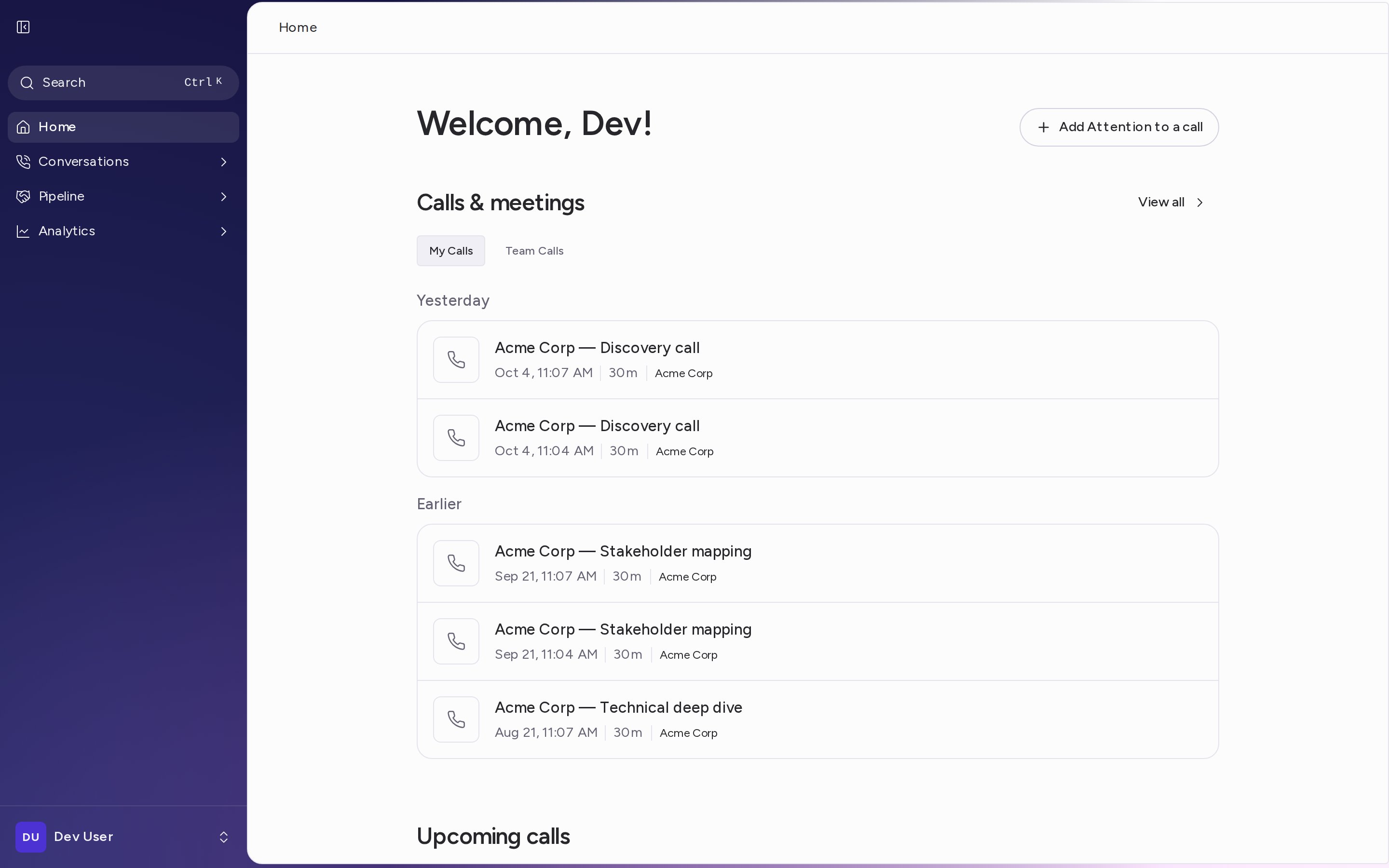
**Home** is the first page you see when you log into [Attention](https://app.attention.tech). It shows the calls Attention is recording right now, your latest calls and your team's, and the meetings on your calendar for the next two weeks.
To open it at any time, click **Home** in the sidebar.
 ## Add Attention to a call
Click **Add Attention to a call**, at the top right of the page, to send Attention into a meeting that has already started or isn't on your calendar. Paste the meeting link and click **Invite Attention**. See [Add Attention to a live call](/core-features/get-attention-into-calls#add-attention-to-a-live-call) for the details.
## Ongoing Calls
While Attention is recording a meeting, the call appears under **Ongoing Calls** at the top of **Home**, marked **LIVE**. Each row shows the call title and its participants.
* Click the call title to open the call and follow it while it happens.
* Click **Remove bot from call** to make the notetaker leave the meeting.
## Calls & meetings
**Calls & meetings** lists your five most recent calls. Use the tabs to switch between two lists:
* **My Calls**: the calls you took part in.
* **Team Calls**: the latest calls from your team and its sub-teams. Each row also shows who owns the call.
Calls are grouped by when they happened: **Today**, **Yesterday**, **This Week**, **Last Week** and **Earlier**. Each row shows the call title, the date and time, the duration, the linked opportunity if there is one, and the call's labels.
## Add Attention to a call
Click **Add Attention to a call**, at the top right of the page, to send Attention into a meeting that has already started or isn't on your calendar. Paste the meeting link and click **Invite Attention**. See [Add Attention to a live call](/core-features/get-attention-into-calls#add-attention-to-a-live-call) for the details.
## Ongoing Calls
While Attention is recording a meeting, the call appears under **Ongoing Calls** at the top of **Home**, marked **LIVE**. Each row shows the call title and its participants.
* Click the call title to open the call and follow it while it happens.
* Click **Remove bot from call** to make the notetaker leave the meeting.
## Calls & meetings
**Calls & meetings** lists your five most recent calls. Use the tabs to switch between two lists:
* **My Calls**: the calls you took part in.
* **Team Calls**: the latest calls from your team and its sub-teams. Each row also shows who owns the call.
Calls are grouped by when they happened: **Today**, **Yesterday**, **This Week**, **Last Week** and **Earlier**. Each row shows the call title, the date and time, the duration, the linked opportunity if there is one, and the call's labels.
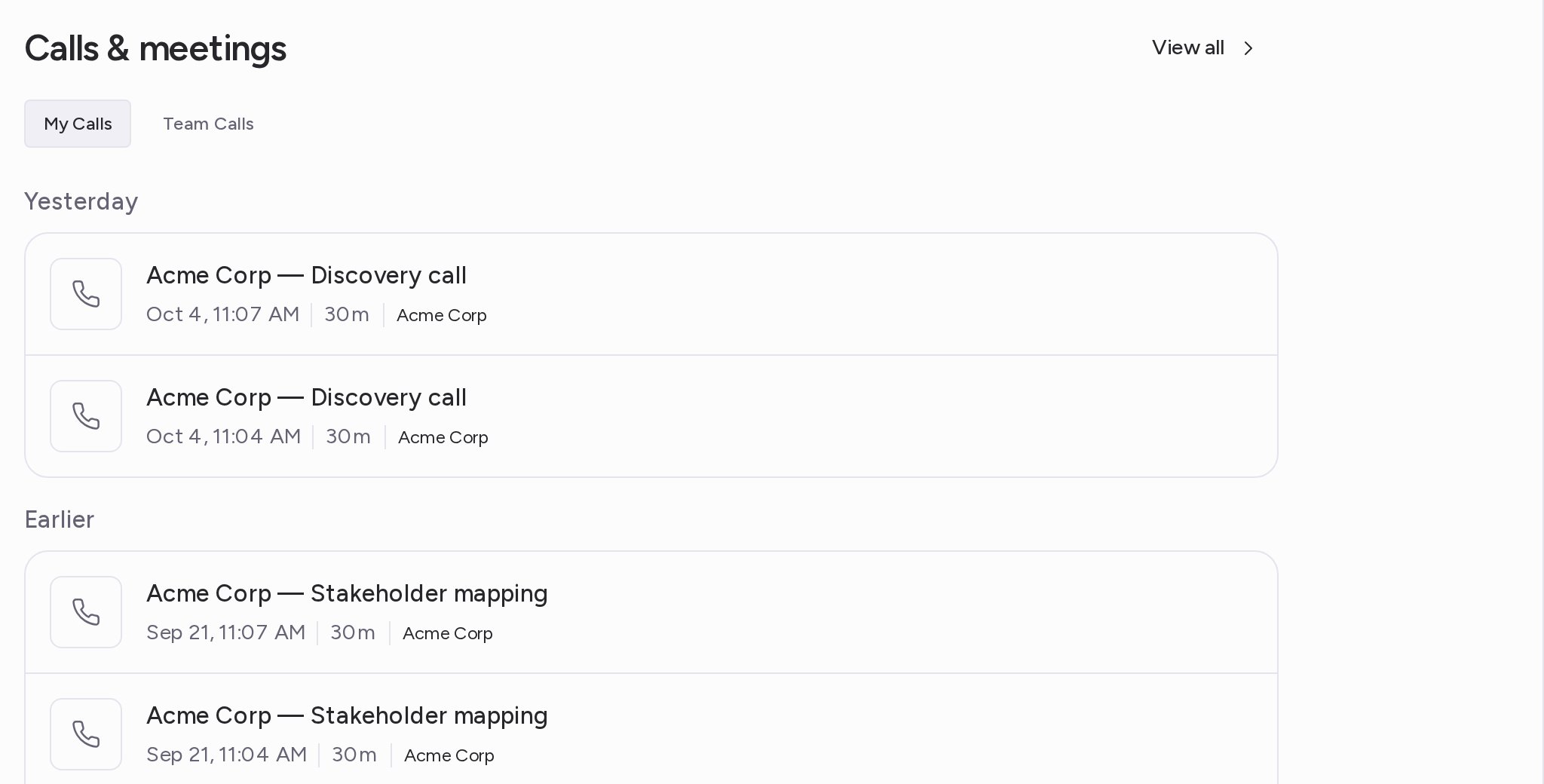 1. Click a call to open its recording, transcript and insights.
2. Hover a call and open its menu to rename, download, make private or archive it.
3. Click **View all** to open **Conversations → All Calls**, already filtered to the tab you are on.
## Upcoming calls
**Upcoming calls** shows the meetings on your calendar for the next two weeks, grouped by day (**Today**, **Tomorrow**, then the date). The first three appear. Click **Show more** to see more.
Each row shows the meeting title, start time and participants. Click the title to open the meeting link.
### Choose which meetings Attention joins
Each meeting has a **Join** checkbox. When it is checked, Attention joins that meeting. Hover the **?** icon next to it to see why Attention is or isn't set to join. See [Choose which upcoming meetings Attention joins](/core-features/get-attention-into-calls#choose-which-upcoming-meetings-attention-joins) for the details.
### Browse past events
Click **Browse past events**, next to the **Upcoming calls** heading, to see the calendar events that have already happened.
**Upcoming calls** lists the events from your linked calendar. To link your calendar, see [Connect Your Calendar & Personalize Attention](/core-features/personal-settings).
Need help? Reach out to [support@attention.com](mailto:support@attention.com).
This documentation is built and hosted on [Mintlify](https://mintlify.com), a developer documentation platform.
1. Click a call to open its recording, transcript and insights.
2. Hover a call and open its menu to rename, download, make private or archive it.
3. Click **View all** to open **Conversations → All Calls**, already filtered to the tab you are on.
## Upcoming calls
**Upcoming calls** shows the meetings on your calendar for the next two weeks, grouped by day (**Today**, **Tomorrow**, then the date). The first three appear. Click **Show more** to see more.
Each row shows the meeting title, start time and participants. Click the title to open the meeting link.
### Choose which meetings Attention joins
Each meeting has a **Join** checkbox. When it is checked, Attention joins that meeting. Hover the **?** icon next to it to see why Attention is or isn't set to join. See [Choose which upcoming meetings Attention joins](/core-features/get-attention-into-calls#choose-which-upcoming-meetings-attention-joins) for the details.
### Browse past events
Click **Browse past events**, next to the **Upcoming calls** heading, to see the calendar events that have already happened.
**Upcoming calls** lists the events from your linked calendar. To link your calendar, see [Connect Your Calendar & Personalize Attention](/core-features/personal-settings).
Need help? Reach out to [support@attention.com](mailto:support@attention.com).
This documentation is built and hosted on [Mintlify](https://mintlify.com), a developer documentation platform.