> ## Documentation Index
> Fetch the complete documentation index at: https://docs.attention.com/llms.txt
> Use this file to discover all available pages before exploring further.
# Import Calls from Gong
> Bring your past Gong calls into Attention and keep importing new ones.
Connect Gong to bring in your past calls and keep importing new ones. Imported calls appear in **Conversations → All Calls**.
To add a single recording or transcript by hand, see [Upload a recording](/core-features/get-attention-into-calls#upload-a-recording).
## Open Integrations
1. In [Attention](https://app.attention.tech), click your name at the bottom of the sidebar, then **Settings**.
2. In the settings menu, click **Integrations**.
3. Click **Add integration**.
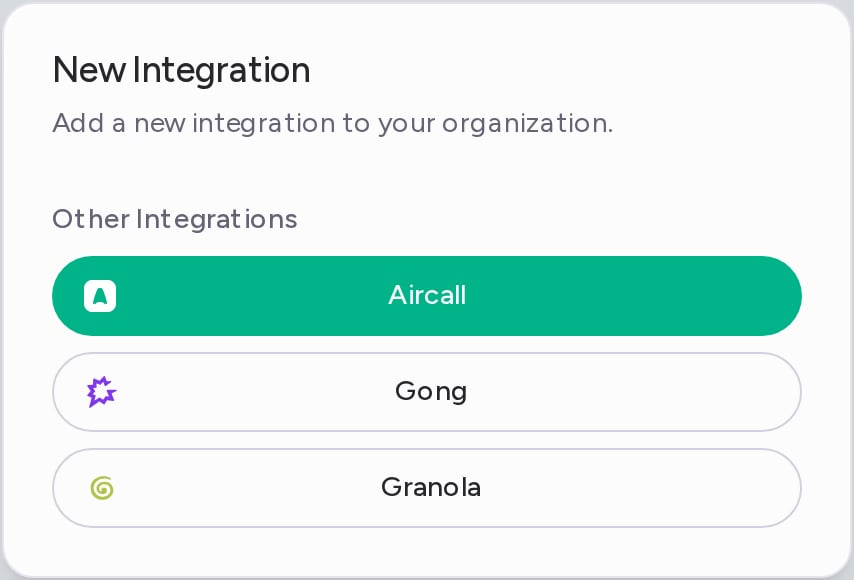
The **New Integration** dialog lists the tools you haven't connected yet under **Other Integrations**.
 ## Connect Gong
You need a Gong access key and its secret. A Gong admin creates them in Gong's API settings.
1. In the **New Integration** dialog, click **Gong**.
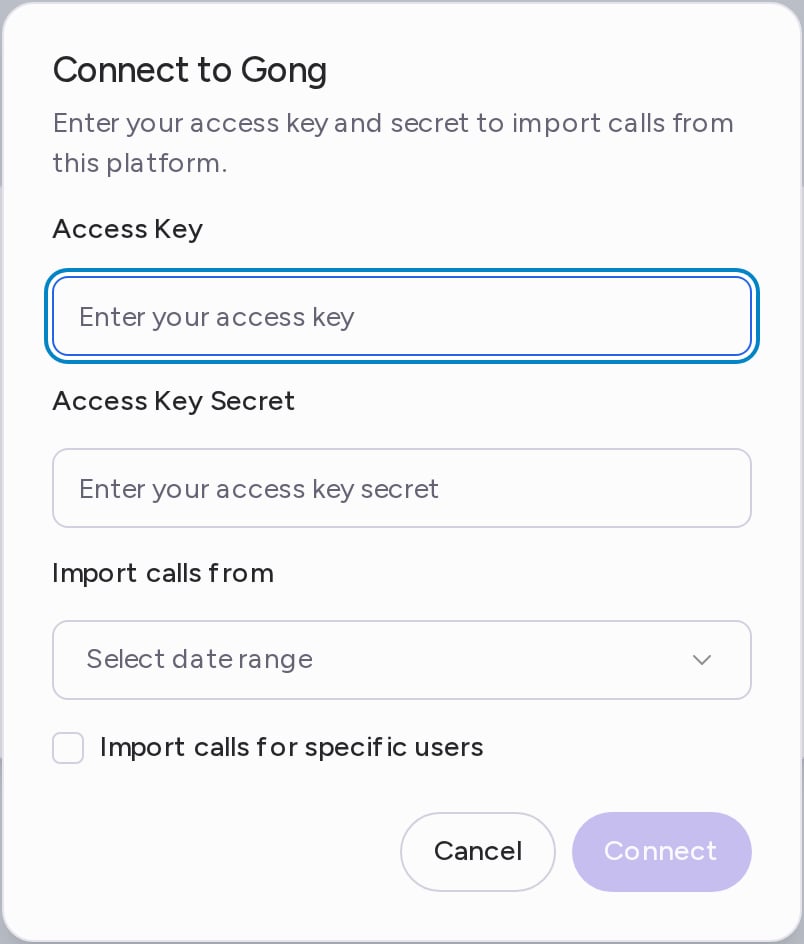
2. In **Connect to Gong**, enter the **Access Key** and the **Access Key Secret**.
3. Under **Import calls from**, choose **Past Week**, **Past Month**, **Past Year** or **Custom Date Range**.
4. To import only some people's calls, select **Import calls for specific users** and add their email addresses. Press Enter after each one.
5. Click **Connect**.
## Connect Gong
You need a Gong access key and its secret. A Gong admin creates them in Gong's API settings.
1. In the **New Integration** dialog, click **Gong**.
2. In **Connect to Gong**, enter the **Access Key** and the **Access Key Secret**.
3. Under **Import calls from**, choose **Past Week**, **Past Month**, **Past Year** or **Custom Date Range**.
4. To import only some people's calls, select **Import calls for specific users** and add their email addresses. Press Enter after each one.
5. Click **Connect**.
 Gong now appears under **Others** on the Integrations page, marked **Syncing in progress** while your past calls come in. A large import can take a while; calls show up in **All Calls** as they finish processing.
## What gets imported
* Every Gong call in the date range you chose, with its video (or its audio when there is no video) and Gong's transcript.
* Each call goes to the Attention user whose email matches the call's owner in Gong.
* After the first import, Attention keeps importing new Gong calls, with the same email filter.
* New calls get scorecards, labels and CRM field updates like any other call. Past calls from your date range come in without them.
Calls shorter than the **Minimum imported call duration** are skipped. It is 120 seconds by default. You can change it in **Settings → Organization Settings**, under **Call settings**.
## Disconnect Gong
1. On the Integrations page, open the **⋯** menu on the **Gong** row and click **Delete**.
2. In the **Gong Account Removal** dialog, click **Remove**.
Attention stops importing calls from Gong. Calls already imported stay in Attention.
Need help? Contact [support@attention.com](mailto:support@attention.com) or your Attention point of contact.
This documentation is built and hosted on [Mintlify](https://mintlify.com), a developer documentation platform.
Gong now appears under **Others** on the Integrations page, marked **Syncing in progress** while your past calls come in. A large import can take a while; calls show up in **All Calls** as they finish processing.
## What gets imported
* Every Gong call in the date range you chose, with its video (or its audio when there is no video) and Gong's transcript.
* Each call goes to the Attention user whose email matches the call's owner in Gong.
* After the first import, Attention keeps importing new Gong calls, with the same email filter.
* New calls get scorecards, labels and CRM field updates like any other call. Past calls from your date range come in without them.
Calls shorter than the **Minimum imported call duration** are skipped. It is 120 seconds by default. You can change it in **Settings → Organization Settings**, under **Call settings**.
## Disconnect Gong
1. On the Integrations page, open the **⋯** menu on the **Gong** row and click **Delete**.
2. In the **Gong Account Removal** dialog, click **Remove**.
Attention stops importing calls from Gong. Calls already imported stay in Attention.
Need help? Contact [support@attention.com](mailto:support@attention.com) or your Attention point of contact.
This documentation is built and hosted on [Mintlify](https://mintlify.com), a developer documentation platform.