> ## Documentation Index
> Fetch the complete documentation index at: https://docs.attention.com/llms.txt
> Use this file to discover all available pages before exploring further.
# Integrate Attention with Salesforce
> Connect your Salesforce instance to enable 2-way sync with Attention
You must be an Attention Admin to be able to manage CRM integrations, including Salesforce.
Likewise, you must be a Salesforce Admin or have equivalent privileges to be able to add the Attention integration to Salesforce.
# Walkthrough
To enable the Attention - Salesforce integration:
1. Click on your name on the top left corner.
2. Select **⚙️ Settings** from the dropdown.
3. In the **Settings** page, select **Integrations** on the left sidebar.
4. Select **➕ Add integration** on the top right corner.
5. Select **Salesforce** in the **New Integration** pop-up.
6. A new tab will open, prompting you for your Salesforce domain (e.g. `my-organization.my`). Select **Continue** when you've done so.
7. You will be taken automatically to Salesforce, where the OAuth flow will start.
8. Log into Salesforce when prompted.
9. When prompted to allow access to **Attention SFDC Integration**, select **Allow**.
# Required Salesforce access scopes
Attention requires the following authorization scopes to be able to establish 2-way sync with your Salesforce instance.
| Scope | Purpose |
| --------------- | ------------------------------------------------------------------------------------------- |
| api | Gives Attention access to the Salesforce REST API, e.g. so that it can auto-sync CRM fields |
| email | Allows Attention to access the identity URL service using your email as identifier |
| offline\_access | Allows Attention to refresh tokens for long-lived access without re-authentication |
# Required Salesforce user permissions
Attention's permissions are limited by the authenticated Salesforce user's actual permissions, even if broader access scopes are configured.
Two `Administrative Permissions` are required by Attention:
* API Enabled
* Customize Application
* Modify All Data
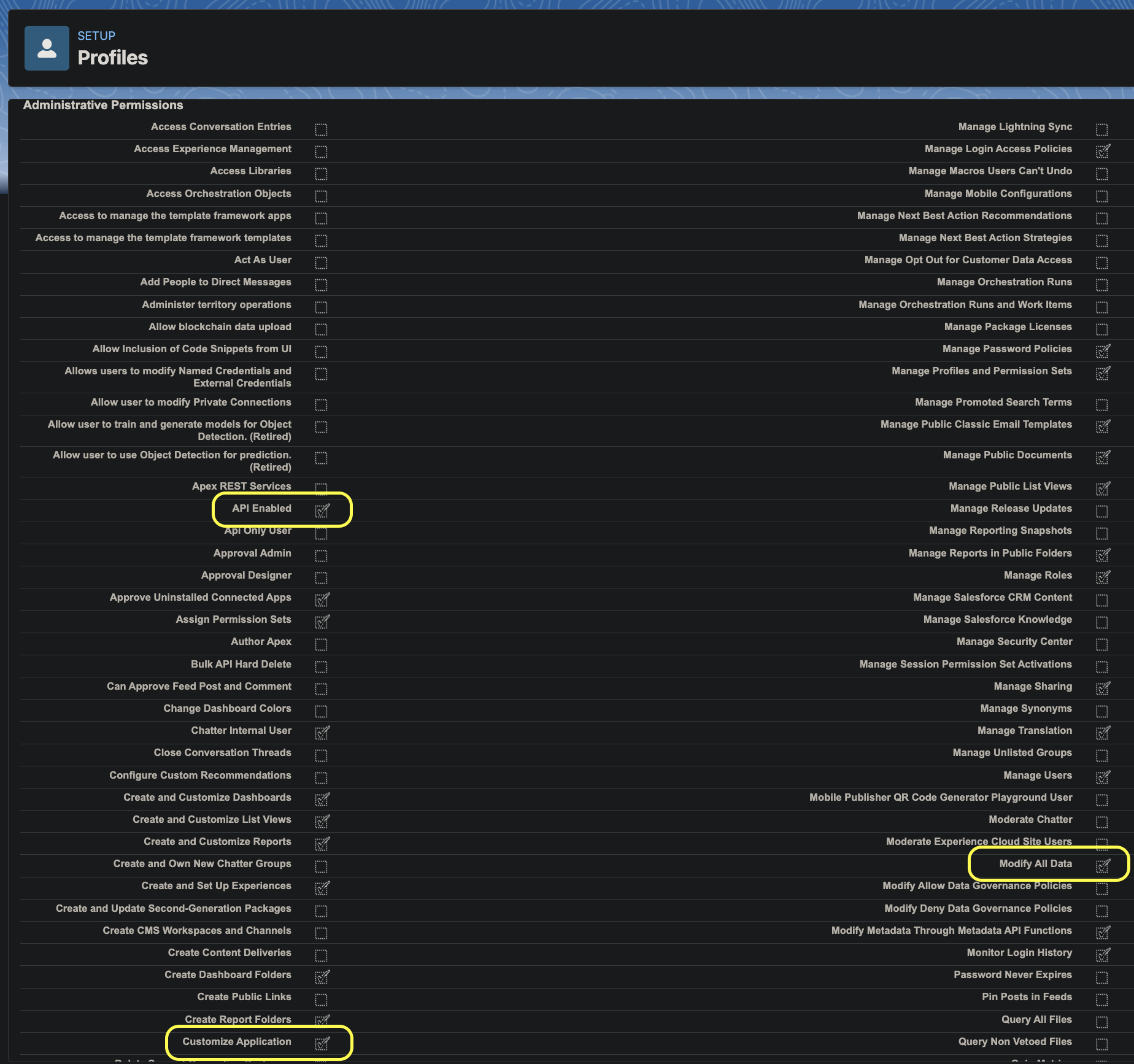 To enable both permissions in Salesforce, please follow these steps:
1. Navigate to your Salesforce instance page.
2. In the **ADMINISTRATION** section on the left menu, click on the **Users** accordion to expand the available options.
3. Select **Profiles**.
4. Choose your profile from the list.
5. In the **Administrative Permissions** section, look for **API Enabled**, **Customize Application** and **Modify All Data**.
6. Check the boxes on the right side of each permission to enable them.
To enable both permissions in Salesforce, please follow these steps:
1. Navigate to your Salesforce instance page.
2. In the **ADMINISTRATION** section on the left menu, click on the **Users** accordion to expand the available options.
3. Select **Profiles**.
4. Choose your profile from the list.
5. In the **Administrative Permissions** section, look for **API Enabled**, **Customize Application** and **Modify All Data**.
6. Check the boxes on the right side of each permission to enable them.