> ## Documentation Index
> Fetch the complete documentation index at: https://docs.attention.com/llms.txt
> Use this file to discover all available pages before exploring further.
# Zoom Phone integration
> Associate Zoom Phone with Attention, configure recording permissions, and verify with a test call.
# Zoom Phone integration
Attention can record calls made with Zoom Phone associated with the account. Each user’s Zoom account must be associated with the Attention app in the Zoom Marketplace. The user’s Zoom account must be configured to allow call or meeting recording, and the user must have access to download those recordings.
## 1. Link Zoom account
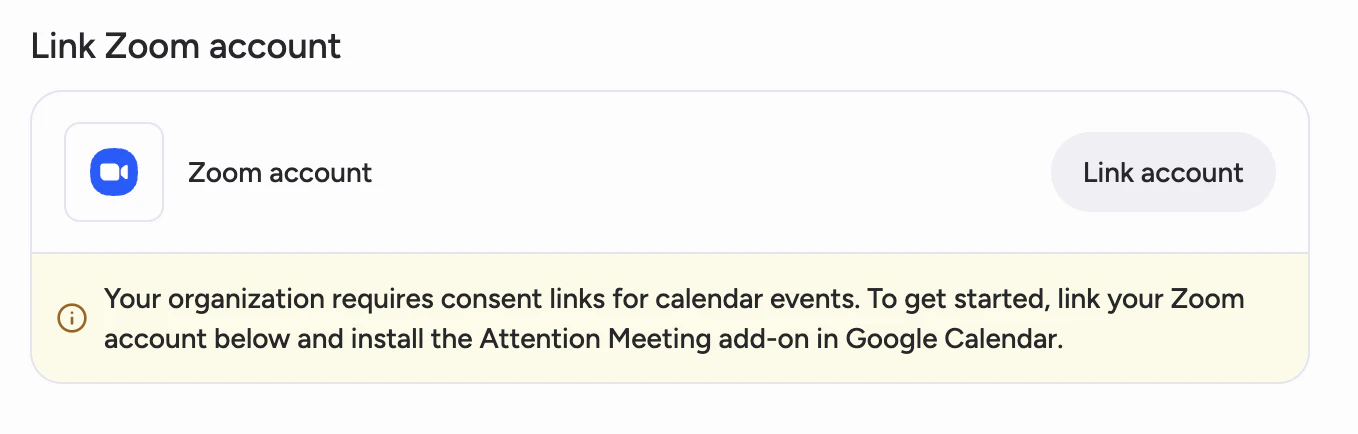
1. Open **Personal settings** (**Settings** in the user menu → **Personal settings**), then find **Link Zoom account** and follow the steps to link your Zoom account with the Attention app in the Zoom Marketplace.
 ## 2. Required Zoom account settings (web portal)
### Automatic call recording
In the Zoom admin portal, go to:
**Admin → Account Management → Account settings → Zoom Phone (tab) → Automatic Call Recording**
Enable **Automatic call recording** for the account.
### Access permissions
Configure access permissions here:
**Admin → Account Management → Account settings → Zoom Phone (tab) → Automatic Call Recording → Access Permissions**
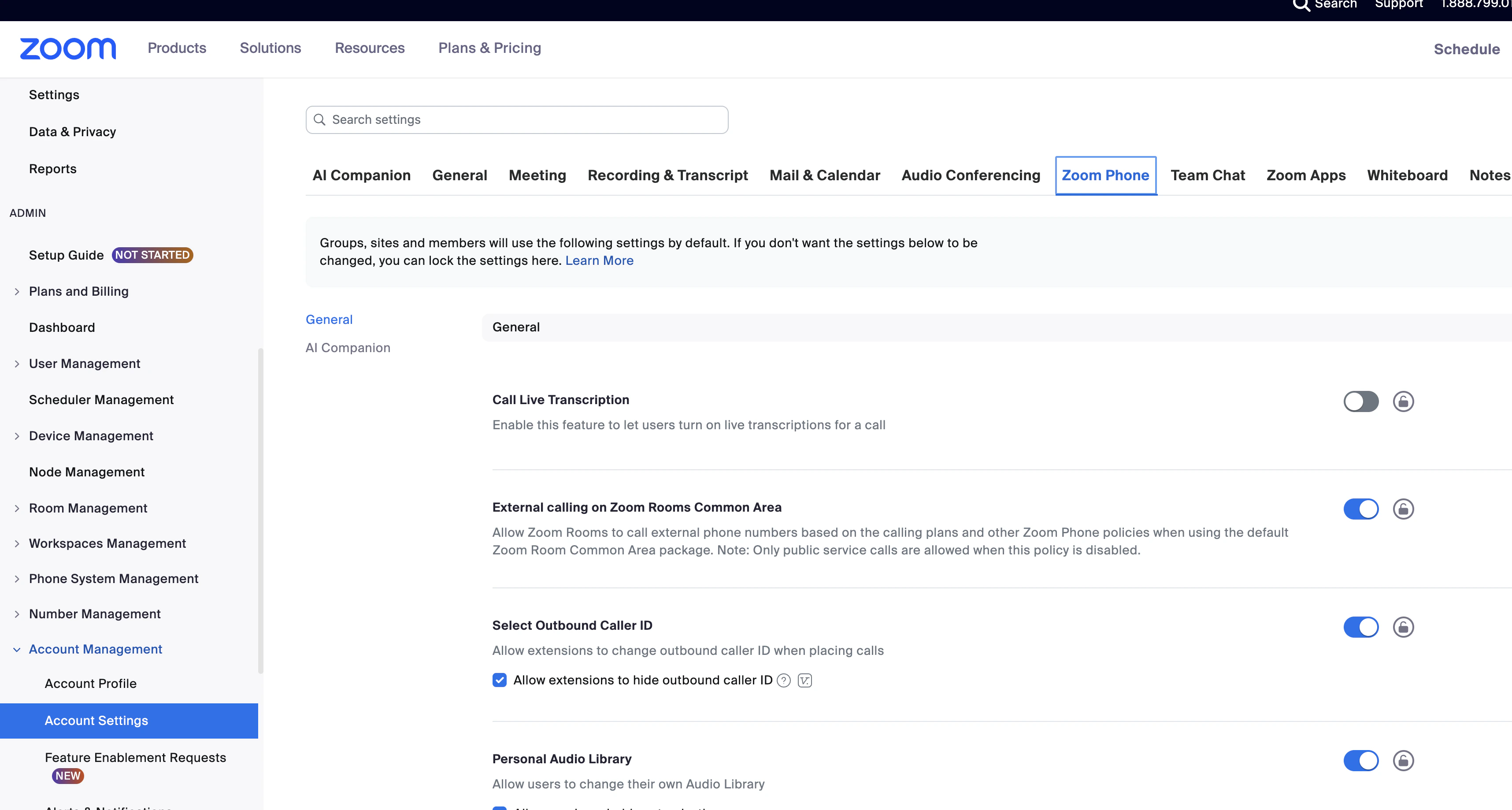
Example: **Admin → Account Management → Account settings** with the **Zoom Phone** tab:
## 2. Required Zoom account settings (web portal)
### Automatic call recording
In the Zoom admin portal, go to:
**Admin → Account Management → Account settings → Zoom Phone (tab) → Automatic Call Recording**
Enable **Automatic call recording** for the account.
### Access permissions
Configure access permissions here:
**Admin → Account Management → Account settings → Zoom Phone (tab) → Automatic Call Recording → Access Permissions**
Example: **Admin → Account Management → Account settings** with the **Zoom Phone** tab:
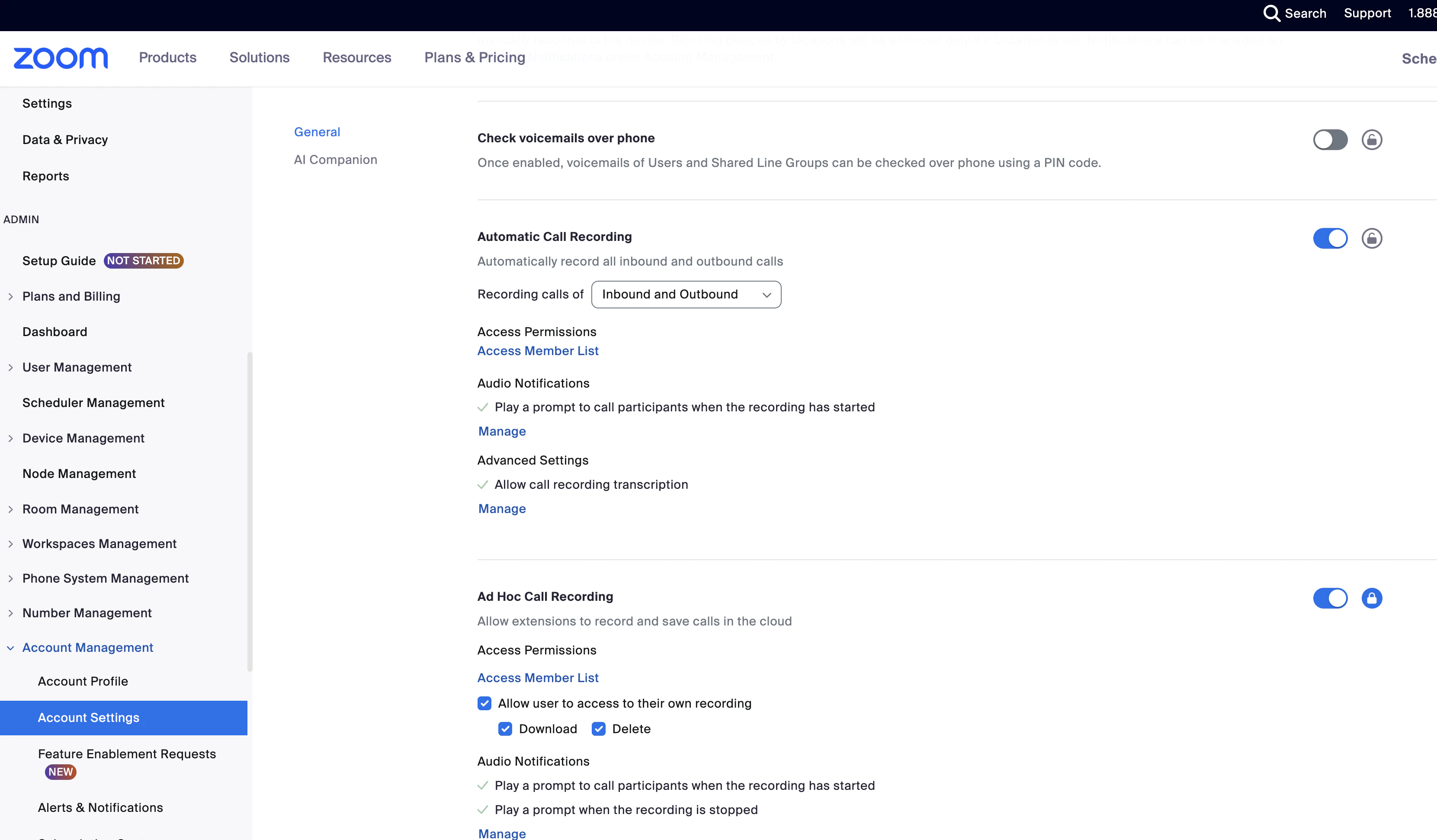
 Scroll to **Automatic Call Recording → Access Permissions**:
 Select **Access Member List**:
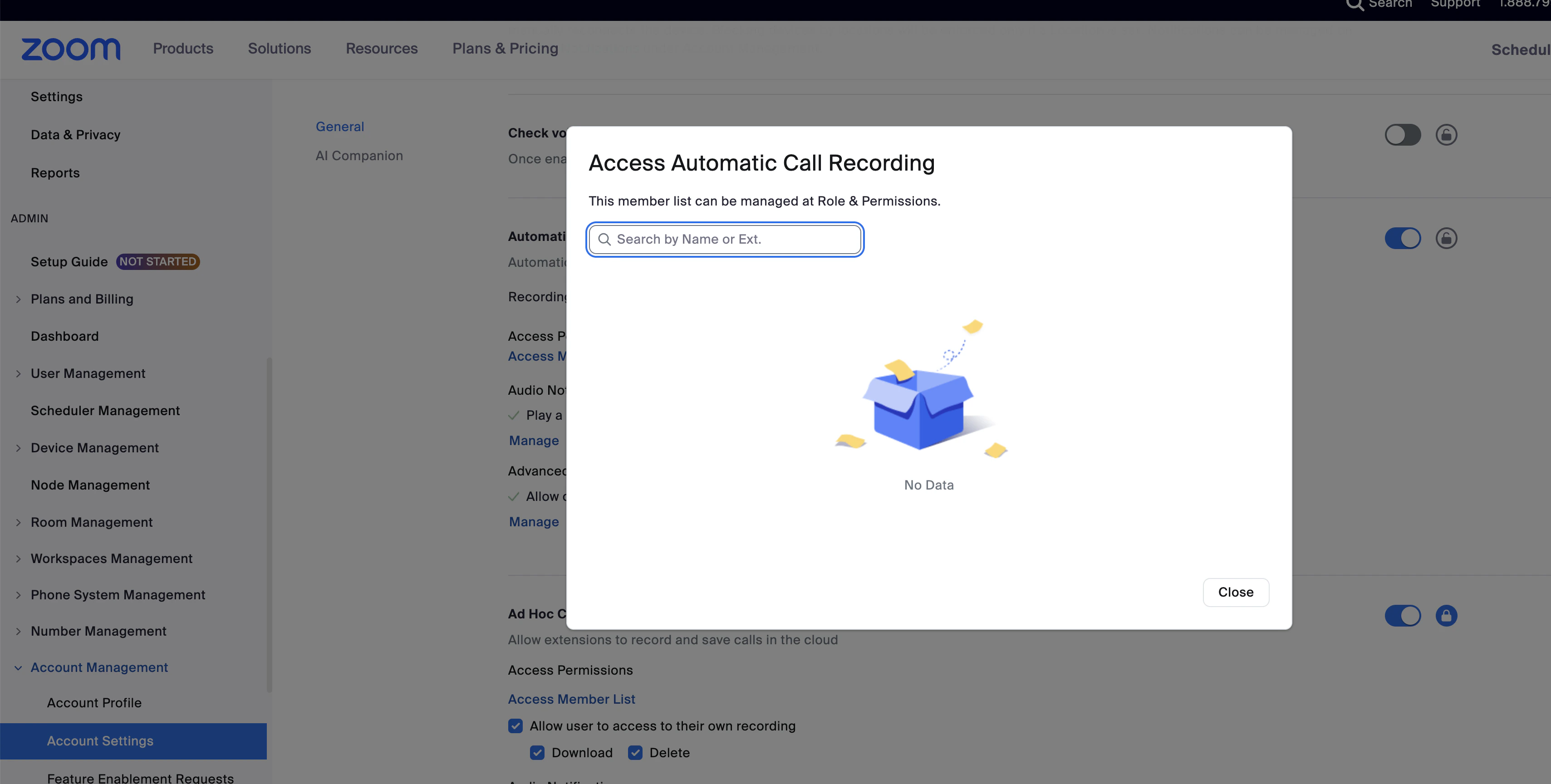 In that list, grant the users who need it **Access**, **Download**, and **Delete** for recordings.
After this, each user should be able to download their own recordings at the **user** level (not only at the admin level).
## 3. Test call
Place a test call using the configured Zoom account. The call must:
1. Include **English** speech of at least **100 words**.
2. Last **more than two minutes**.
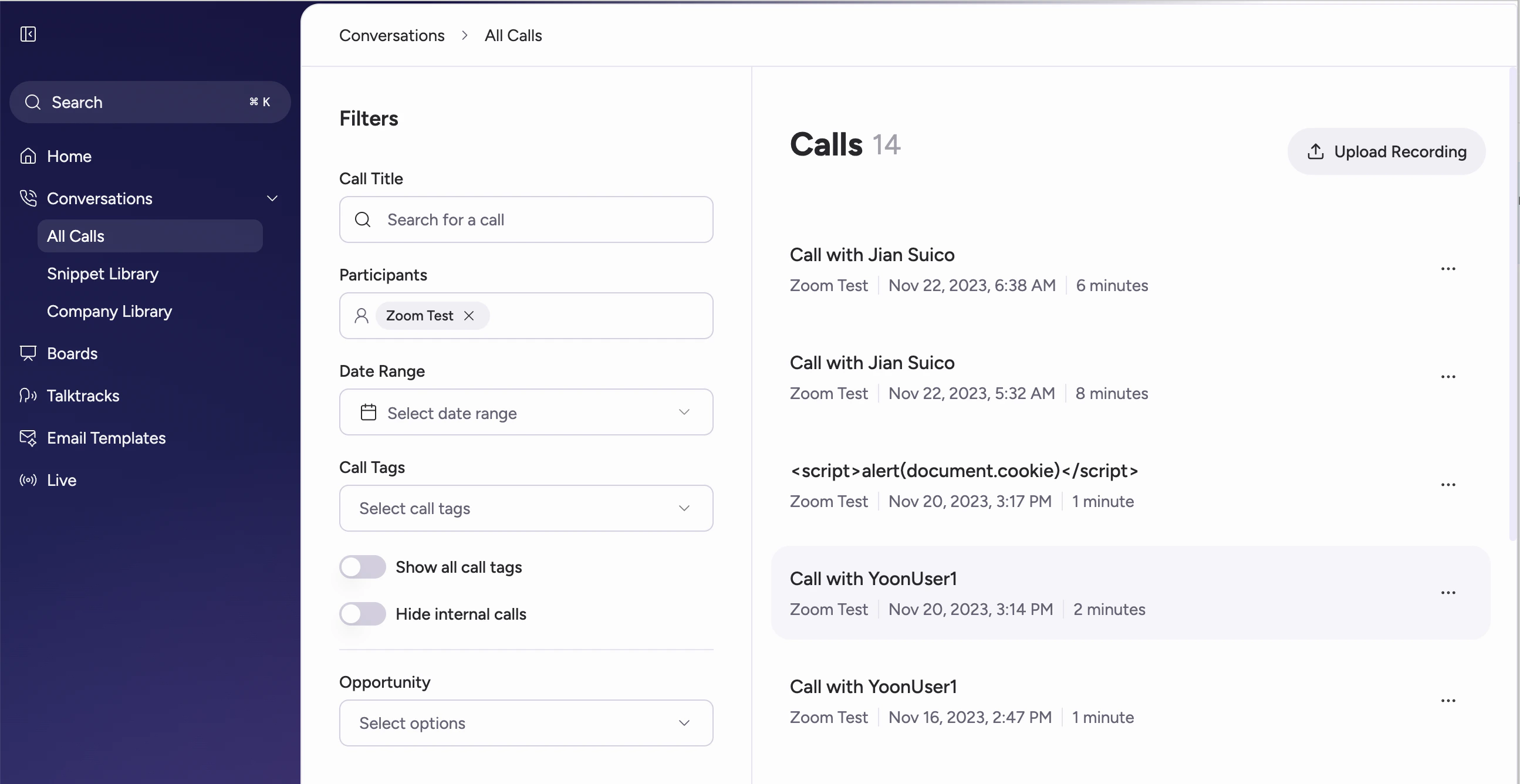
After a few minutes, the call should appear in **All calls** (**Conversations** → **All calls**).
In that list, grant the users who need it **Access**, **Download**, and **Delete** for recordings.
After this, each user should be able to download their own recordings at the **user** level (not only at the admin level).
## 3. Test call
Place a test call using the configured Zoom account. The call must:
1. Include **English** speech of at least **100 words**.
2. Last **more than two minutes**.
After a few minutes, the call should appear in **All calls** (**Conversations** → **All calls**).
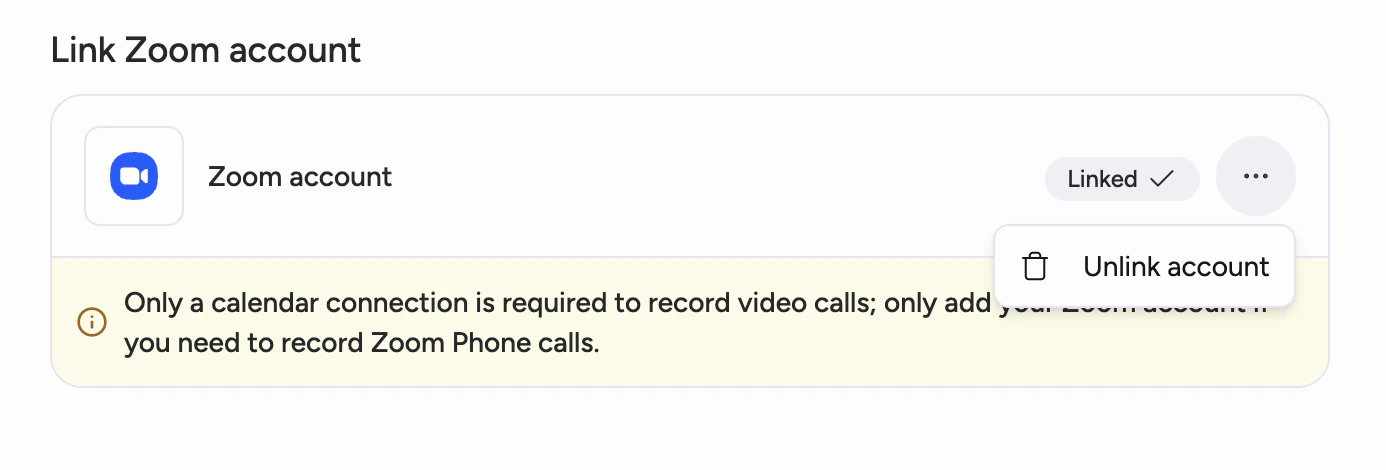
 **If you want to stop the Zoom Phone integration:** Open **Personal settings** (**Settings** in the user menu → **Personal settings**), find **Link Zoom account**, open the **three dots** menu, and follow the steps to **unlink** your Zoom account from the Attention app.
 Need help? Contact [support@attention.com](mailto:support@attention.com) or your Attention account manager.