

1. Open the Insights tab
Open a call in Attention and click the Insights tab next to the recording.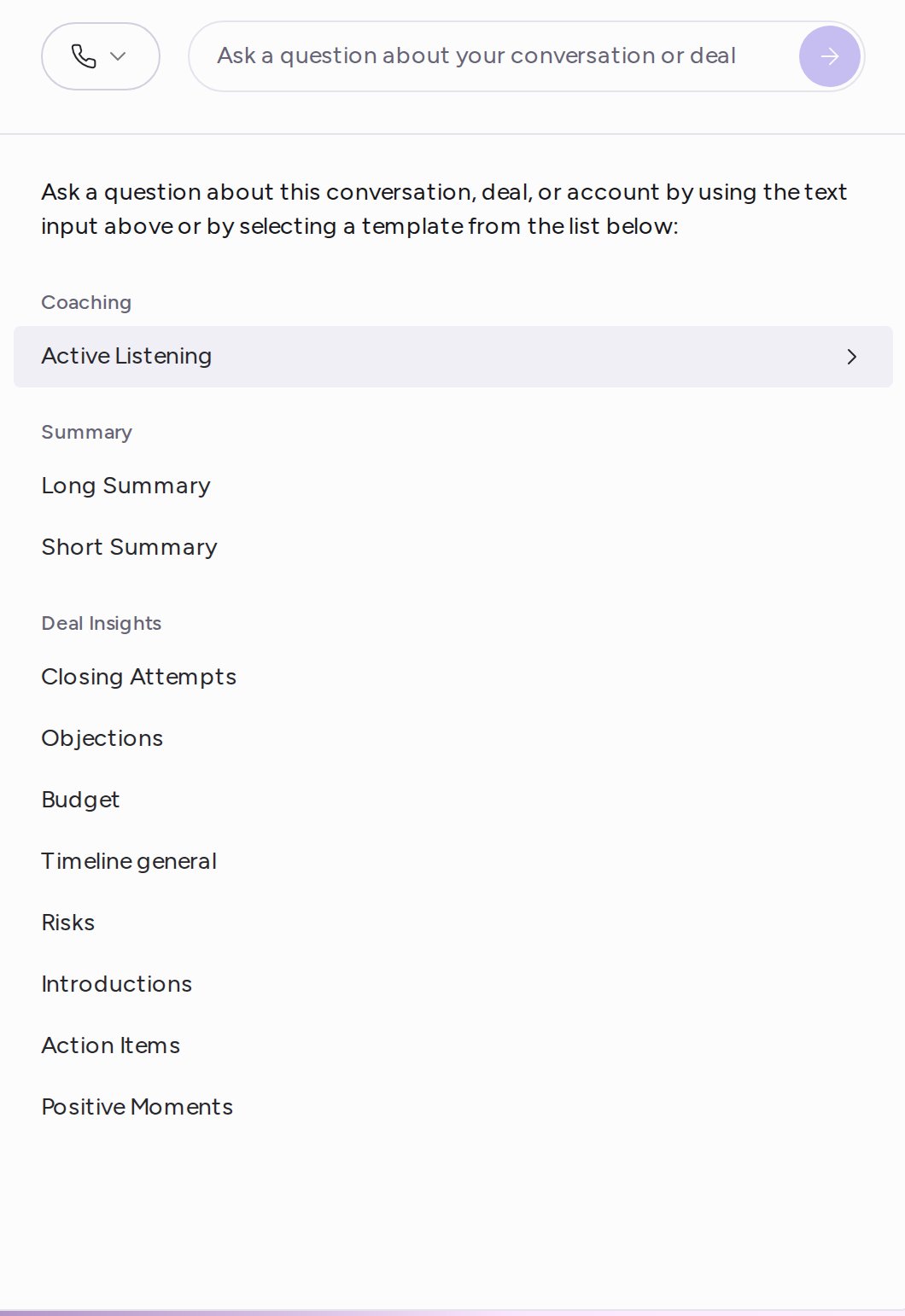
2. Choose what to ask about
The icon button to the left of the question box sets what your question is about:- Call (the default): the answer is based on this call.
- Deal: the answer is based on the deal this call belongs to.
3. Run a template or ask your own question
With Call selected, pick a template from the list, or click the question box to open the same list. Templates are grouped as follows:
To ask something else, type it in the box (Ask a question about your conversation or deal), then press Enter or click the arrow. For example: “What did the prospect say about their current vendor?”
The answer appears as a card in the tab, with its title and scope at the top.
4. Copy, refresh or delete an insight
Each card has three icons in its top-right corner:- Copy to clipboard: copies the title and answer, ready to paste into an email or CRM note.
- Refresh: generates the answer again.
- Delete: removes the insight after you confirm in the Delete insight dialog.
Use cases
- Run Short Summary right after a call to share a recap with your team.
- Run Objections and Risks before a deal review.
- Switch to Deal and ask what is blocking the deal.
- Combine an insight with a snippet to share the summary and the moment it came from.