

You must be an Attention Admin to be able to manage CRM integrations, including Salesforce.Likewise, you must be a Salesforce Admin or have equivalent privileges to be able to add the Attention integration to Salesforce.
Walkthrough
To enable the Attention - Salesforce integration:- Click on your name on the top left corner.
- Select ⚙️ Settings from the dropdown.
- In the Settings page, select Integrations on the left sidebar.
- Select ➕ Add integration on the top right corner.
- Select Salesforce in the New Integration pop-up.
- A new tab will open, prompting you for your Salesforce domain (e.g.
my-organization.my). Select Continue when you’ve done so. - You will be taken automatically to Salesforce, where the OAuth flow will start.
- Log into Salesforce when prompted.
- When prompted to allow access to Attention SFDC Integration, select Allow.
Required Salesforce access scopes
Attention requires the following authorization scopes to be able to establish 2-way sync with your Salesforce instance.Required Salesforce user permissions
Attention’s permissions are limited by the authenticated Salesforce user’s actual permissions, even if broader access scopes are configured. TwoAdministrative Permissions are required by Attention:
- API Enabled
- Customize Application
- Modify All Data
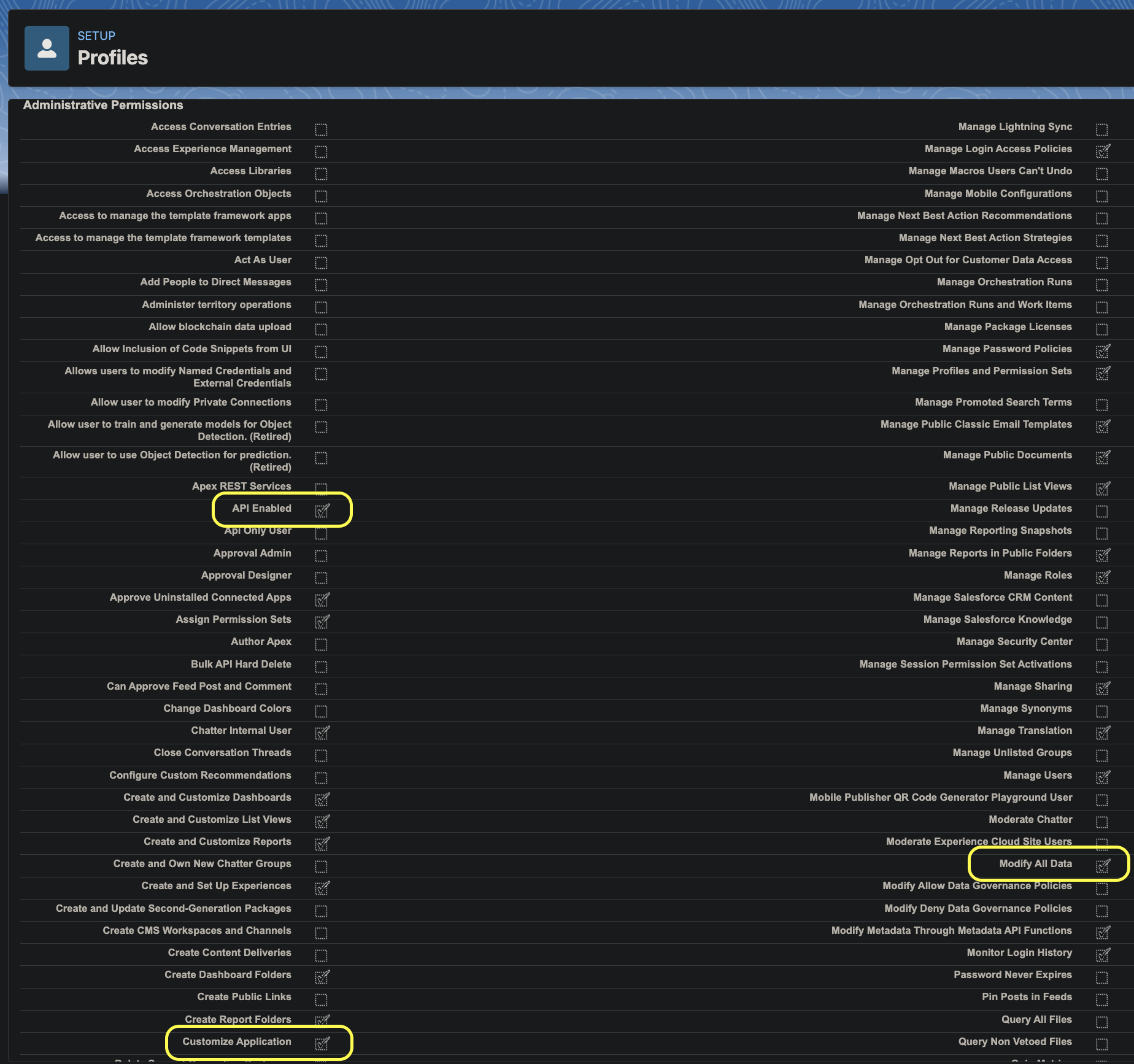
- Navigate to your Salesforce instance page.
- In the ADMINISTRATION section on the left menu, click on the Users accordion to expand the available options.
- Select Profiles.
- Choose your profile from the list.
- In the Administrative Permissions section, look for API Enabled, Customize Application and Modify All Data.
- Check the boxes on the right side of each permission to enable them.