

What is the Desktop App?
By default, Attention joins your meetings with a notetaker bot that appears as a participant. The Attention Desktop App is an alternative: it records meetings directly from your computer, so no bot joins the call. The app runs quietly in the background and:- Detects when a meeting starts on your computer (Zoom, Google Meet, Microsoft Teams desktop app).
- Asks you whether to record — recording never starts silently, and a visible indicator is shown while it’s active.
- Captures the meeting audio/video and your microphone, then uploads the recording securely to Attention for your transcript and AI notes — exactly like a bot-recorded call.
Download & Install
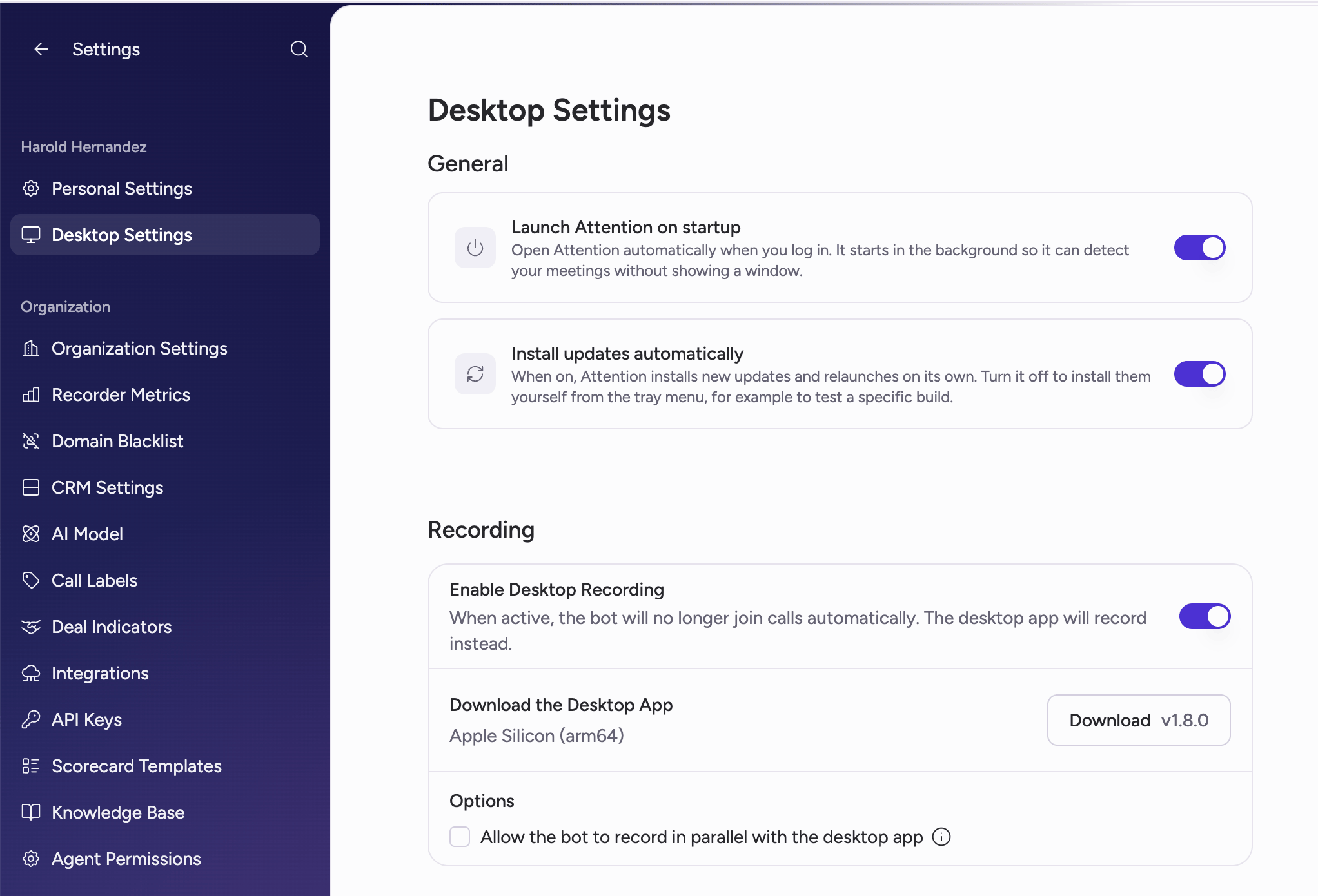
- In the Attention web app, go to Settings → Desktop Settings.
- Turn on Enable Desktop Recording. The download section appears below the toggle.
- Under Download the Desktop App, click Download to get the latest version (currently for macOS on Apple Silicon).
- Open the downloaded
.dmgfile and drag Attention into your Applications folder. - Launch the app and sign in with your Attention account.
The desktop app is signed and notarized by Apple, so macOS will open it
without any security warnings.
If you use Zoom: quit and reopen Zoom once after installing the desktop
app — the app will remind you if it’s needed. This one-time restart is
required for Zoom meeting detection to work.
macOS Permissions
The first time you run the app, macOS asks you to grant a few permissions. Each one is needed for a specific part of meeting recording:
If you accidentally deny a permission, you can grant it later in System Settings → Privacy & Security, under the matching section (Microphone, Screen Recording, Accessibility, or Full Disk Access). The app will also guide you there from its permission checklist.
Desktop Settings Explained
All desktop app options live in Settings → Desktop Settings.General
Launch Attention on startup Opens Attention automatically when you log in to your computer. It starts in the background — no window pops up — so it can detect your meetings from the moment your day starts. We recommend keeping this on; if it’s off and the app isn’t running, meetings won’t be detected or recorded. Install updates automatically When on, Attention downloads new versions, installs them, and relaunches on its own — you always have the latest version without doing anything. Turn it off only if you want to control when updates happen (you can then install them yourself from the tray menu, for example to test a specific build).Recording
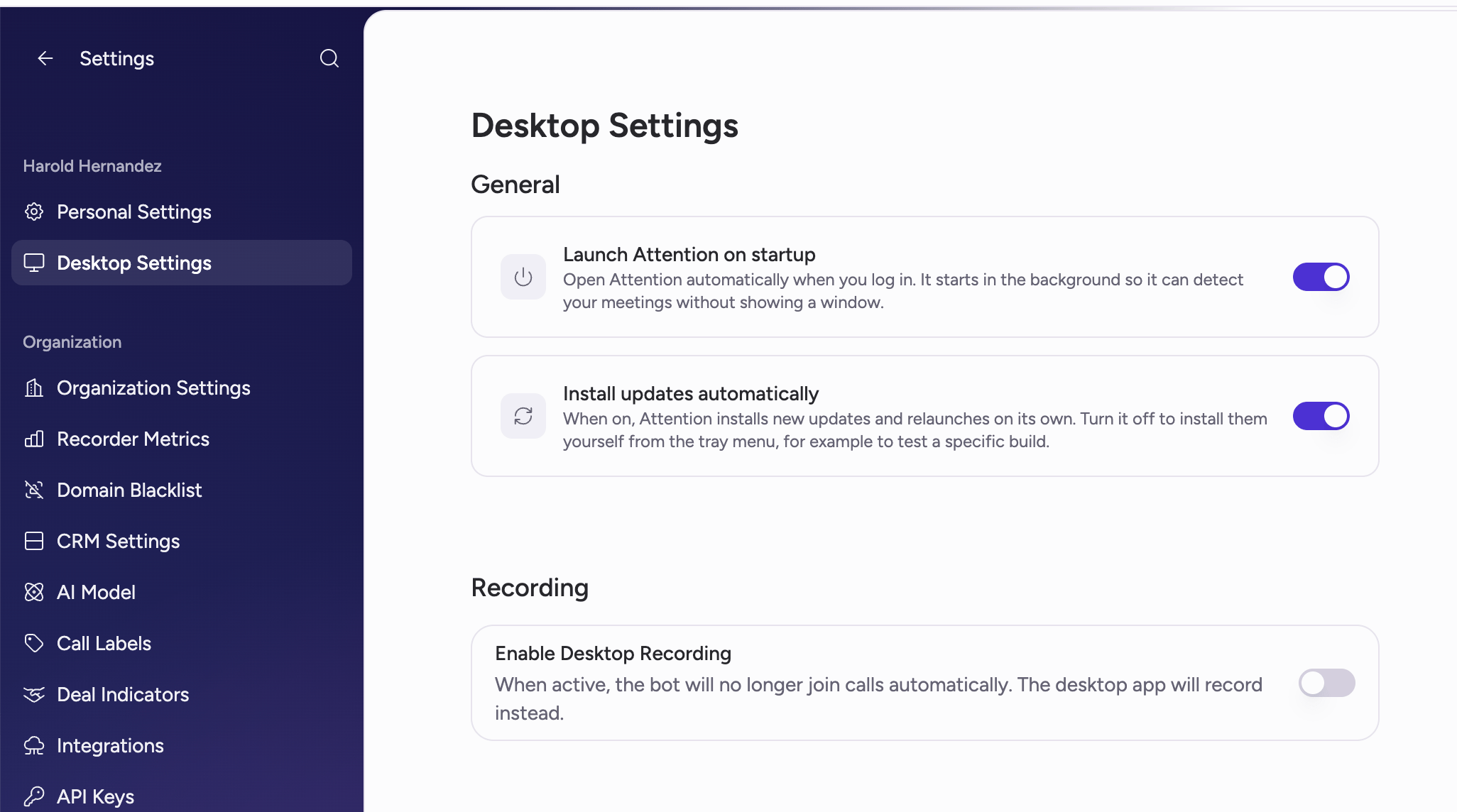
Enable Desktop Recording This is the master switch that changes how your meetings are recorded:- On — the notetaker bot no longer joins your calls automatically. The desktop app records them from your computer instead.
- Off — the bot keeps joining your meetings as usual, and the desktop app does not record.
High-quality Meeting Capture
By default the app records a meeting by capturing the meeting window on your Mac — the same pixels and audio you see and hear. High-quality meeting capture records the same meeting a different way: Attention connects to the meeting as a companion device and receives the audio and video directly from the meeting platform. Nothing is captured from your screen. The result is a cleaner recording — full-resolution video, per-participant audio, and no quality loss from your Mac being busy — but it comes with one visible trade-off, covered next.This is an option, not a replacement. It applies only to Microsoft Teams
and Google Meet. Zoom, Slack, and anything else keep using the standard
desktop recording, and any call that cannot use high-quality capture falls
back to it automatically.
What other people see
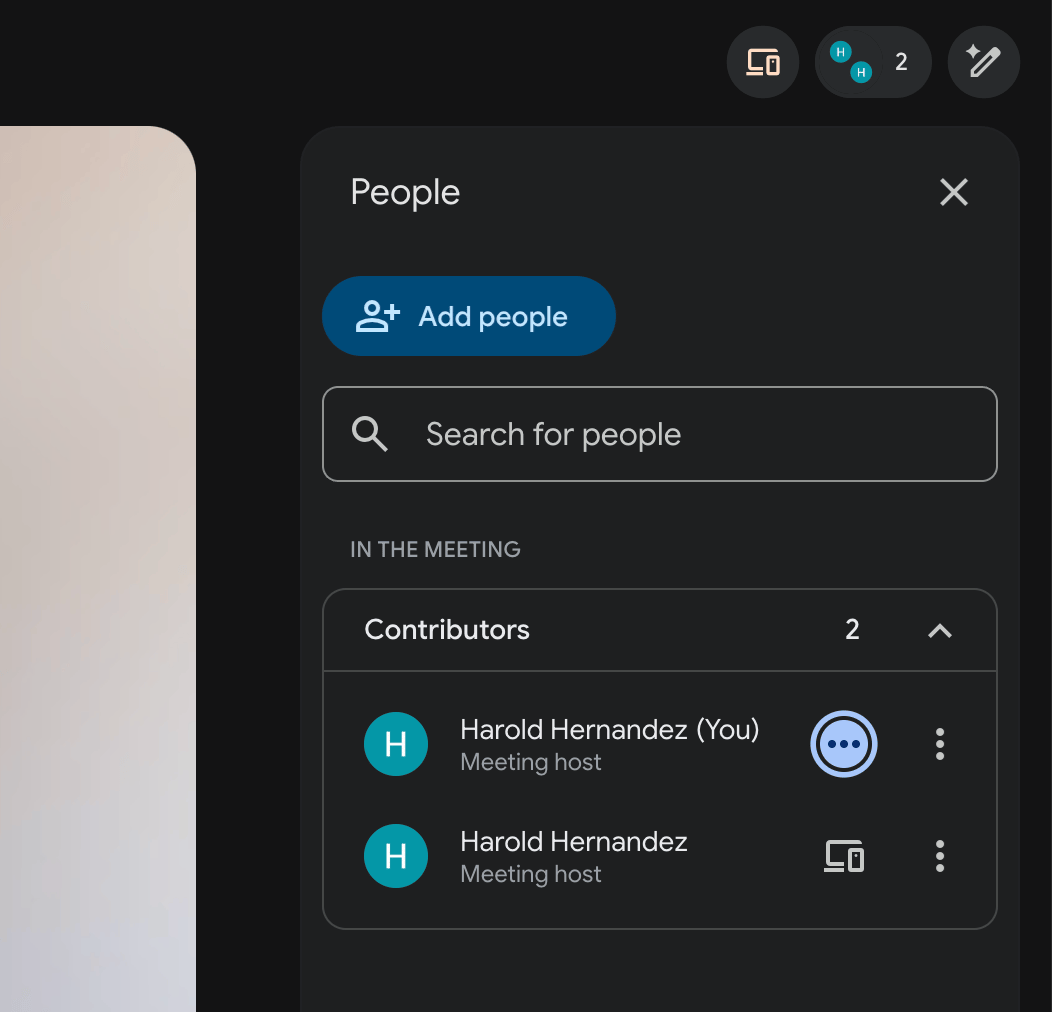
Google Meet. Because Attention joins as a companion device, an extra participant appears in the call carrying your own name. Google Meet announces it to everyone:
Requirements
Full Disk Access is still required. High-quality capture does not remove
that requirement: every call that falls back to the standard recording —
including all your Zoom calls — still needs it for Teams and Safari meeting
URLs. Keep it enabled.
Turning it on
- Go to Settings → Desktop Settings.
- Under Recording Mode, turn on High-quality meeting capture.
- Two rows appear, one per platform. Click Set up on each one you want.
- Approve the macOS Automation prompt when it appears.
- Let Teams or your browser restart when asked. Do this before a call, not during one — Attention will refuse to restart your browser while you are in a Meet call.
The default browser rule for Google Meet
Attention can only set up high-quality capture for your default browser, and the permission belongs to that browser specifically. Three consequences worth knowing:- A Meet call opened in another browser is recorded in low quality. If Chrome is your default and you open a Meet link in Arc, that call falls back to the standard recording. Nothing appears in the call, and the recording still works — it just is not high quality.
- If you change your default browser, set it up again. The permission does not follow you. Attention notices and shows Set up again on the Meet row.
- If your default is not supported (Safari, for example), the row tells you so and no setup is possible until you change it.
Differences at a glance
Once high-quality capture is on, the Recording quality setting is renamed
Recording quality fallback — it now applies only to the calls that still
use the standard recording, such as Zoom.
When a call falls back to standard recording
A call is recorded the standard way, with no warning in the meeting, whenever:- The meeting is Zoom or Slack — high-quality capture covers Teams and Meet only.
- The Meet call was opened in Safari, which records normally but cannot use high-quality capture.
- The Meet call was opened in a browser that is not your default.
- The Automation permission for that platform is not granted, or Teams or your browser has not been restarted since setup.
- The Teams desktop app is not installed.
- The call started before setup finished — the capture method is chosen when recording begins and does not change mid-call.
If high-quality capture isn’t working
- The Recording Mode section is missing. Your Mac does not meet the requirements — most often an Intel Mac or macOS 12 or earlier. The section is hidden rather than shown as broken.
- The Google Meet row says your default browser is not supported. Set Chrome, Arc, Brave, Comet, or Dia as your default in System Settings → Desktop & Dock → Default web browser, then run setup again.
- The Microsoft Teams row says Teams was not found. Attention looks for the Teams desktop app. Install it, then click Check again.
- A row says the permission was denied. Click Check again first — Attention re-verifies before sending you anywhere. If it is genuinely denied, macOS will not ask a second time, so enable Attention manually in System Settings → Privacy & Security → Automation.
- Setup will not run during a call. It restarts Teams or your browser, which would drop the call you are in. Leave the call and try again.
- It is on, but calls are still recorded in standard quality. Check that both rows show a green check. If they do and calls still fall back, high-quality capture may not be enabled for your workspace yet — contact Attention support.
Desktop Recording & Your Calendar
Desktop recording works together with your linked calendar. If a calendar event has the Join check activated, and you join the meeting link of the event on time, the expected behavior is:- The bot does not join the call.
- The desktop app starts recording automatically.
- The title of the conversation is taken from the calendar event.
- Opportunity matching assigns the deal/opportunity from the event to the conversation.
- The CRM export runs to HubSpot/Salesforce, exactly as it does for bot-recorded calls.
- “On time” means you open the meeting link up to 10 minutes before the event starts, or at any point while the event is in progress. Outside that window, the meeting won’t be matched to the event.
- The meeting is matched to the event by its meeting link, so make sure you join using the link from the calendar event.
- The event must have Join enabled for the meeting to be matched — if you’ve told Attention not to join an event, the desktop recording won’t be linked to it.
- If you checked Allow the bot to record in parallel with the desktop app, the bot still joins as usual and behavior 1 does not apply.
- If no calendar event matches (ad-hoc meeting, Join disabled, or outside the time window), the meeting can still be recorded, but the conversation keeps the meeting’s own title and no deal/opportunity is assigned automatically.
Consent & Compliance
Because the desktop app records without a bot joining the call, other participants don’t see a notetaker in the participant list. Two mechanisms keep participants informed:- The team-level pre-meeting consent page (configurable per team, for external participants only or everyone) applies to desktop-recorded meetings just like bot-recorded ones. It is shown to participants who join through an Attention meeting link created by the calendar add-on, so it requires meetings to be scheduled with that link.
- Attention can post a chat compliance message directly into the meeting chat when a desktop recording starts.
- The notice is posted automatically in Zoom, Google Meet, and Microsoft Teams as soon as the recording begins — for example: “This call is being recorded and transcribed by [Your Company] using Attention.”
- The message includes your organization’s name.
- It only applies to new recordings — toggling it doesn’t affect recordings already in progress.
- This feature is currently in beta and is activated per organization by Attention — reach out to your Customer Success Manager or support to request it for your workspace.
- Once activated, an org admin can turn it on in Settings → Organization → Chat Compliance with the Chat compliance message toggle.
The chat compliance message is supported in Zoom, Google Meet, and Microsoft
Teams meetings.
Troubleshooting
My meeting wasn’t recorded
Work through this checklist — it covers the causes in order of likelihood:- Was the desktop app running and signed in? The app must be running in the background to detect meetings. Keep Launch Attention on startup enabled so it’s always there. If your session expired, the app shows a sign-in notification.
- Is Enable Desktop Recording on? Check Settings → Desktop Settings.
- Are all permissions granted? Open the app’s permission checklist and verify Microphone, Screen Recording, and Accessibility.
- Zoom: did you restart Zoom once after installing the app? Detection doesn’t work until then.
- Microsoft Teams desktop app or Google Meet in Safari: is Full Disk Access granted? (Teams joined in a browser is not supported — see bullet 7.)
- Expecting automatic recording? It only happens when you join using the meeting link from the calendar event, the event has Join enabled, and you join within the window (up to 10 minutes before the start, or while in progress). Otherwise you’ll only get the manual recording prompt.
- Is the platform supported? On Mac: Zoom (desktop app), Microsoft Teams (desktop app), and Google Meet in Chrome, Safari, or Chromium browsers (Arc, Brave, Comet, Dia) are supported. Google Meet in Edge is not supported on Mac, Microsoft Teams joined in a browser (
teams.microsoft.com) is not supported — you must join from the Teams desktop app, and Slack huddles are captured audio-only. - Was the meeting visible? A minimized meeting window can’t be captured, and a Google Meet tab must stay visible on screen (or in Picture-in-Picture) for video. A general rule: if you can see the meeting, the app can capture it — a window covered by another window is fine, a hidden or minimized one is not.
My recording didn’t upload or is incomplete
- Network loss ends the recording. If your connection drops mid-call, the recording stops and is not restarted automatically — the app notifies you, and you can start recording again once you’re back online. Offline recording is not supported.
- Keep the app running until the upload finishes. Shutting down the machine right after a call can interrupt the upload.
- Locked screen records audio only, and closing the laptop lid ends the meeting — and with it the recording.
Good to know
- Slack calls are recorded audio-only. Slack huddles are captured without video — you still get the audio, transcript, and AI notes, but there is no video recording.
- Video quality can drop on Google Meet when you switch tabs: Meet’s Picture-in-Picture mode produces smaller, lower-quality video feeds, and the recording reflects that.
- One meeting at a time — the app can’t record two simultaneous meetings on the same machine.
- Speaker labels can be less precise than bot recordings. The bot receives a separate audio stream per participant; the desktop app captures one mixed stream and uses AI to separate voices and infer names, which is inherently less reliable.