

Zoom Phone integration
Attention can record calls made with Zoom Phone associated with the account. Each user’s Zoom account must be associated with the Attention app in the Zoom Marketplace. The user’s Zoom account must be configured to allow call or meeting recording, and the user must have access to download those recordings.1. Link Zoom account
- Open Personal settings (Settings in the user menu → Personal settings), then find Link Zoom account and follow the steps to link your Zoom account with the Attention app in the Zoom Marketplace.
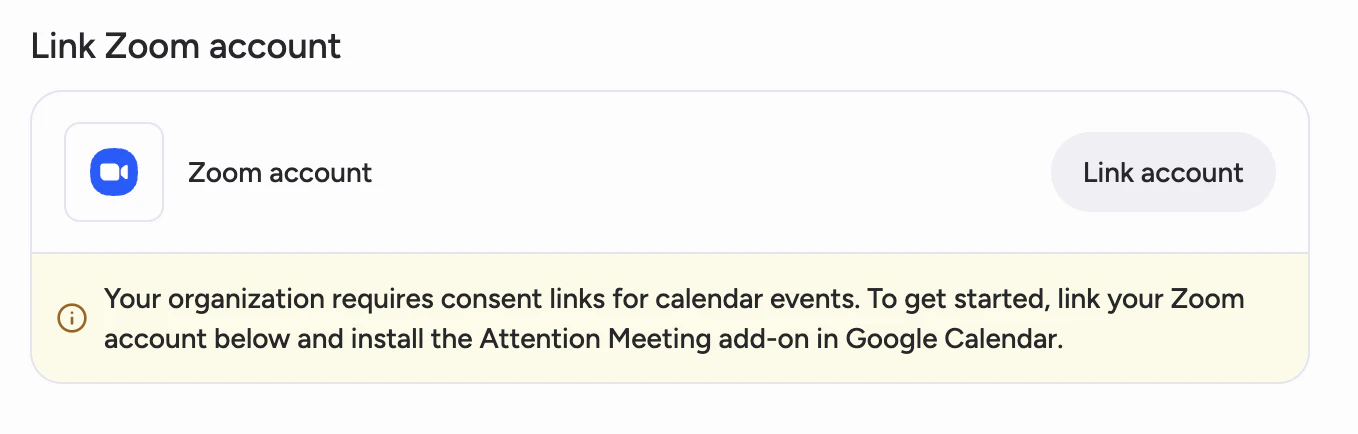
2. Required Zoom account settings (web portal)
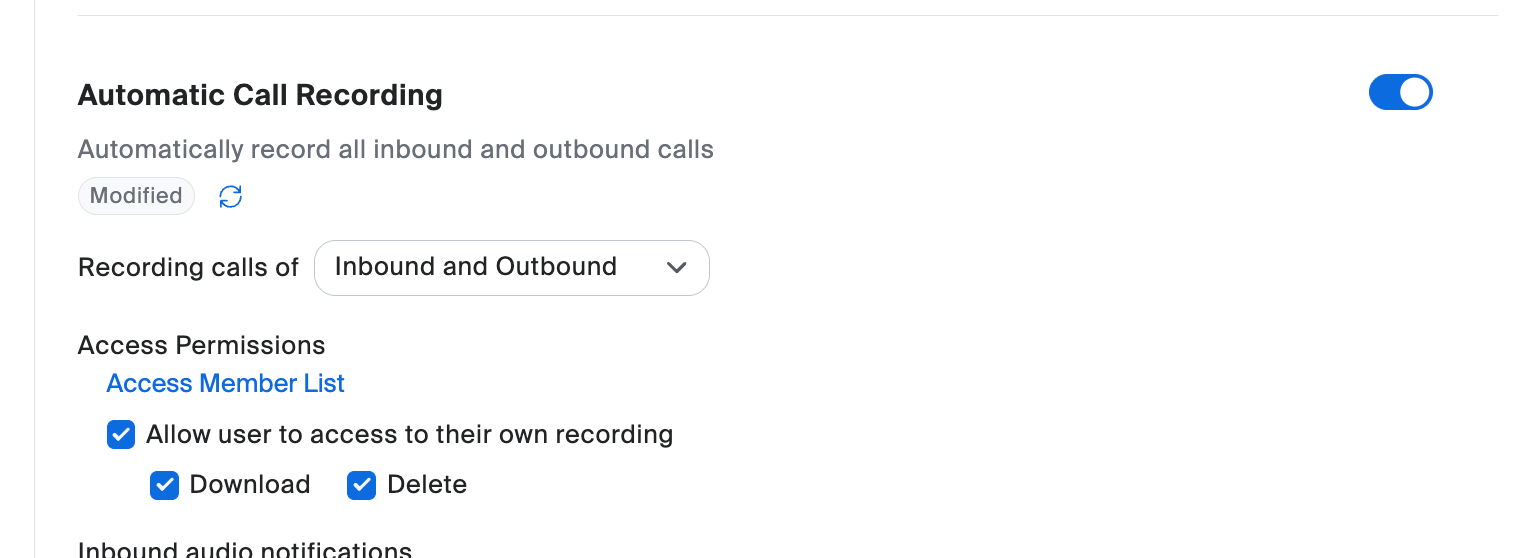
Automatic call recording
In the Zoom admin portal, go to: Admin → Account Management → Account settings → Zoom Phone (tab) → Automatic Call Recording Enable Automatic call recording for the account.Access permissions
Recording access is granted per user, in that user’s Policy tab. A user policy overrides the account default, so this step is required for every user who should be recorded. For each user, go to: Admin → Phone System Management → Users & Rooms → Users (tab) → [user] → Policy (tab)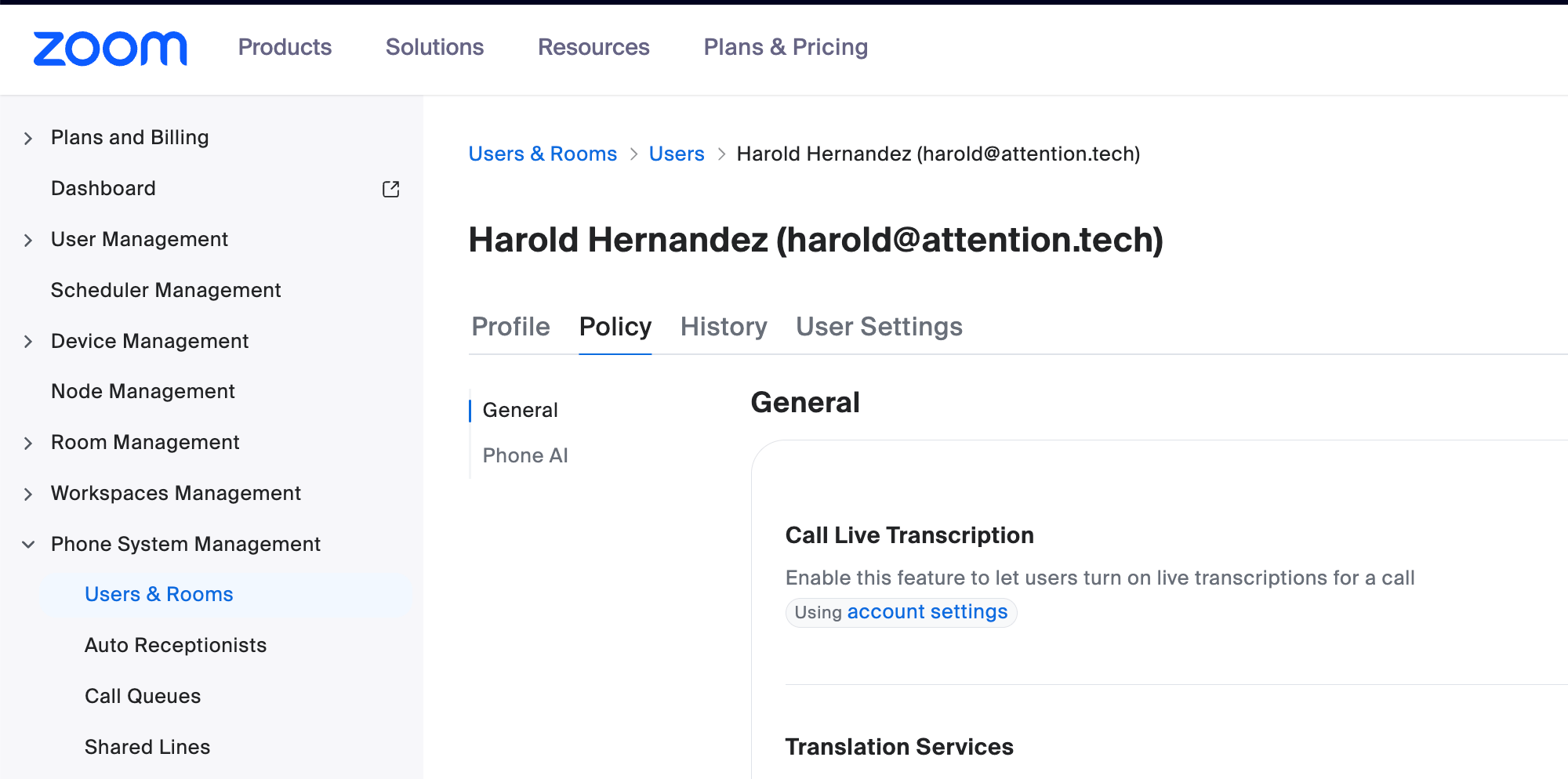
3. Test call
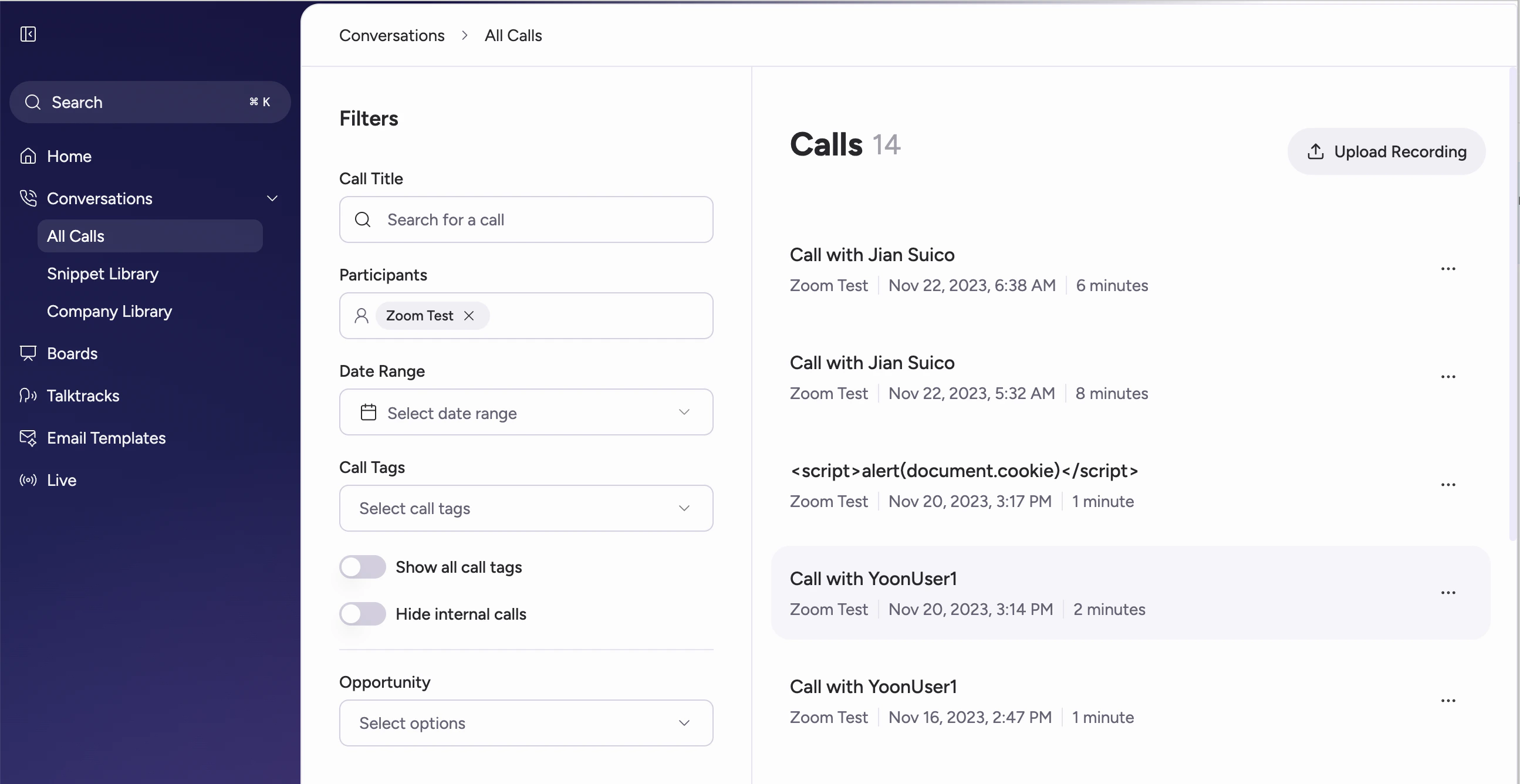
Place a test call using the configured Zoom account. The call must:- Include English speech of at least 100 words.
- Last more than two minutes.
If you want to stop the Zoom Phone integration: Open Personal settings (Settings in the user menu → Personal settings), find Link Zoom account, open the three dots menu, and follow the steps to unlink your Zoom account from the Attention app.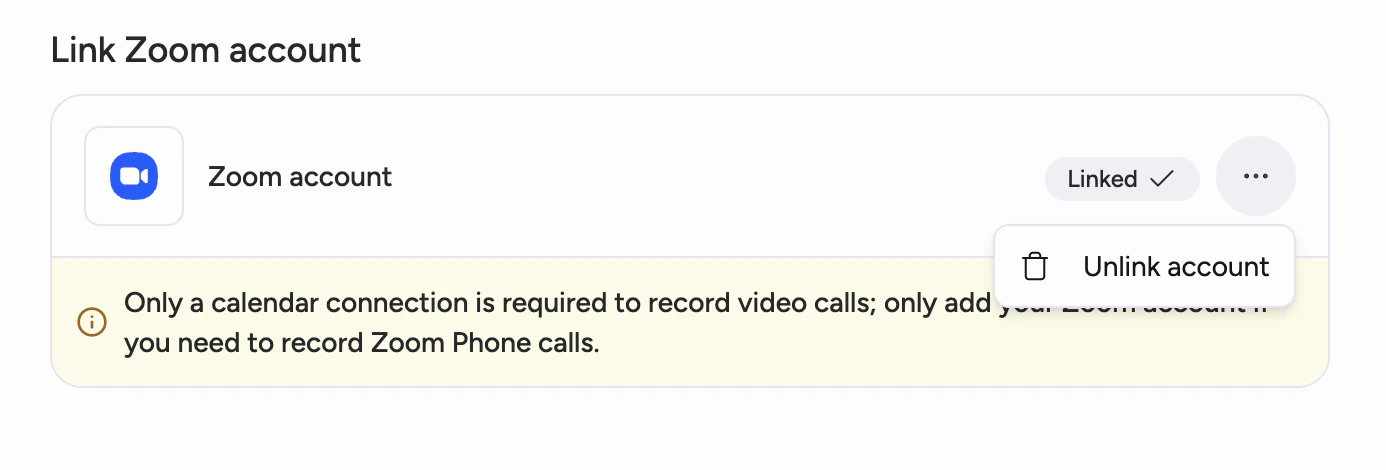
Need help? Contact support@attention.com or your Attention account manager.