1. Open All Calls
Go to Conversations → All Calls. The header shows Calls and the number of calls that match your current filters. More calls load as you scroll.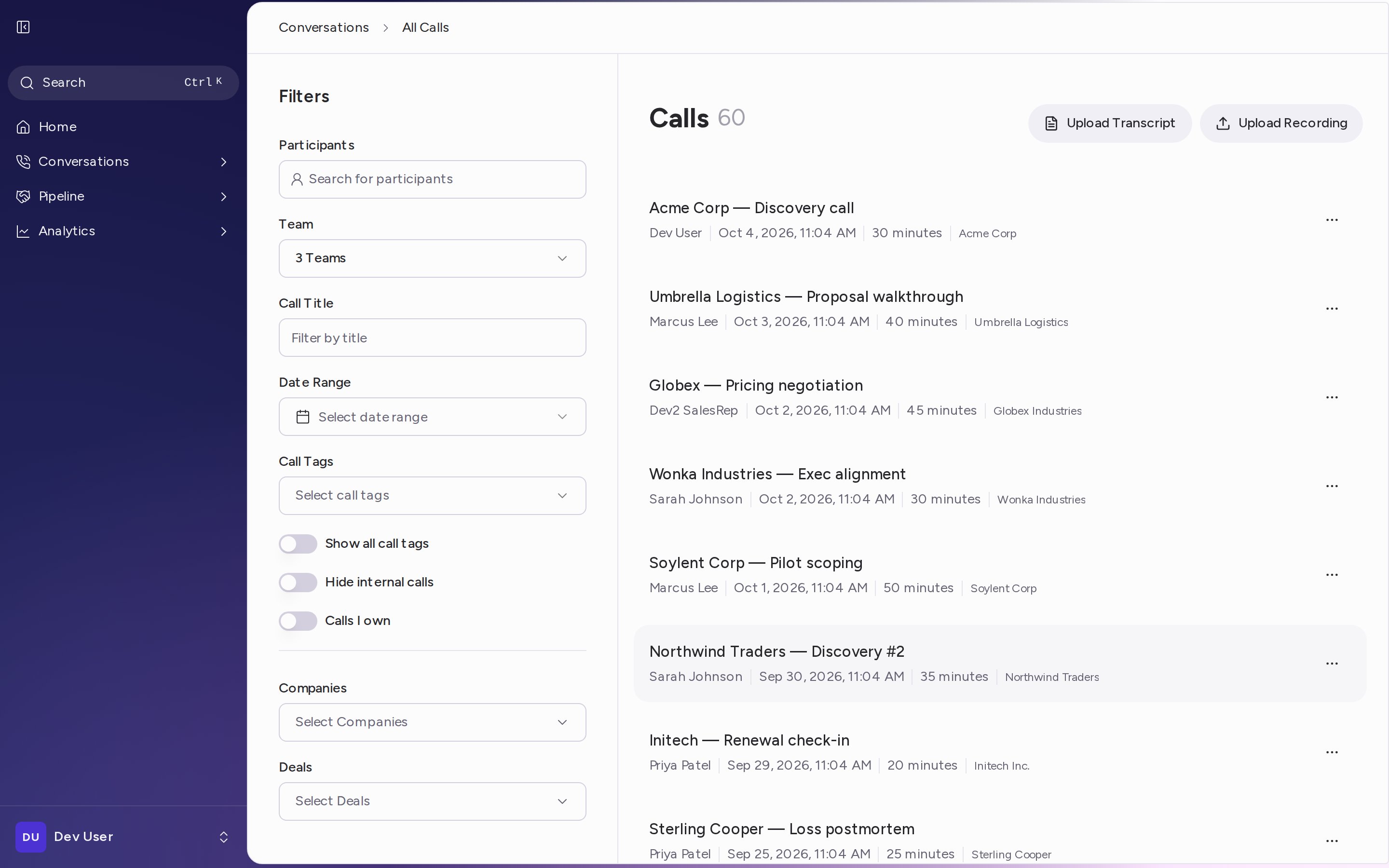
2. Read the list
Each row shows:- The call title.
- The call owner, the date and the duration.
- The linked opportunity, when the call has one.
- The call’s tags. Click more to see every tag on a row.
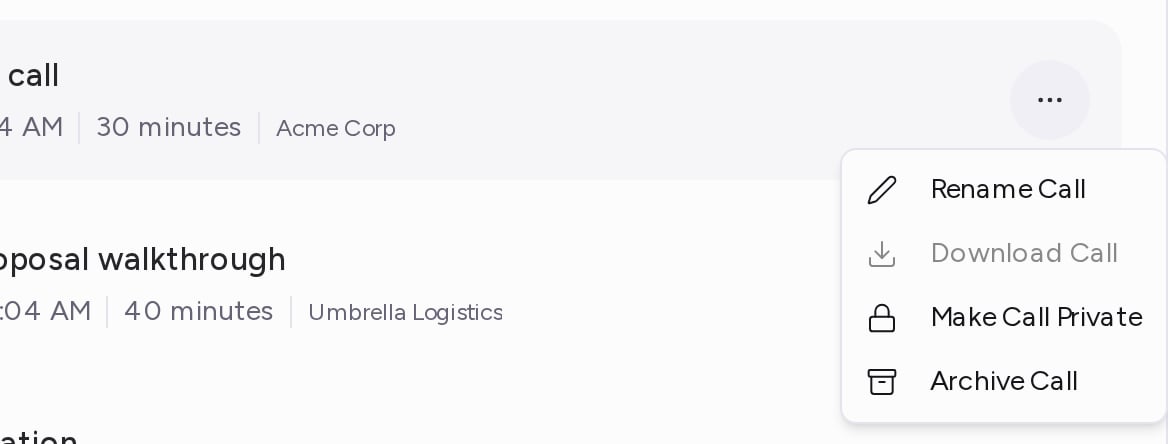
- Private — the owner or an admin made the call private, so other team members can’t view it.
- Internal — everyone on the call is from your organization.
- Transcript Only — the call has a transcript but no recording, for example an uploaded transcript.
3. Filter the list
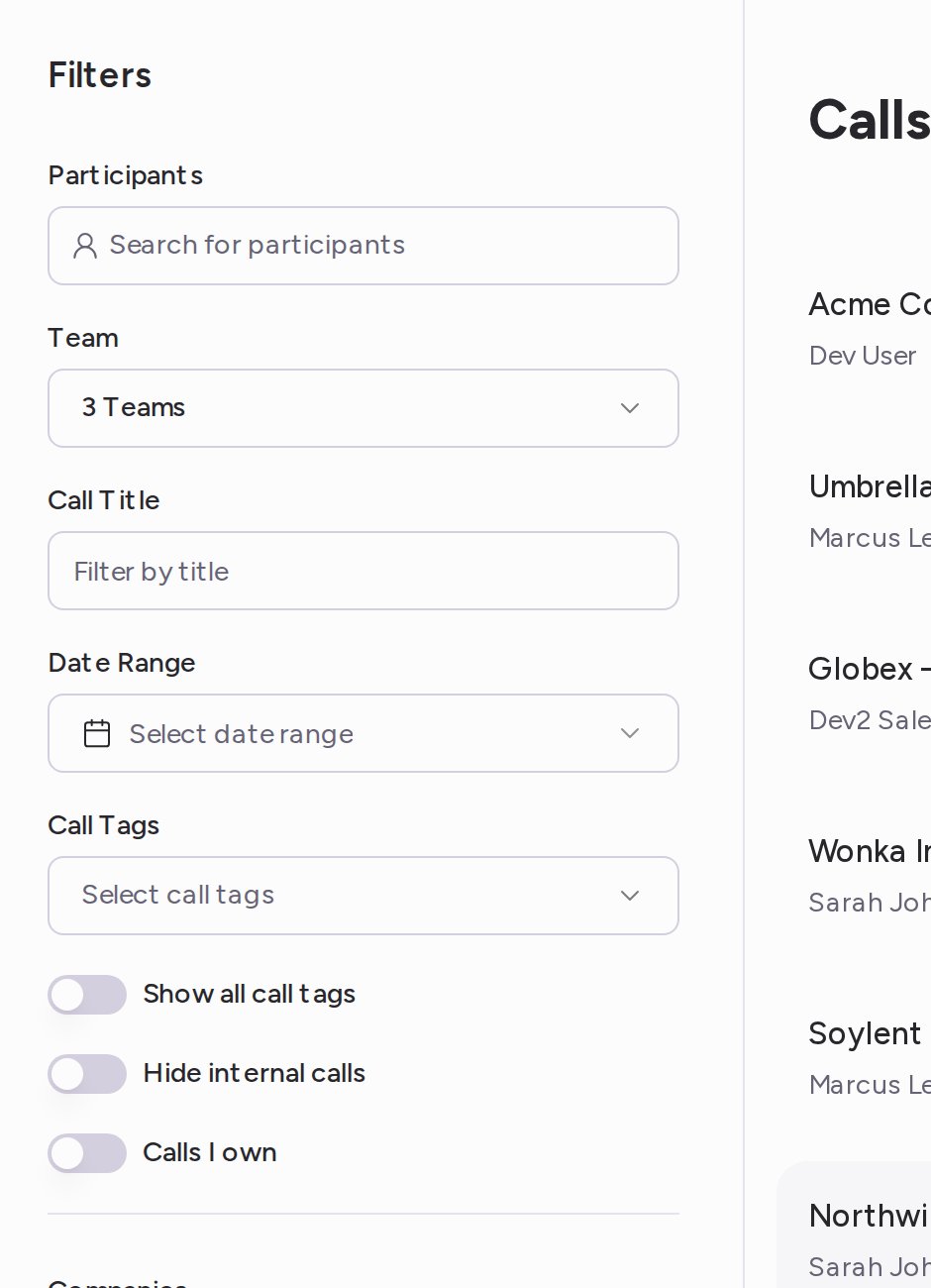
Use the Filters panel on the left. On smaller screens, click Filters above the list to open it.- Participants — pick people from People at my organization or Customers to see calls they joined.
- Team — pick one or more teams. This filter appears when you belong to more than one team.
- Call Title — type words from the call’s title.
- Date Range — choose Today, Yesterday, Past week, This week, This month, Past month or Custom Date Range.
- Call Duration — choose 1 to 5 minutes, 6 to 15 minutes, 16 to 30 minutes or >30 minutes. To set your own range, click Custom range, enter a Minimum (minutes), a Maximum (minutes) or both, and click Apply.
- Call Tags — expand a tag category and check the values you want. Check Not Set to find calls where that tag is empty. Tags come from your call labels.
- Show all call tags — show every tag on each row instead of a shortened list.
- Hide internal calls — leave out calls with only people from your organization.
- Calls I own — show only the calls you own.
Default filters
The list opens with filters already set for you:- Admins and managers see the calls of their primary team and the teams under it.
- Other users see the calls of their primary team, with Participants set to themselves once they’ve been on a call.
4. Save or reset your filters
As soon as you change a filter, two buttons appear at the top of the panel:- Save filters — keep this selection as your default view. The list opens with it next time.
- Reset — go back to your saved view, or to the default filters if you haven’t saved one.
5. Open a call
Click a row to open the call. The call page shows the recording and the transcript, with tabs for the rest of the review:- CRM — the fields Attention filled in for your CRM. See CRM Auto Update.
- Coaching — scorecard results and talk tracks. See Review Scorecards on a Call.
- Insights — the summary and other insights. See Generate Call Insights.
- Snippets — short clips to share. See Share Snippets from a Call.
- Email — a follow-up email drafted from the call. See Send Follow-Up Emails with Templates.
- Comments — notes for your team at a moment in the call. See Leave and Manage Comments.