

1. Open the Knowledge Base
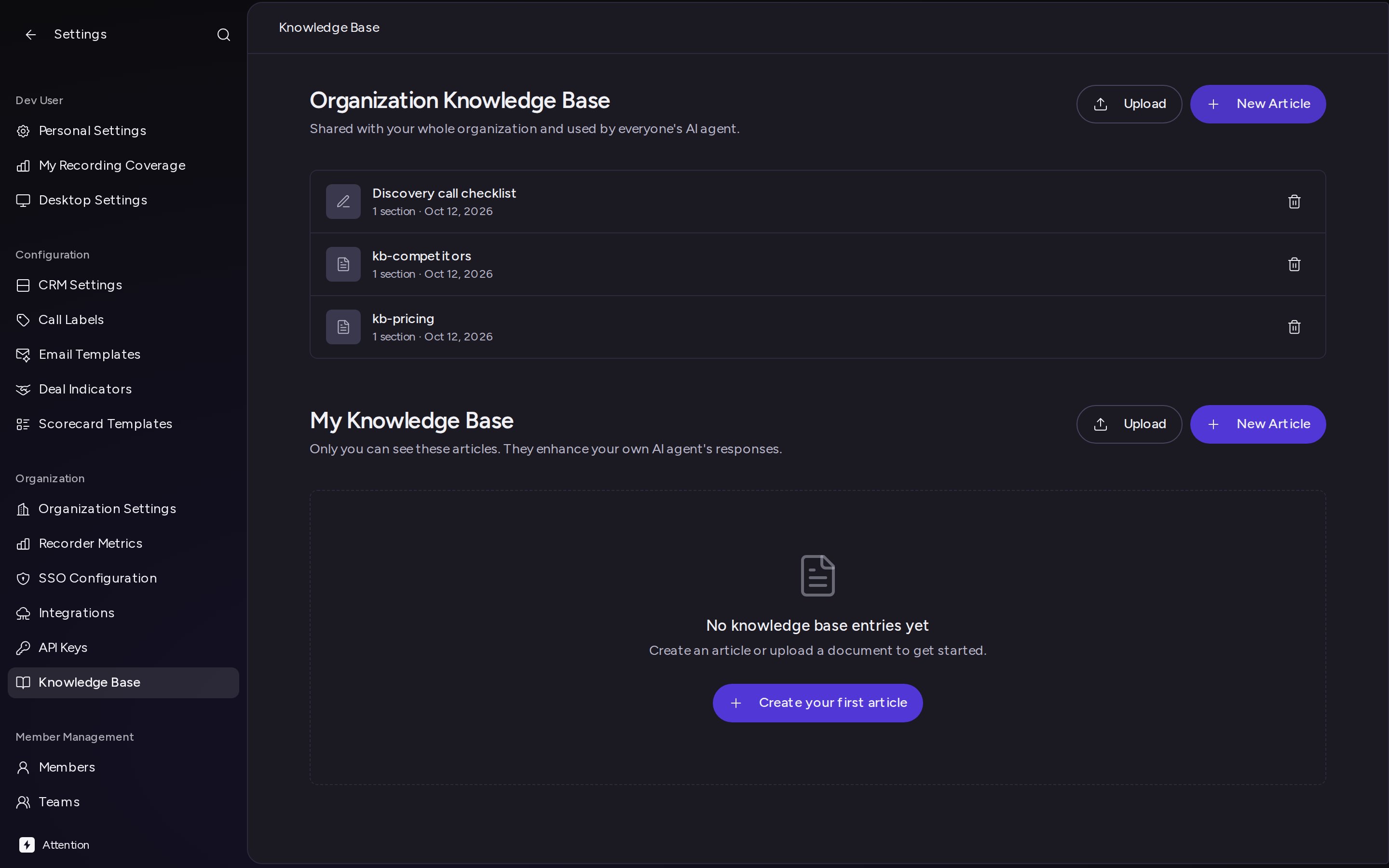
Click your name at the bottom of the sidebar, then Settings, then Knowledge Base. The page has two sections:
Each section has its own Upload and New Article buttons, so what you add goes to the section you add it from.
2. Upload files
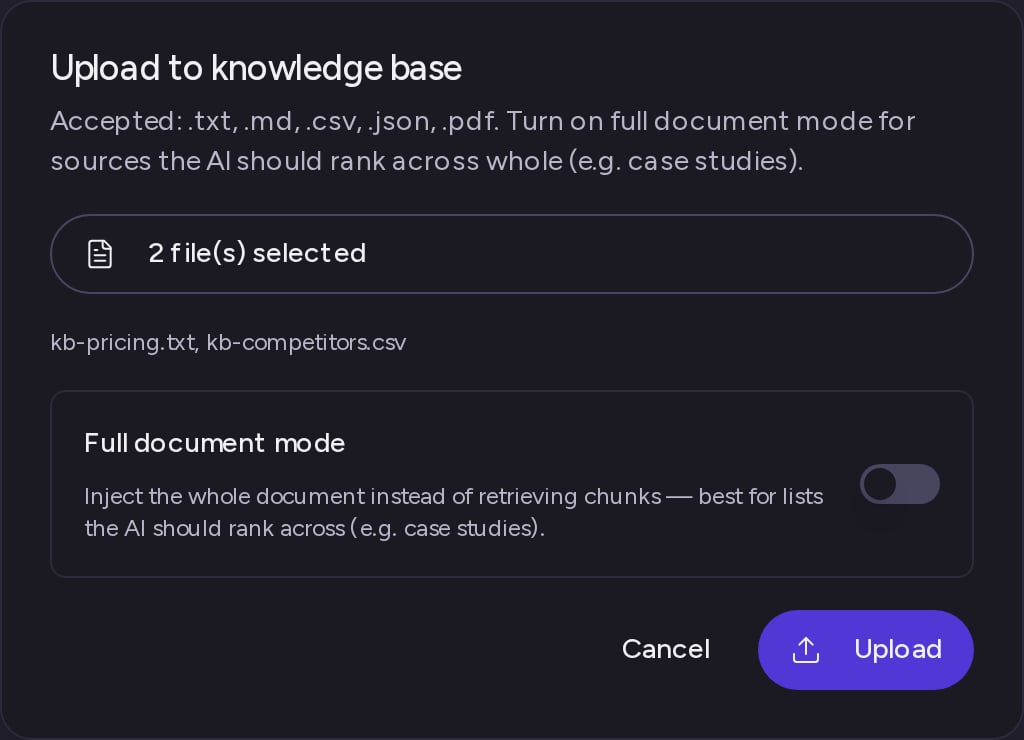
- In the section you want, click Upload. The Upload to knowledge base dialog opens.
- Click Choose files and pick one or more files. Attention accepts
.txt,.md,.csv,.jsonand.pdffiles up to 25 MB each. - Click Upload.
3. Write an article
- In the section you want, click New Article.
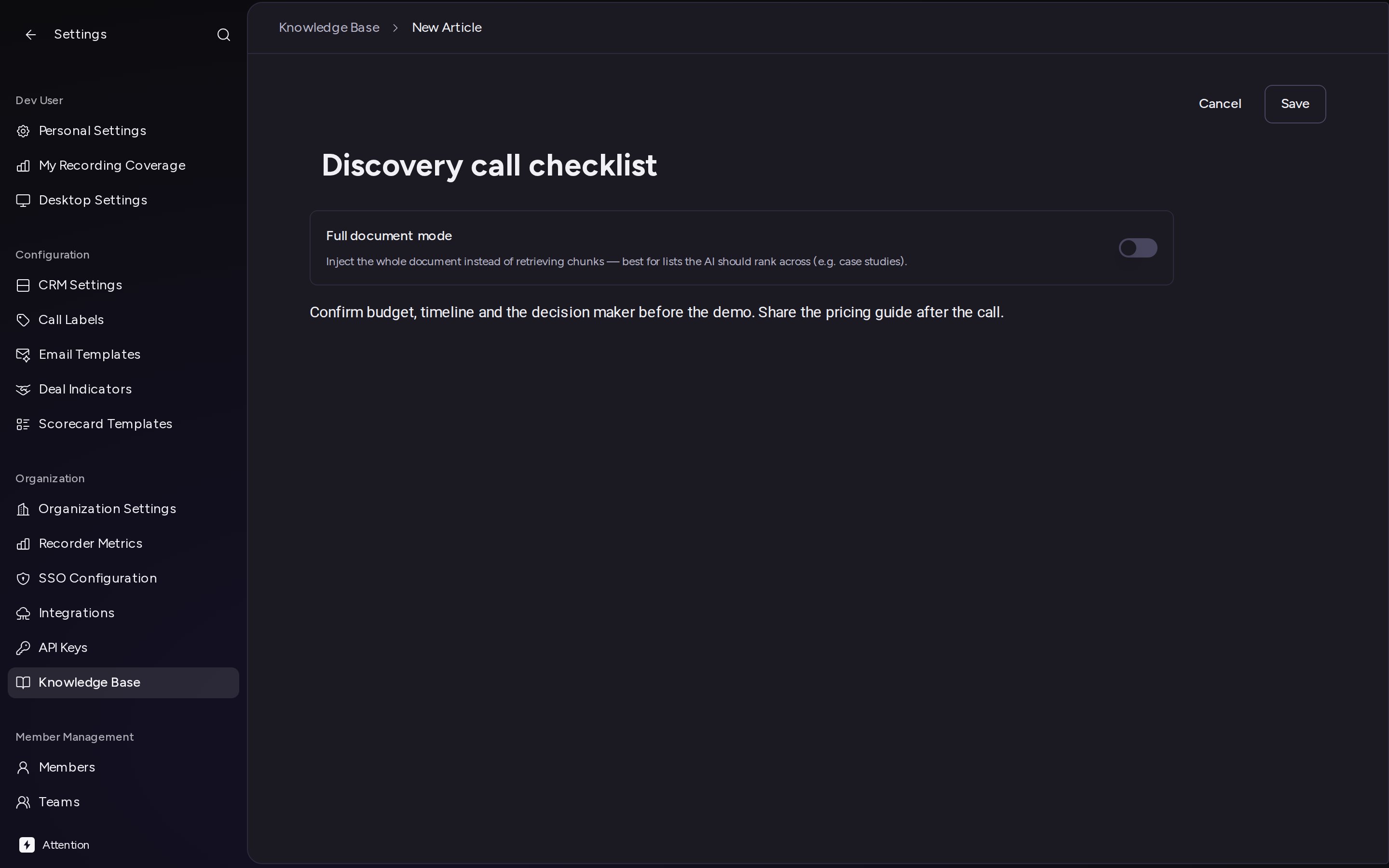
- Type a title where it says Untitled.
- Write the article in the editor below. Press
/to add a heading, a list, a code block, a quote or a divider. Select text to make it bold, italic, struck through, a heading or code. - Click Save.
4. Edit or delete an entry
Click any row to open it:- An article opens in the editor. Change the title or the text, then click Save.
- An uploaded file opens in a preview. To rename it, click the pencil next to the title, type the new name and press Enter. PDFs also have an Open in new tab link. To change the content of a file, delete it and upload the new version.
Troubleshooting
A row shows Indexing failed
A row shows Indexing failed
Attention couldn’t prepare the file. Delete it and upload it again. If it fails again, contact support@attention.com.