

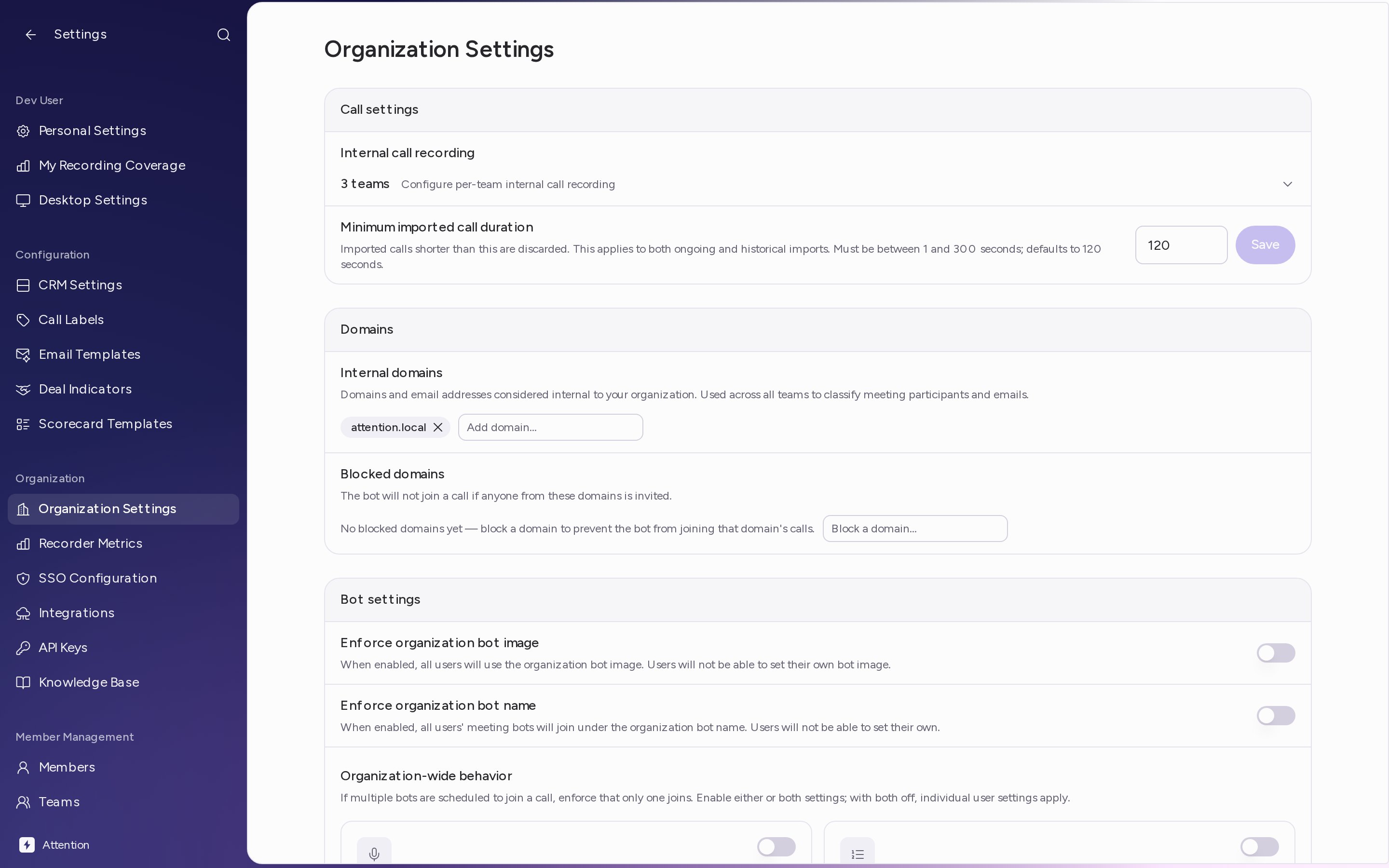
Call settings
Internal call recording
Internal calls are meetings where every participant is from your organization. Each team decides whether Attention records them.- Under Internal call recording, click the row that shows how many teams you have. The list of teams opens.
- For each team, set the two switches:
- Join internal: on by default. Attention records the team’s internal meetings.
- Skip 1:1s: off by default. When it is on, Attention skips one-on-one meetings between teammates. It is available while Join internal is on.
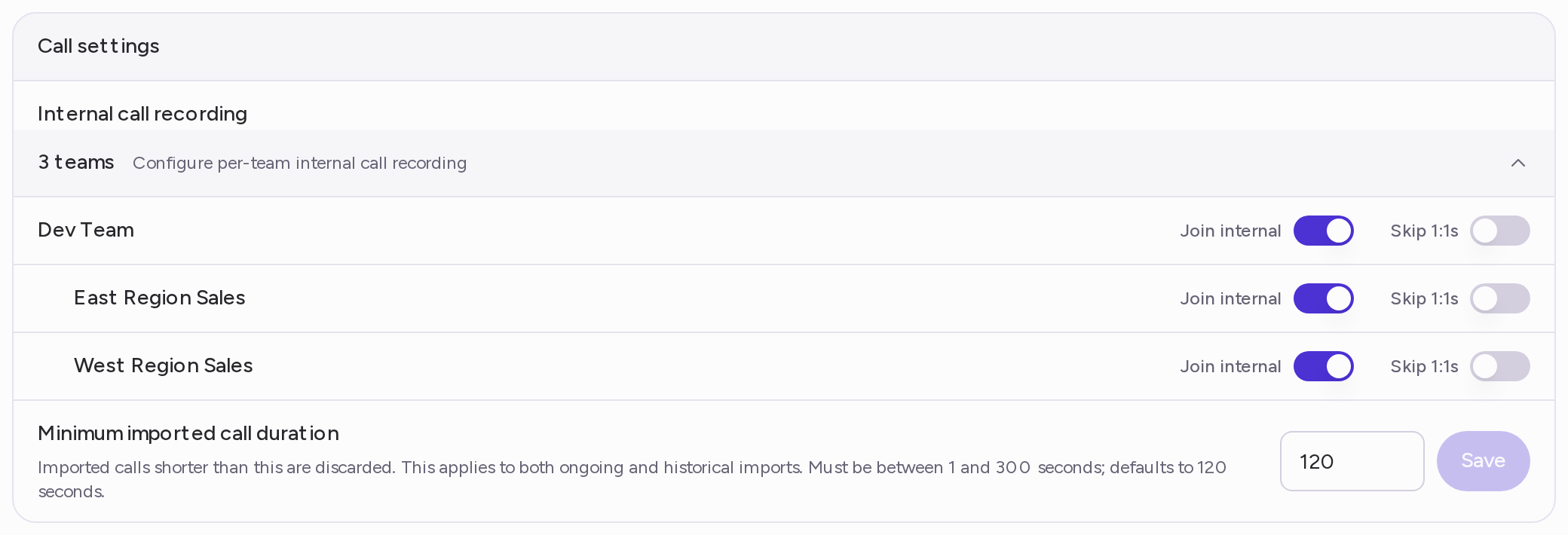
Minimum imported call duration
Calls imported from another tool, such as Gong, are discarded when they are shorter than this value. It applies to ongoing and historical imports.- Under Minimum imported call duration, enter a number of seconds between 1 and 300. The default is 120.
- Click Save.
Domains
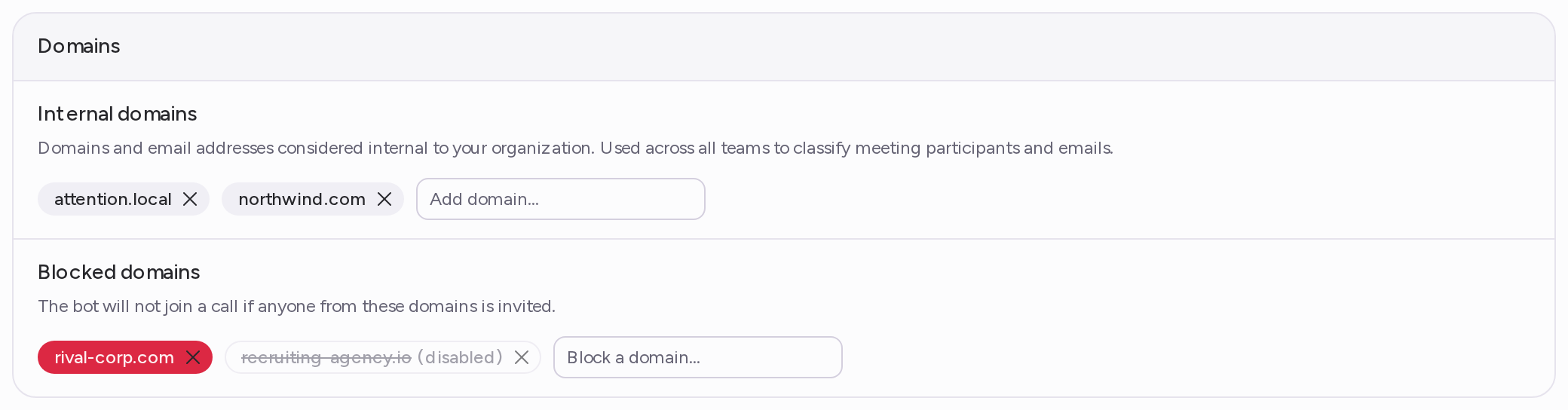
Internal domains
Attention uses this list to tell which meeting participants and emails are internal across all teams. You can add a domain (company.com) or a single email address. A URL also works; Attention keeps only the domain.- Under Internal domains, type a domain or email in Add domain….
- Press Enter. The domain appears as a chip in the list.
Blocked domains
The notetaker doesn’t join a call automatically when anyone from a blocked domain is invited. A user can still send it to that call by checking Join on the event in Home, so blocking a domain stops automatic joining, not every recording of those calls.- Under Blocked domains, type a domain in Block a domain…. A URL also works; Attention keeps only the domain.
- Press Enter. The domain appears as a chip in the list.
Bot settings
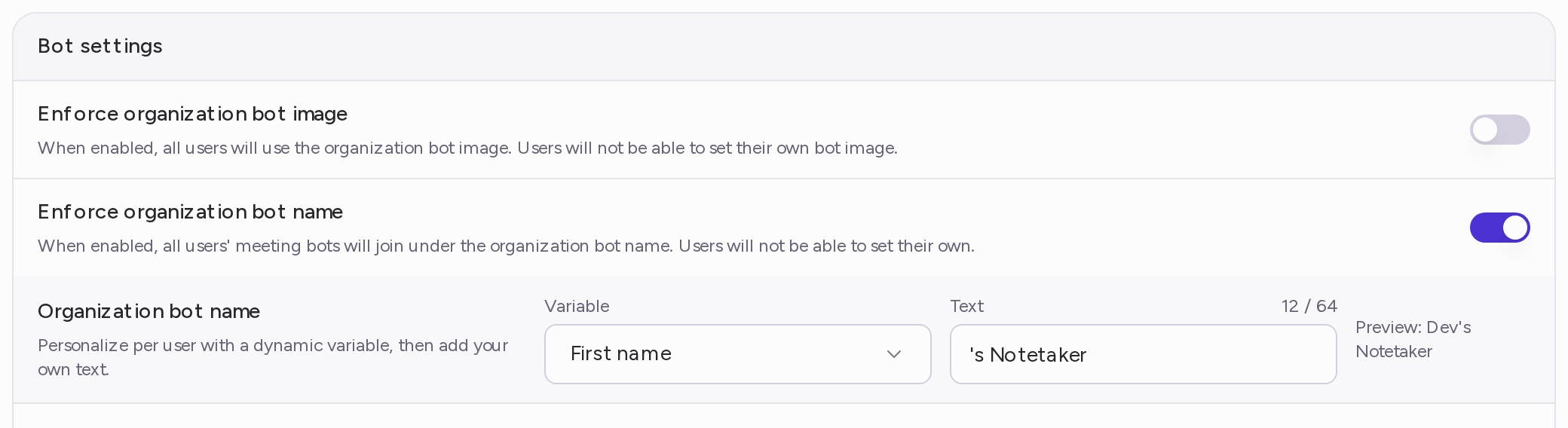
By default, each user’s notetaker joins calls with the name and picture set in their personal settings. You can set one name and one picture for the whole organization instead. Once you do, users can’t change their own.Organization bot picture
- Turn on Enforce organization bot image.
- Under Organization bot image, click the Attention bot placeholder and choose an image. JPG works best.
Organization bot name
- Turn on Enforce organization bot name.
- In Variable, choose how to personalize the name for each user: Static text only, First name, Full name or First name + last initial.
- In Text, type the rest of the name, up to 64 characters. For example, choose First name and type “‘s Notetaker”.
- Click outside the field to save. Preview shows how the name looks for you.
One bot per call
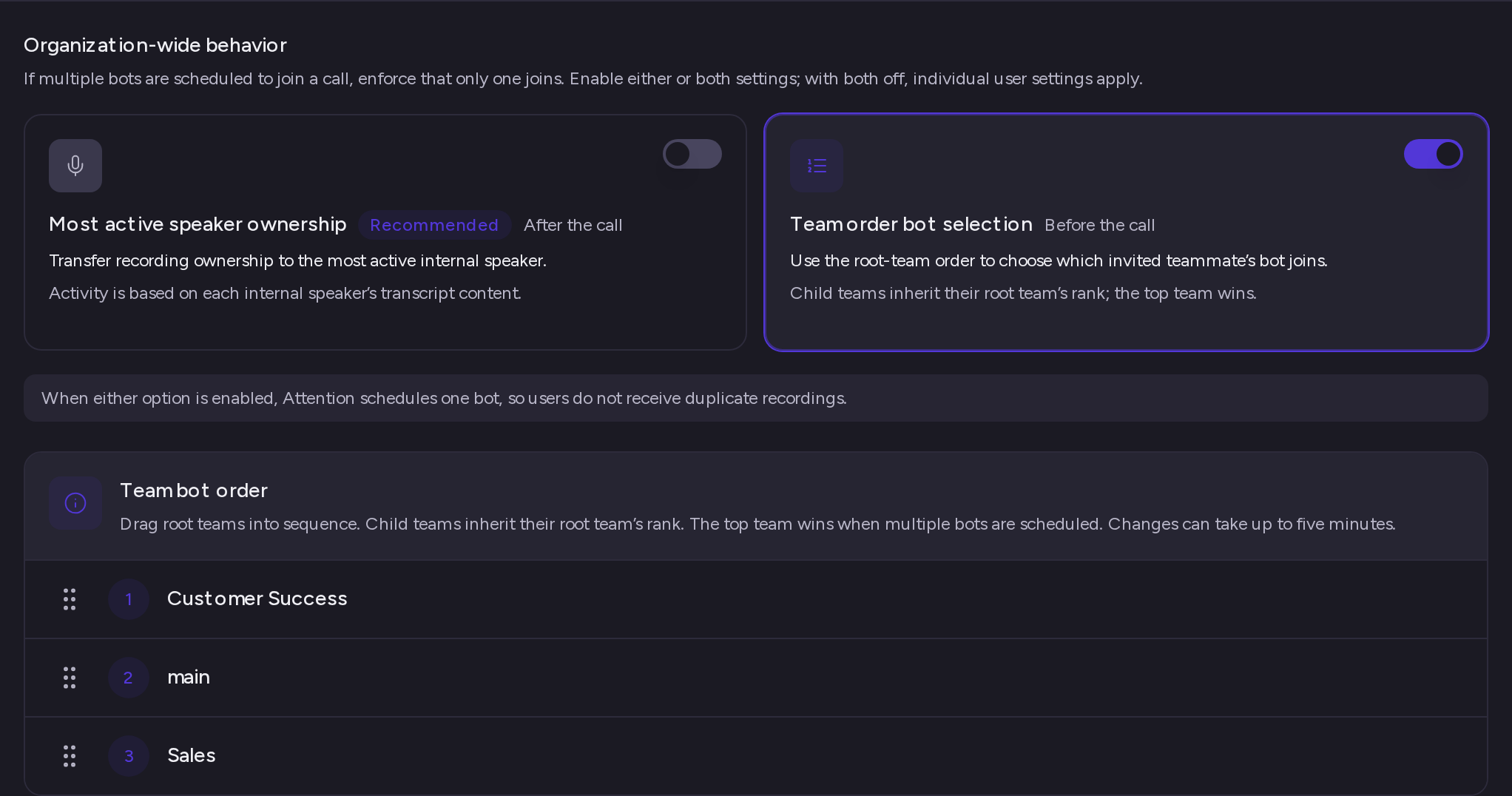
When several teammates with Attention are invited to the same call, more than one notetaker can be scheduled. Under Organization-wide behavior, you can make sure only one joins. Both options are off by default, and each user’s own settings apply.- Most active speaker ownership (after the call): the recording moves to the internal speaker who talked the most, based on the transcript. This applies to external calls the notetaker joined from a calendar event. Internal calls and recordings without a calendar event keep their owner.
- Team order bot selection (before the call): Attention picks one notetaker by team order. Teammates on the highest-ranked team win.
- Drag your top-level teams into order, with the team whose notetaker should win at the top.
- Child teams follow the rank of their top-level team.
Configuration
Vocabulary
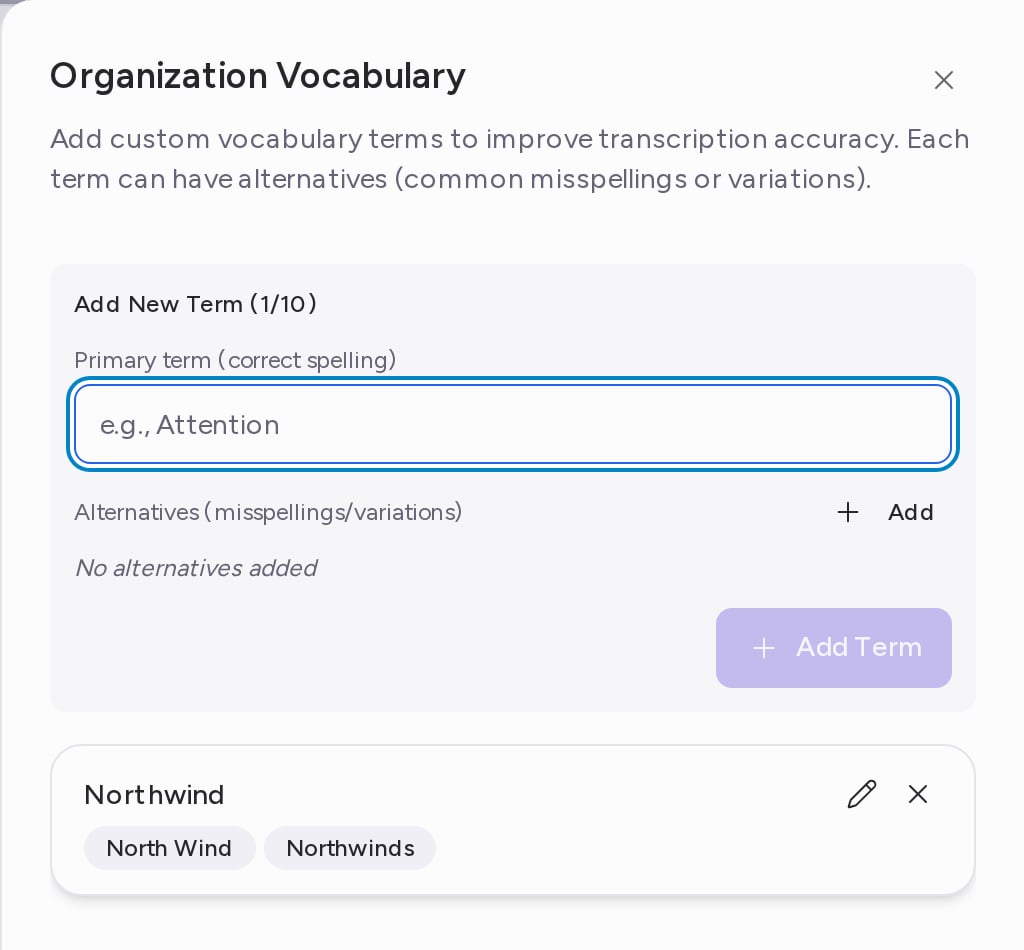
Add the names, products and terms your organization uses so transcripts spell them correctly. You can add up to 10 terms.- Next to Vocabulary, click Add. Once you have terms, the button reads Manage.
- In Organization Vocabulary, type the correct spelling in Primary term (correct spelling).
- Optionally, under Alternatives (misspellings/variations), click Add and type each way the term tends to be misheard.
- Click Add Term. The term appears in the list.
- Click Save changes.
Fiscal year start month
The fiscal year sets where quarters start and end in forecasting, deal filters and other quarterly views. It starts in January by default. Choose a month in Fiscal year start month. The four cards below show the months each quarter, Q1 to Q4, now covers.Need help? Contact support@attention.com.