

Add Attention to a live call
Use this for a meeting that has already started, or one that isn’t on your calendar.- Go to Home in Attention.
- Click Add Attention to a call.
-
Paste the meeting link into Link. Zoom, Google Meet and Microsoft Teams links work.
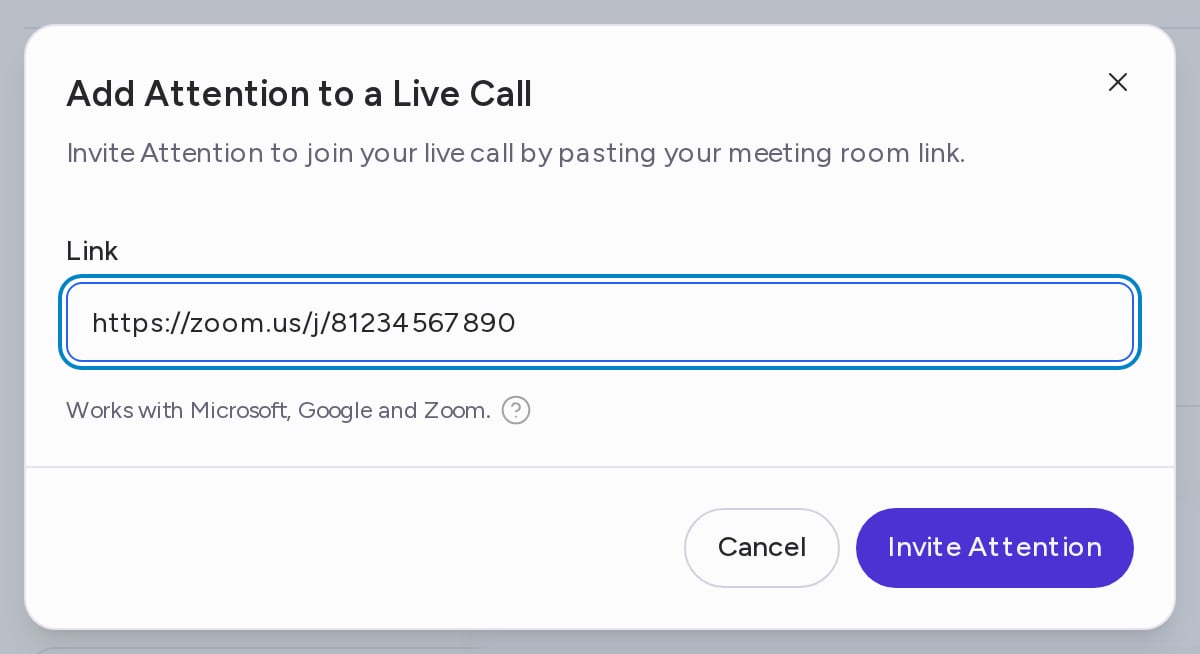
- Click Invite Attention.
Choose which upcoming meetings Attention joins
Home lists your calendar events for the next two weeks under Upcoming calls. Each event has a Join checkbox. When it is checked, Attention joins that meeting.- Go to Home and scroll to Upcoming calls. Click Show more to see more events.
- Hover the ? icon next to an event to see why Attention is or isn’t set to join.
- Check Join to send Attention to that meeting, or uncheck it to keep Attention out.
The Join checkbox is disabled when the event has no meeting link. Add a Zoom, Google Meet or Microsoft Teams link to the event in your calendar to make it available.
Remove Attention from a call
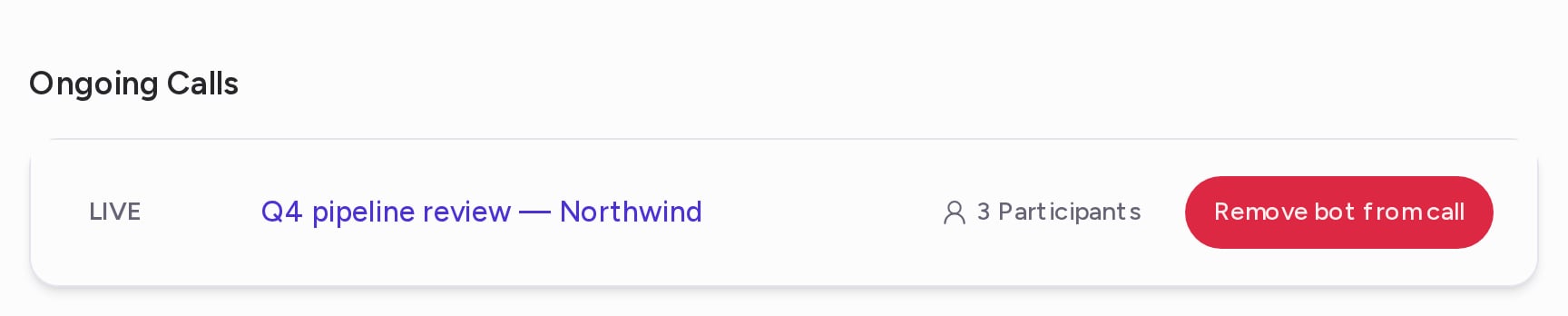
While Attention is recording, the call appears under Ongoing Calls at the top of Home, marked LIVE.- Go to Home.
- Under Ongoing Calls, find the call.
-
Click Remove bot from call.
Let Attention join from your calendar
Once your calendar is linked, Attention joins your meetings automatically. Your auto-join settings decide which ones, for example whether it joins when the host is outside your company. To link your calendar and set these rules, see Connect Your Calendar & Personalize Attention.Record with the desktop app
The Attention Desktop App records meetings directly from your computer, so no notetaker joins the call. The recording uploads to Attention and gets the same transcript, notes and CRM sync as a bot recording. See Desktop App.Upload a recording
Upload a recording of a meeting Attention wasn’t in.- Go to Conversations → All Calls.
-
Click Upload Recording.

- Choose one audio or video file, or drag it into the window. Upload files that are at least 2 minutes long.
- Click Upload and wait for the upload to finish.
-
In Recording Settings, fill in:
- Meeting Name: defaults to the file name.
- Language: the language spoken in the call. Defaults to your primary language.
- Start Date & Time: when the meeting took place. Defaults to now.
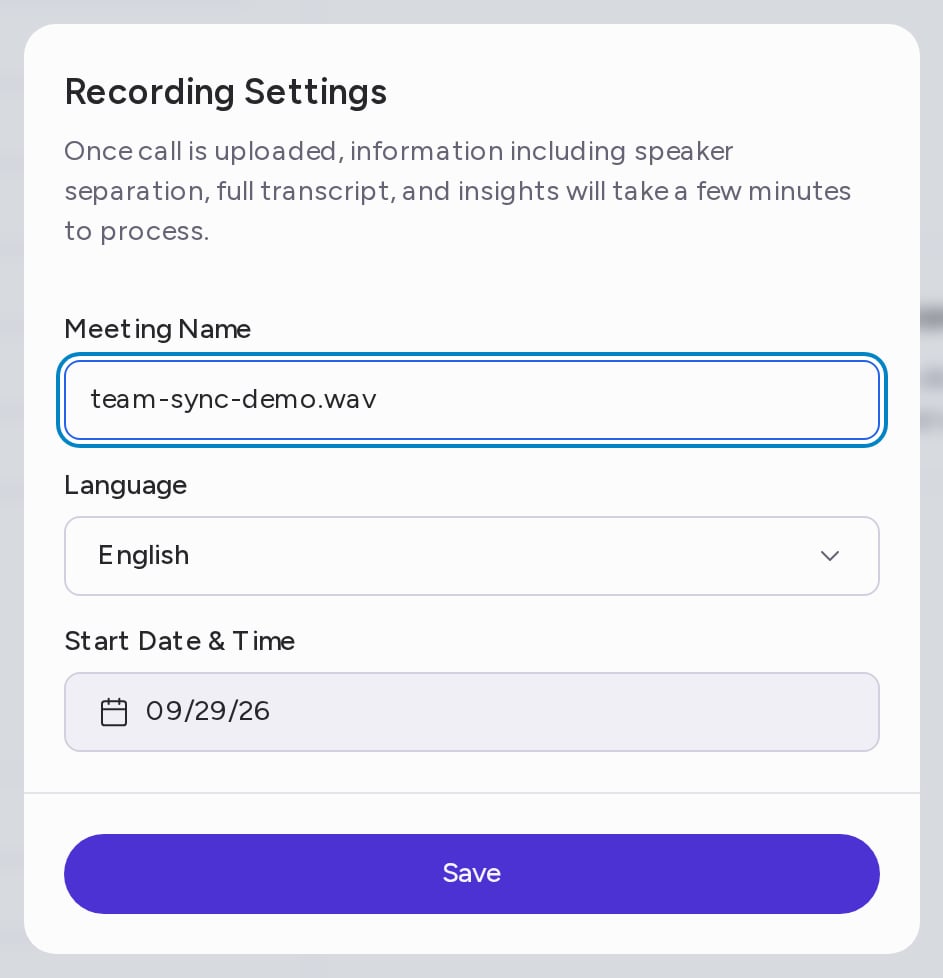
- Click Save.
Upload a transcript
If you only have a transcript, Attention can create the call from it.- Go to Conversations → All Calls.
- Click Upload Transcript.
-
Choose one
.vtt,.srtor.txtfile of up to 5 MB, or drag it into the window.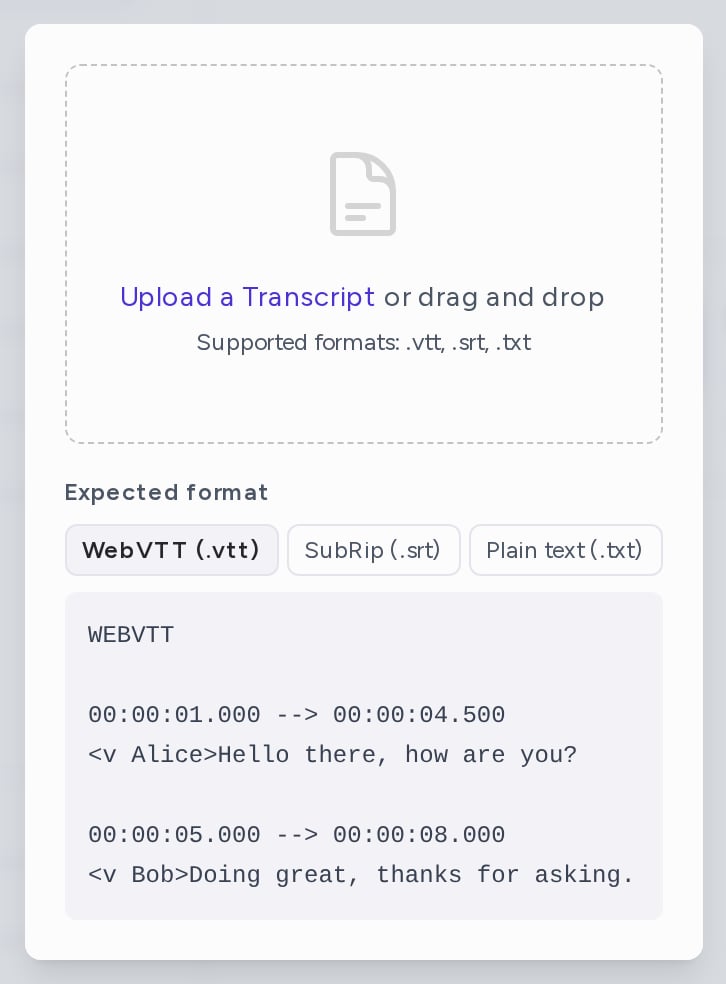
- Click Continue.
- In Transcript Settings, check the Meeting Name and set the Start Date & Time.
- Click Import.
To import calls from your own systems, use the Import Conversation API.