

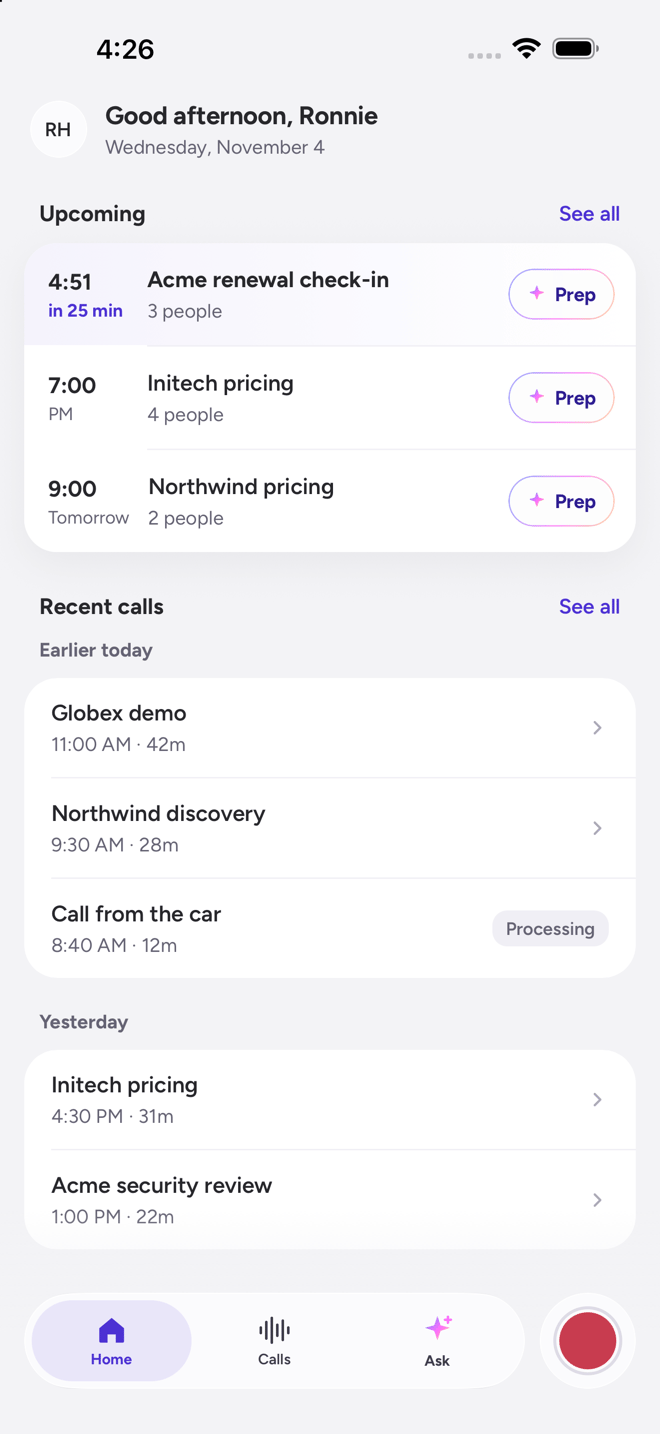
Home: your next meetings with Prep, and your recent calls
Get the app
- The app is rolling out by invitation and does not appear in App Store search yet. Your Attention team sends you the install link. Open it on your iPhone and install Attention AI.
- Open the app and sign in the way you sign in to the web app: Continue with Google, or Continue with email and your password. If your company uses single sign-on, the app sends you to your identity provider.
- Allow microphone access when asked. Without it the app cannot record. Allow notifications to hear when a recording is ready.
Once installed, updates arrive through the App Store as usual. Small fixes also arrive on their own the next time you open the app, with nothing to install.
Find your way around
The bar at the bottom has three tabs and a Record button.
Tap your initials at the top of Home to open the menu: Upcoming meetings, Downloads, Settings, Submit feedback and Sign out. Your profile is at the top of the menu.
Record a call
Recordings are audio only.- Tap Record when the conversation starts, in person or on speakerphone. The timer starts and the status reads Recording.
- Pause and Resume as you need. Swipe the recording screen down to keep recording while you browse the app. A bar at the bottom keeps the timer in view and brings the recording back.
- Tap End, give the call a title and tap Upload recording. A test tap you never meant to keep can be discarded here instead.
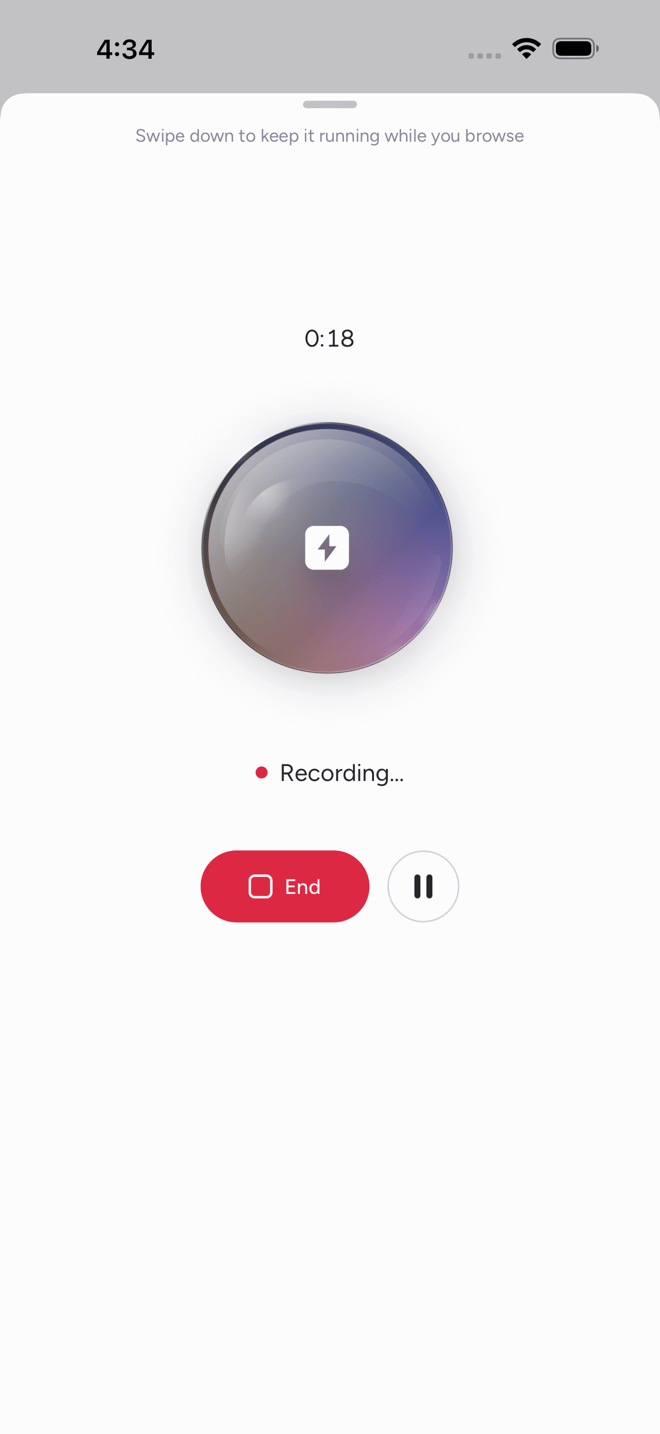
Recording: the timer, Pause and End
- It keeps recording with the screen locked and while you use other apps.
- Interruptions don’t end it. A phone call, Siri or another app taking the microphone pauses capture. The status shows Interrupted while it waits, and recording resumes on its own when the interruption ends, in the same recording.
- Nothing is removed from your phone until Attention has it. If you are offline, the recording is saved on the device and uploads when you are back online. If the app is closed mid-recording, it recovers what was captured the next time you open it and offers Retry.
- Storage takes care of itself. Seven days after a recording has uploaded and its call is ready, the app removes the phone’s copy. The call stays in Attention. Turn this off under Settings → Free up space automatically, or remove a copy sooner with Remove from this device.
Mobile recordings get the same transcript, AI notes and CRM sync as any other call, and they appear in Conversations → All Calls on the web as well.
Review a call
Open a call from Home or Calls.- Player. Play, skip 15 seconds back or forward, and tap the speed to cycle from 1x to 2x. Playback keeps going with the screen locked, with the call title and controls on the lock screen. Open the call again later and it resumes where you left off, at the speed you were using. Video calls play as video, and phone recordings play as audio.
- Transcript. The transcript follows the recording as it plays, and tapping a line plays from there. Tap a speaker’s name to rename them across the whole call, for example when a phone recording labels people Speaker 1 and Speaker 2.
- Details. The call’s tags. Tap More options at the top of the call to change them.
- Comments. Read your teammates’ comments, each pinned to its moment, and tap a time to jump there. To add one, swipe a transcript line left, or use the Comments tab to comment at the current time or a time you type. Reply, mention a teammate with
@, and choose who sees it: everyone, your team or individuals. You can edit and delete your own. See Leave and Manage Comments. - Ask about this call. The field at the bottom opens Super Agent with the call attached. Ask for a summary, the next steps or the objections that came up.
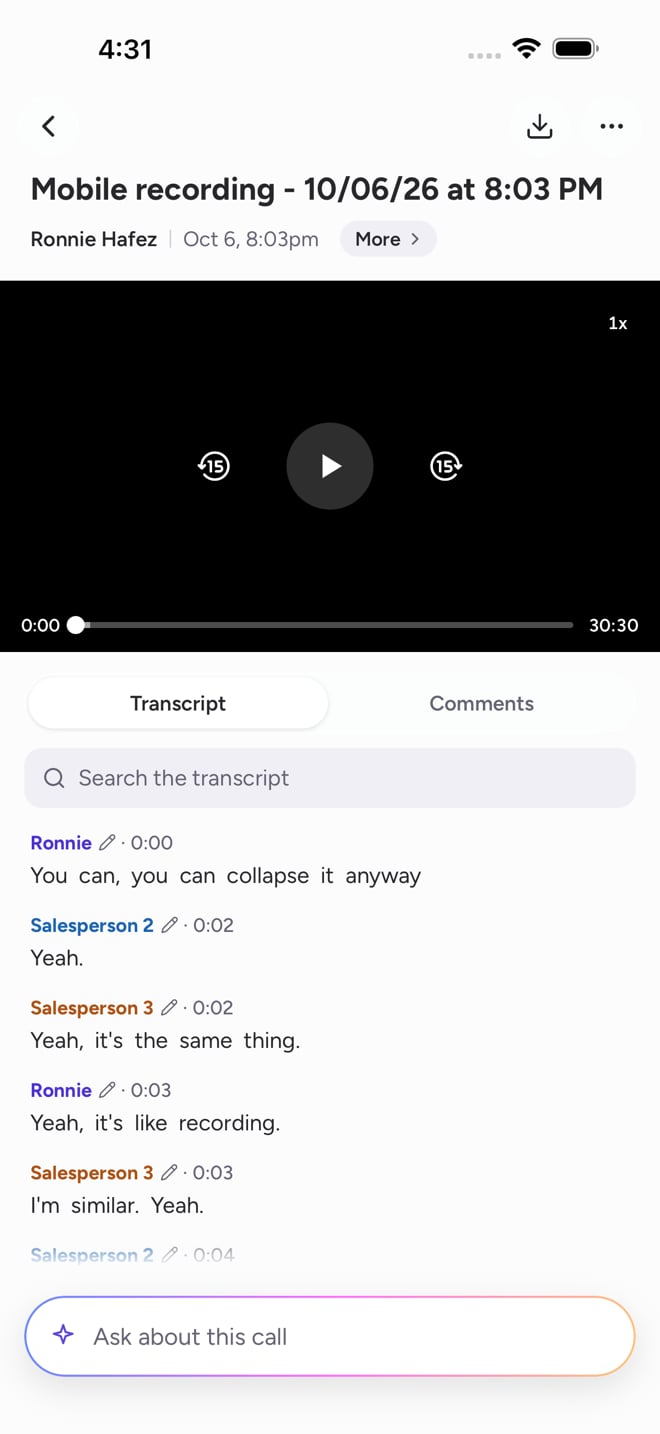
A phone recording: the player, the transcript and Ask about this call
Call actions
Touch and hold a call on Home or Calls to:- Rename the call.
- Download it: save it in the app to listen offline (see below), or save the video (MP4) or the transcript (PDF) to your phone.
- Share link: send a link to the call. Teammates who can see the call open it in Attention.
- Make private, so your team no longer sees it.
- Remove from this device, to free the space a phone recording uses. The call stays in Attention.
- Archive the call. It leaves your lists. You can restore it on the web.
Find calls
- Home shows your recent calls grouped by day. Tap See all calls for the full list.
- Calls lists every call you can see. Switch between My calls and Team calls.
- Filters narrow the list by Date, Tags, CRM record (when your CRM is connected) and People. Applied filters show as chips above the list, with a count of matching calls.
- Search finds any call you can see by title, person or company.
Listen offline
Save up to 10 calls in the app and play them with no connection, for example on a plane.- Open the call, tap Download at the top and choose Save for offline viewing. A check appears when it is saved, and the call reads Saved for offline viewing under the player.
- Open Downloads from the menu to see what is saved and how much space it uses. Tap a call to play it. Swipe a call left to remove it, or clear all of them with Remove all downloads.
Prepare for your next meeting
When your calendar is linked, Home shows your next meetings, and Upcoming meetings in the menu shows the days ahead. Every meeting carries a Prep button. Tap it and Super Agent opens a brief written from your past calls with those people, ready before you look. Refresh writes a new one. To link your calendar, tap Connect calendar on Home, which opens your Personal Settings in the browser, or link it on the web. Whether Attention joins a meeting is still decided by your auto-join settings. The app does not change them.Prep appears when meeting prep is turned on for your organization. If you don’t see it, ask your Attention team.
Ask Super Agent
The Ask tab is Super Agent on your phone, scoped to your calls.- Start from a suggestion such as Recap my calls this week, or type your own question.
- Every answer cites the calls it came from. Tap a citation to open that call at the moment it refers to.
- Open Ask from a call or a meeting and that call or meeting is attached as context, so you can ask about the call or prep for the meeting.
- Your chats are the same ones you see on the web. Search, rename and delete them from the Ask screen.
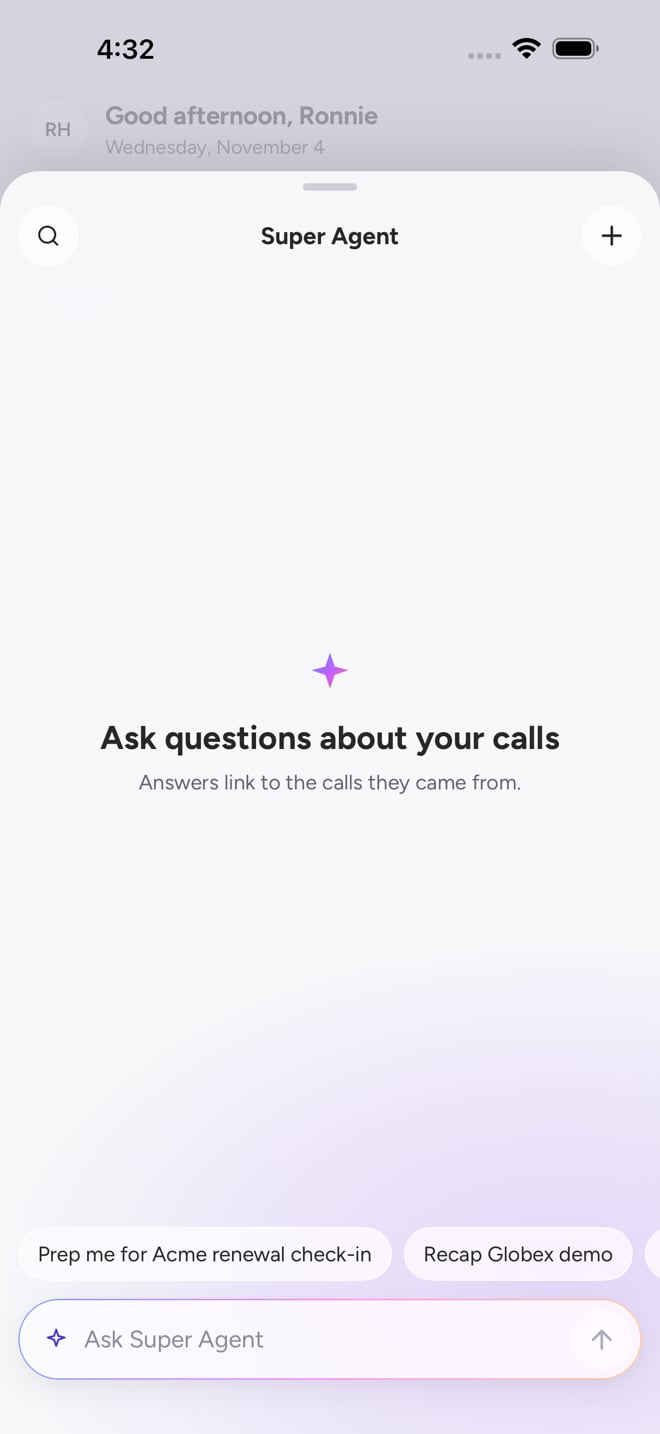
Ask: Super Agent, scoped to your calls
Ask appears when Super Agent is turned on for your organization and your role can use it. See Access and permissions.
Settings
Open the menu and tap Settings.
Submit feedback, in the same menu, opens a short form that goes to the Attention team.
Troubleshooting
I can't find the app in the App Store
I can't find the app in the App Store
The app is not listed in App Store search yet. Ask your Attention team for the install link and open it on your iPhone.
Record says microphone access is off
Record says microphone access is off
iOS turned off microphone access for the app. Tap Open Settings on the notice, turn on Microphone, then come back and try again. You can check both permissions any time under Settings → Permissions.
A phone call came in while I was recording
A phone call came in while I was recording
The recording paused and showed Interrupted for the length of the call, then resumed on its own in the same recording. Nothing captured before the interruption is lost.
My recording hasn't uploaded
My recording hasn't uploaded
Recordings upload only while the app can reach Attention. If you were offline, it uploads on its own once you are back online. If the app was closed during a recording, Home shows the recovered recording with Retry. A recording is never removed from the phone until the upload is confirmed.
I didn't get a notification when my recording was ready
I didn't get a notification when my recording was ready
Check Settings → Permissions → Notifications in the app, and that notifications for Attention are allowed in the iPhone’s Settings. The Ready to review banner on Home appears either way.
I don't see Ask or Prep
I don't see Ask or Prep
Both depend on Super Agent being turned on for your organization. Ask also follows your role’s access. Contact your Attention team.
Upcoming meetings is empty
Upcoming meetings is empty
Link your calendar in Personal Settings on the web, or tap Connect calendar on Home.
Need help? Contact support@attention.com, or tap Submit feedback in the app.