

Super Agent is available when it is turned on for your organization. If you don’t see it, contact your Attention team.
What a new organization starts with
- Access: Admins, Managers and Sales Reps can all use Super Agent. They open it from Agents → Super Agent in the main sidebar.
- Actions: every action is off for every role. Super Agent answers questions, but it doesn’t make changes until those actions are turned on in Agent Permissions.
1. Open Agent Permissions
- In Attention, click your name at the bottom of the sidebar, then Settings.
- Click Agent Permissions.
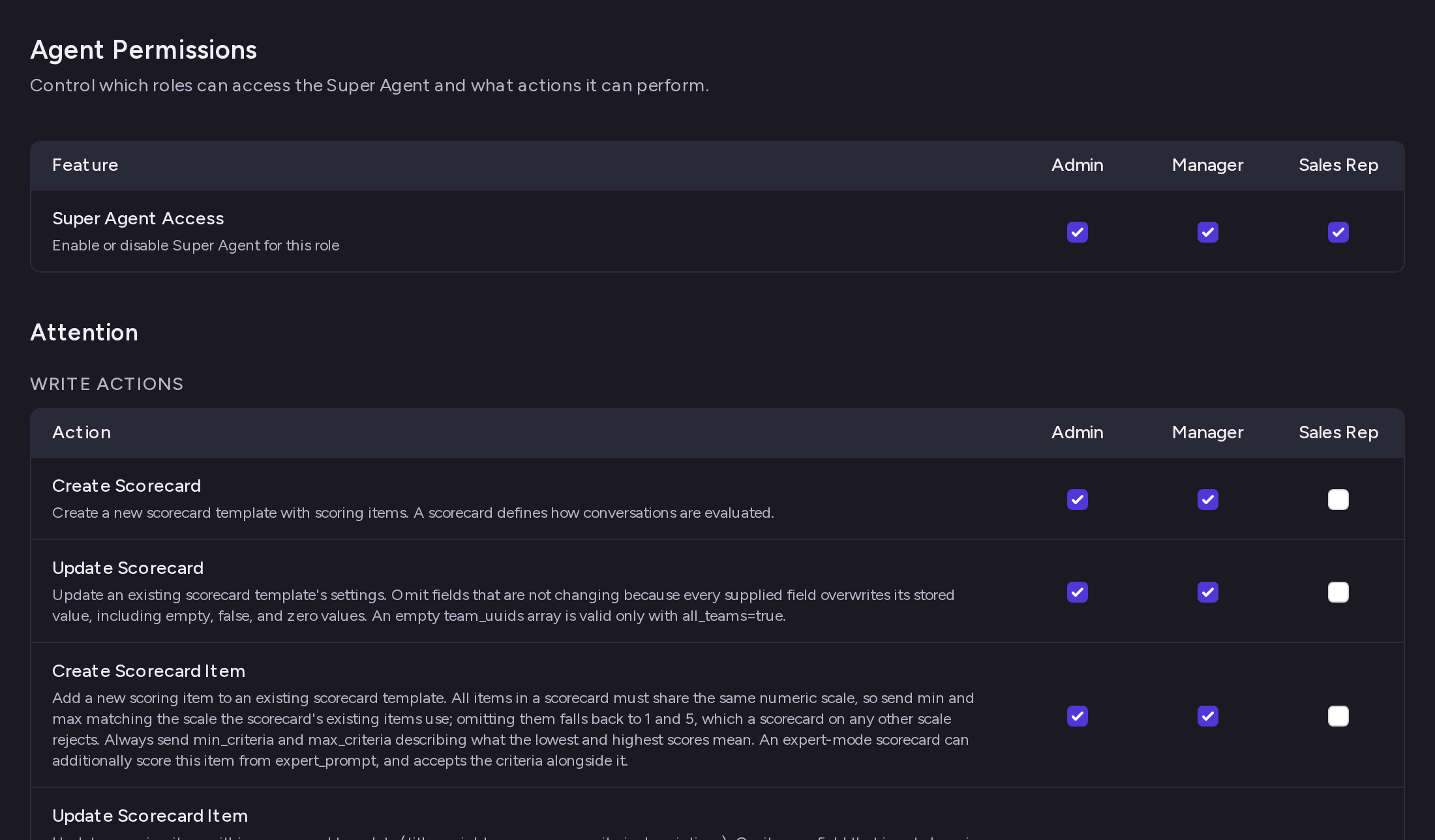
2. Choose which roles can use Super Agent
In the Super Agent Access row, tick or untick the box under each role. Each change saves right away. When you untick a role, people with that role no longer see Agents → Super Agent in the sidebar. That role’s boxes in the action tables are greyed out until you tick its access again.
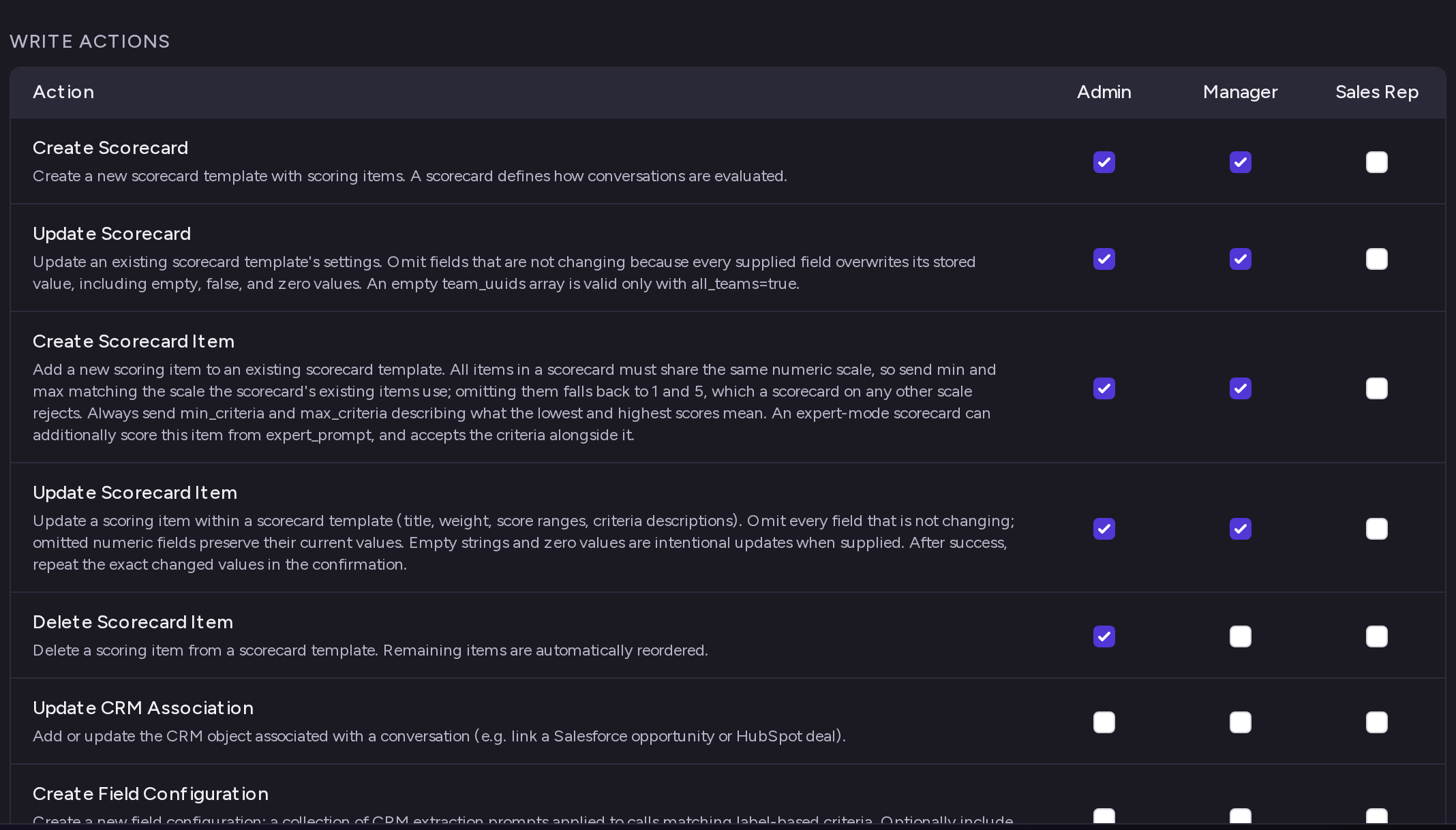
3. Choose what Super Agent can do
Below the access table, actions are grouped under Attention and Web Search, then split into Write Actions and Read Actions. Each action shows its name and a short description of what it does.- Write Actions change something in Attention, such as Create Scorecard, Create Field Configuration, Create Snippet or Update CRM Association.
- Read Actions look something up without changing anything, such as Web Search.
For example, tick Web Search under Sales Rep to let reps’ Super Agent search the web when answering their questions.
Approve or deny an action in the chat
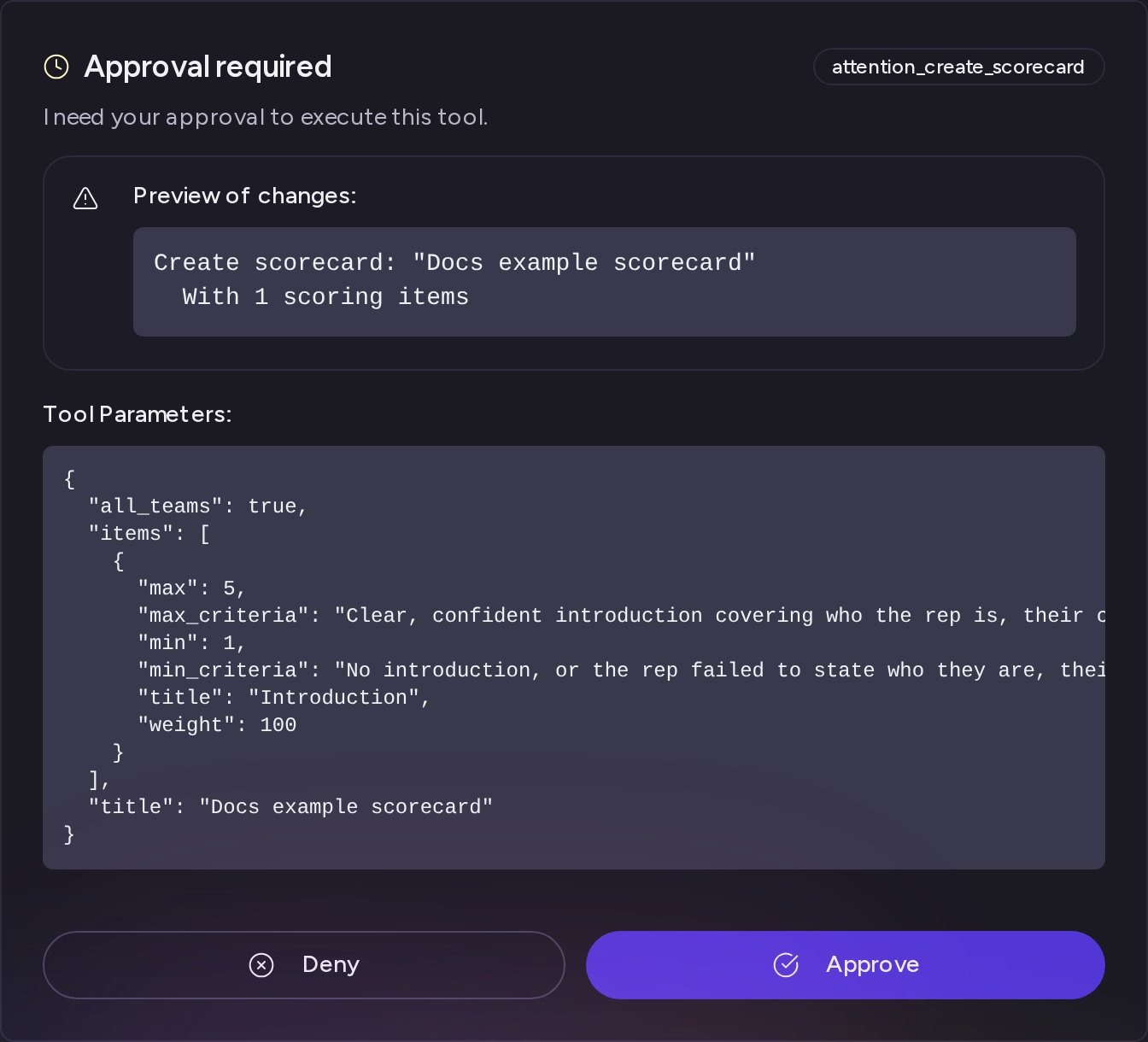
When Super Agent wants to run a write action, it stops and shows an Approval required card in the chat. The card shows:- a tag naming the action;
- Preview of changes:, a summary of what will change, when Super Agent can preview it;
- Tool Parameters:, the exact values Super Agent will use.
- Approve runs the action. The card changes to Tool execution approved, and Super Agent continues.
- Deny cancels the action. The card changes to Tool execution denied, and nothing is changed.
Need help? Contact support@attention.com.