

Super Agent is available when it is turned on for your organization. If you don’t see it, contact your Attention team.
Open Super Agent
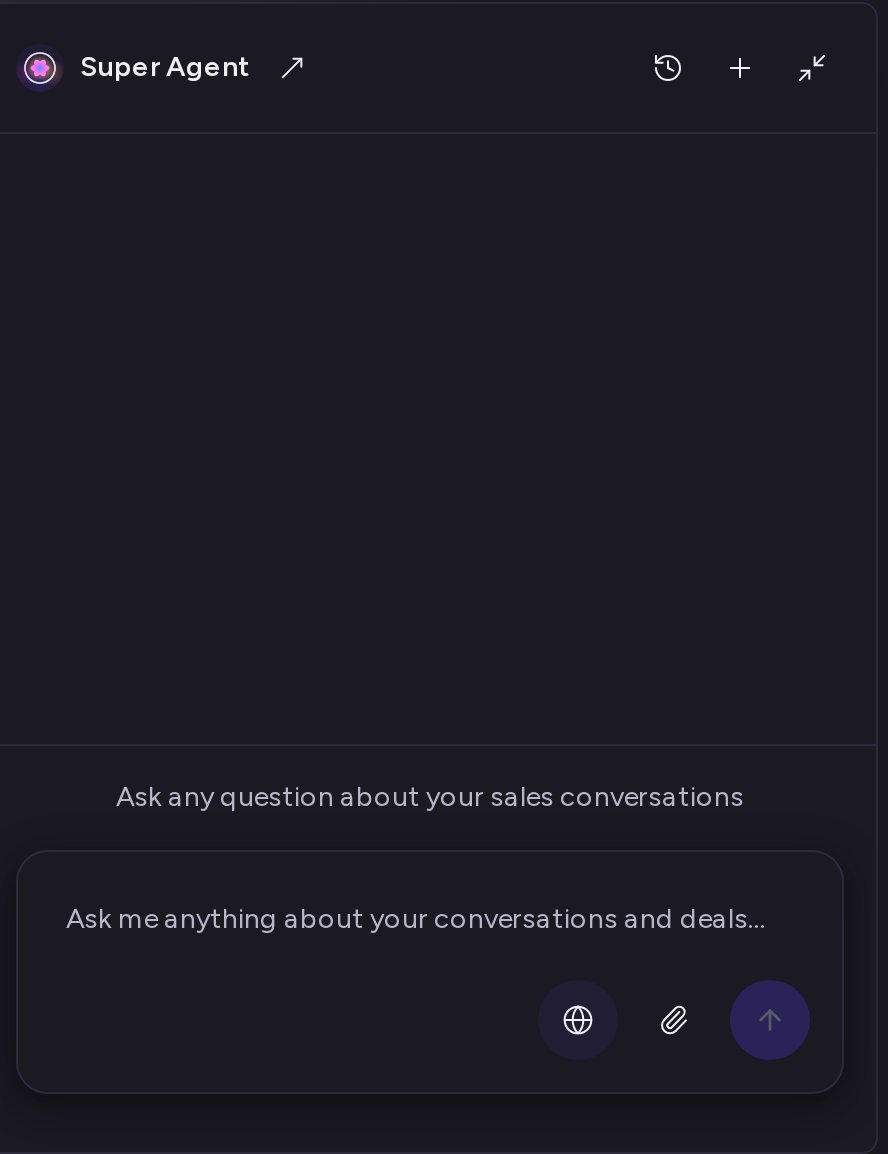
You can use Super Agent on its own page or in a floating panel that follows you around the app. Full page. Go to Agents → Super Agent. Your chats are listed on the left, and the message box is in the middle.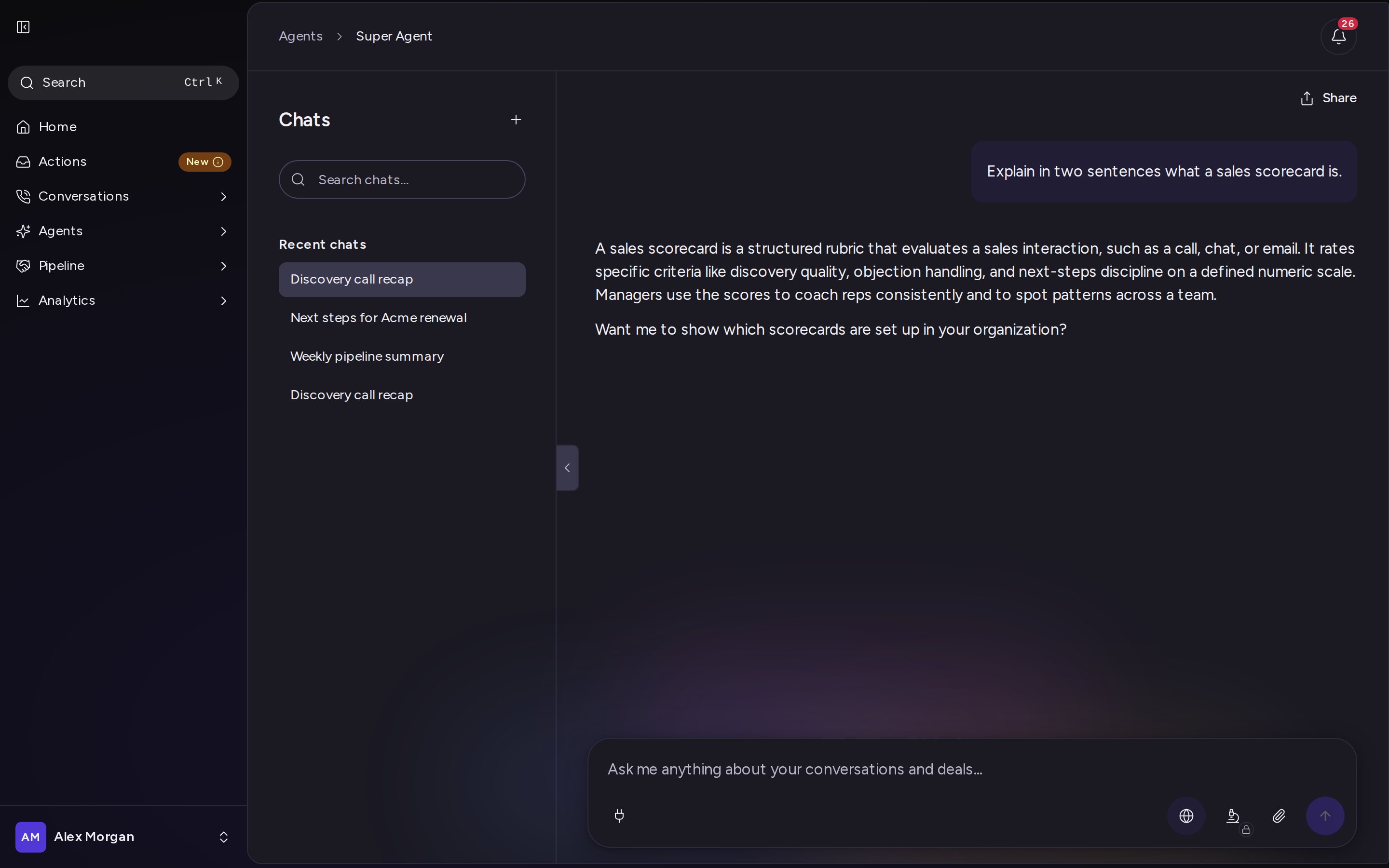
- Open in full page — continues the same chat on the Super Agent page.
- History — lists your past chats.
- New Chat — starts an empty chat.
- The minimize icon — closes the panel. Your chat stays open for next time.
Ask a question
- Type your question in the message box.
- Click the send button.
- Super Agent shows its progress while it works, then writes the answer in the chat.
Ask about the call you’re viewing
When you open the floating panel on a call page and start a new chat, Super Agent adds a Current Call chip above the message box. Your first question is then about that call, so you can ask “What were the next steps?” without naming the call. To ask about something else, click the × on the chip to remove it before you send.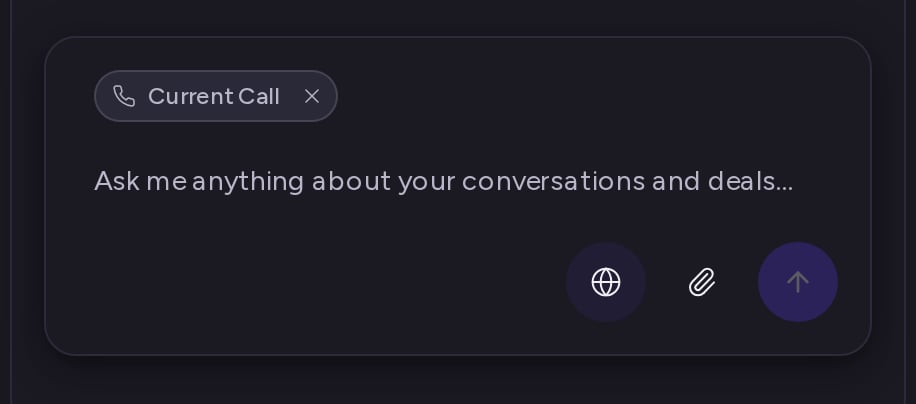
Attach files
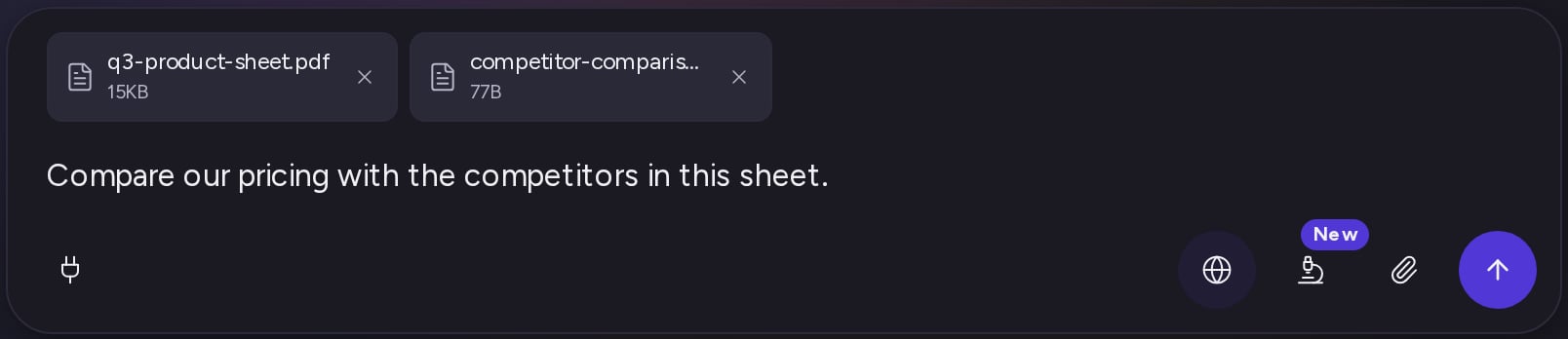
Add images, PDFs and spreadsheets to a question:- Click the paperclip icon (Attach files) next to the send button. You can also drag files onto the message box, or paste them.
- The files appear above the message box. Click the × on a file to remove it.
- Type your question and send it. The files go with that message.
Find, rename and delete chats
On the Super Agent page, the Chats list on the left shows your recent chats. Chats you start through the API or MCP appear here too.- Open a chat — click it.
- Start a new chat — click the + button next to Chats.
- Search — type in Search chats….
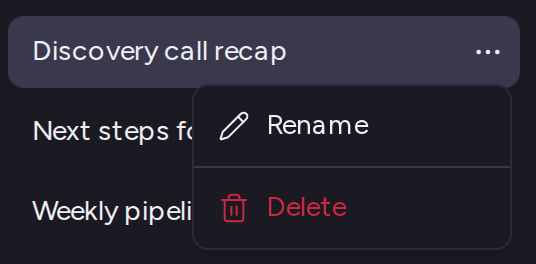
- Rename — hover over a chat, click the … menu, choose Rename, enter a Chat name and click Save.
- Delete — hover over a chat, click the … menu, choose Delete, then click Delete chat.
Share a chat
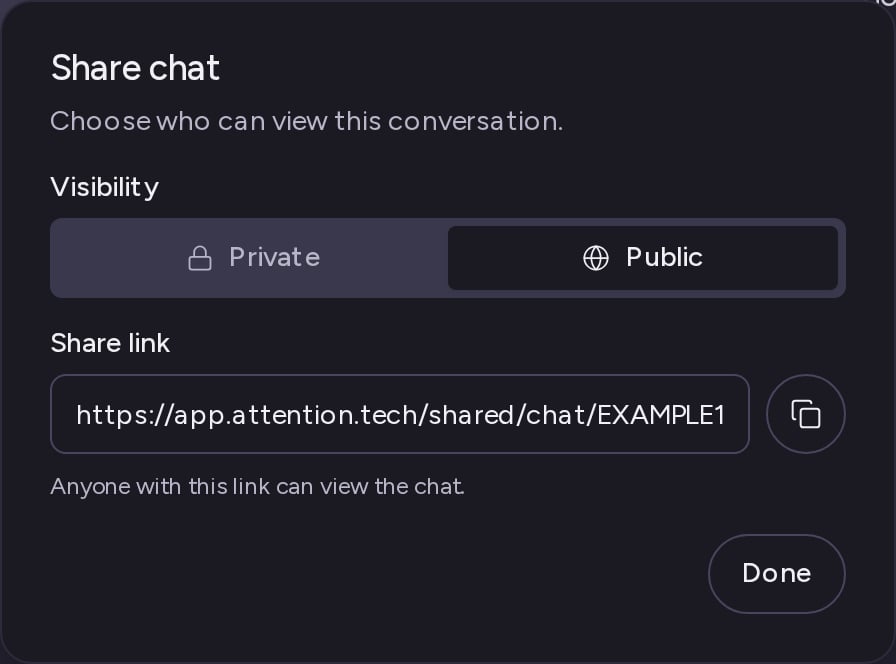
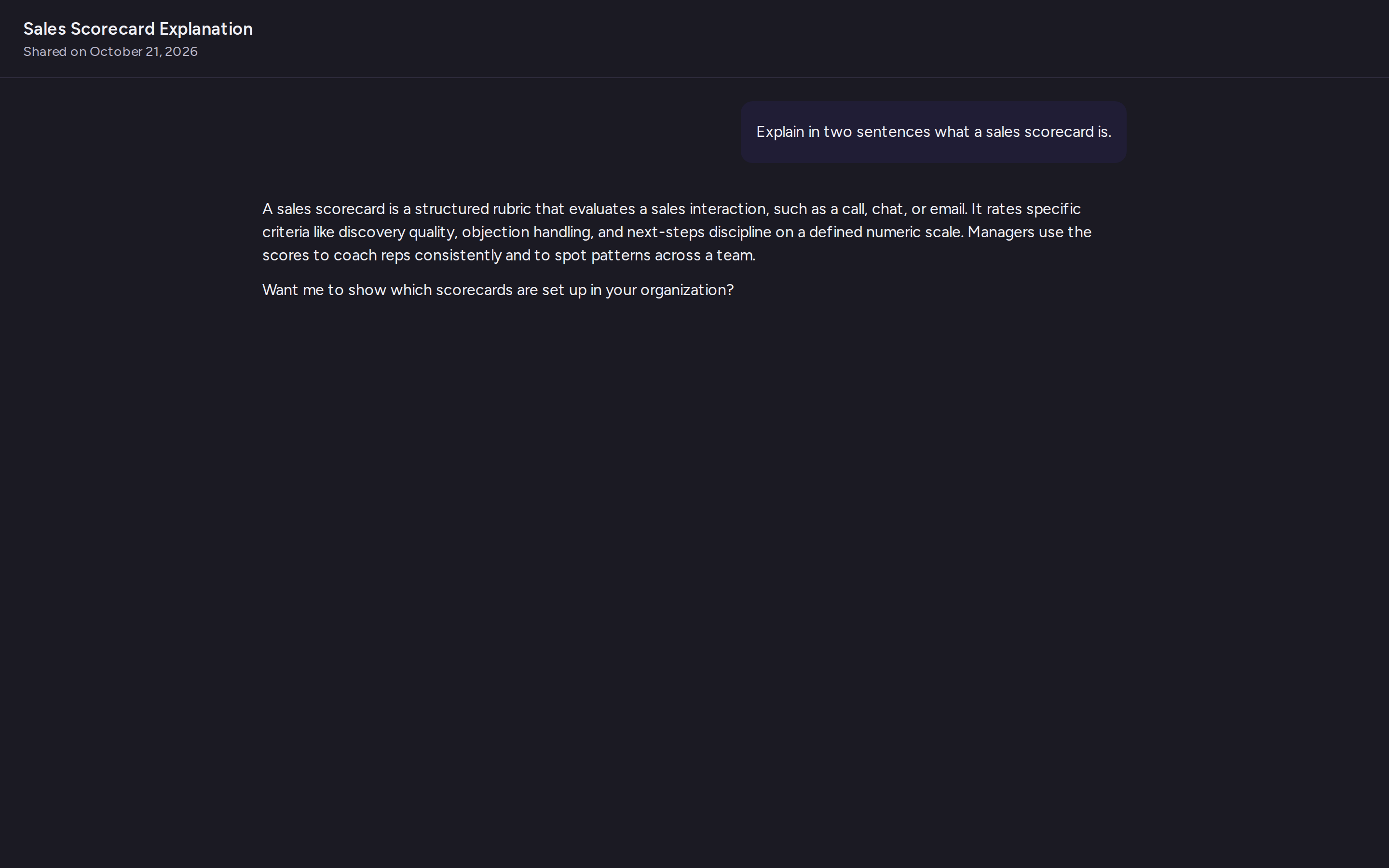
Every chat starts Private: only you can see it. Make it Public to get a link that anyone can open, with no Attention login.- Open the chat and click Share at the top right. The Share chat dialog opens.
- Under Visibility, click Public.
- A Share link appears. Click the copy button next to it.
- Click Done.
Keep track of your tasks
If your workspace has a task allowance, the Super Agent page shows a counter above the message box, for example 42 of 100 Tasks Remaining.- Click Upgrade or Contact sales next to the counter to get more tasks.
- Click the × to hide the counter.
To see what Super Agent can do in every channel, see the Super Agent overview.