

Layout
The page has two parts:- Video and transcript, on the left. The call title, owner, date and labels sit above the video. Use the Video and Transcript toggle at the bottom to switch between the recording and the transcript.
- The tab panel, on the right. It holds the call’s analysis and tools.
Read the transcript next to the video
To read the transcript while you watch, open the transcript and click View with video. The transcript moves next to the video and the tab panel closes. Click View with analysis to bring the tab panel back. You can also press Shift + V to switch between the two views. The side-by-side view is available on larger screens.Rename the call
- Click the pencil icon next to the call title, or double-click the title.
- Type the new name.
- Press Enter or click anywhere outside the title to save. Press Esc to cancel.
Call actions
The rest of the actions are in the ⋯ menu next to the Share button, at the top of the page.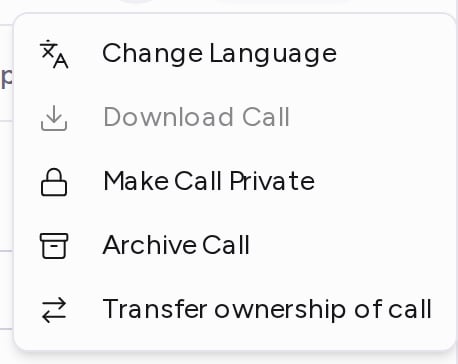
Change the call’s language
If the call was transcribed in the wrong language, re-transcribe it:- Click ⋯ → Change Language.
- Pick the language the call was spoken in.
- Click Re-transcribe.
Transfer the call to someone else
- Click ⋯ → Transfer ownership of call.
- Under New call owner, choose a user.
- Click Transfer call.
Archive the call
- Click ⋯ → Archive Call.
- Click Archive to confirm.
Watch with translated subtitles
Subtitles let you follow a call in another language without changing its transcript.- In the video controls, click the gear icon (Settings).
- Click Show captions if captions are off.
- Open the menu again, then choose Subtitle language and pick a language.
Download the call or copy the transcript
- Video: click ⋯ → Download Call. It’s available once the video has finished processing. The download starts in a new browser tab.
- Transcript: open the transcript and click the copy icon (Copy full Transcript) at the top. The whole transcript is now on your clipboard.
To add a call to Attention, by uploading it or adding the bot to a meeting, see Get Attention into Your Calls.