

- CRM integration & sync: the CRM you connected, and the record types and fields Attention syncs from it.
- Associate CRM record types with conversations: the record types that can be linked to a call.
- Deal View: a pipeline board built from your CRM deals.
- CRM field configurations: the fields Attention fills in from your calls.
- Connect Attention fields to CRM fields with workflows (V1 only): how those values reach your CRM. In V2, the field configurations send the values themselves, and this section doesn’t appear.
Open CRM Settings
- Click your name at the bottom of the sidebar, then Settings.
- Click CRM Settings.
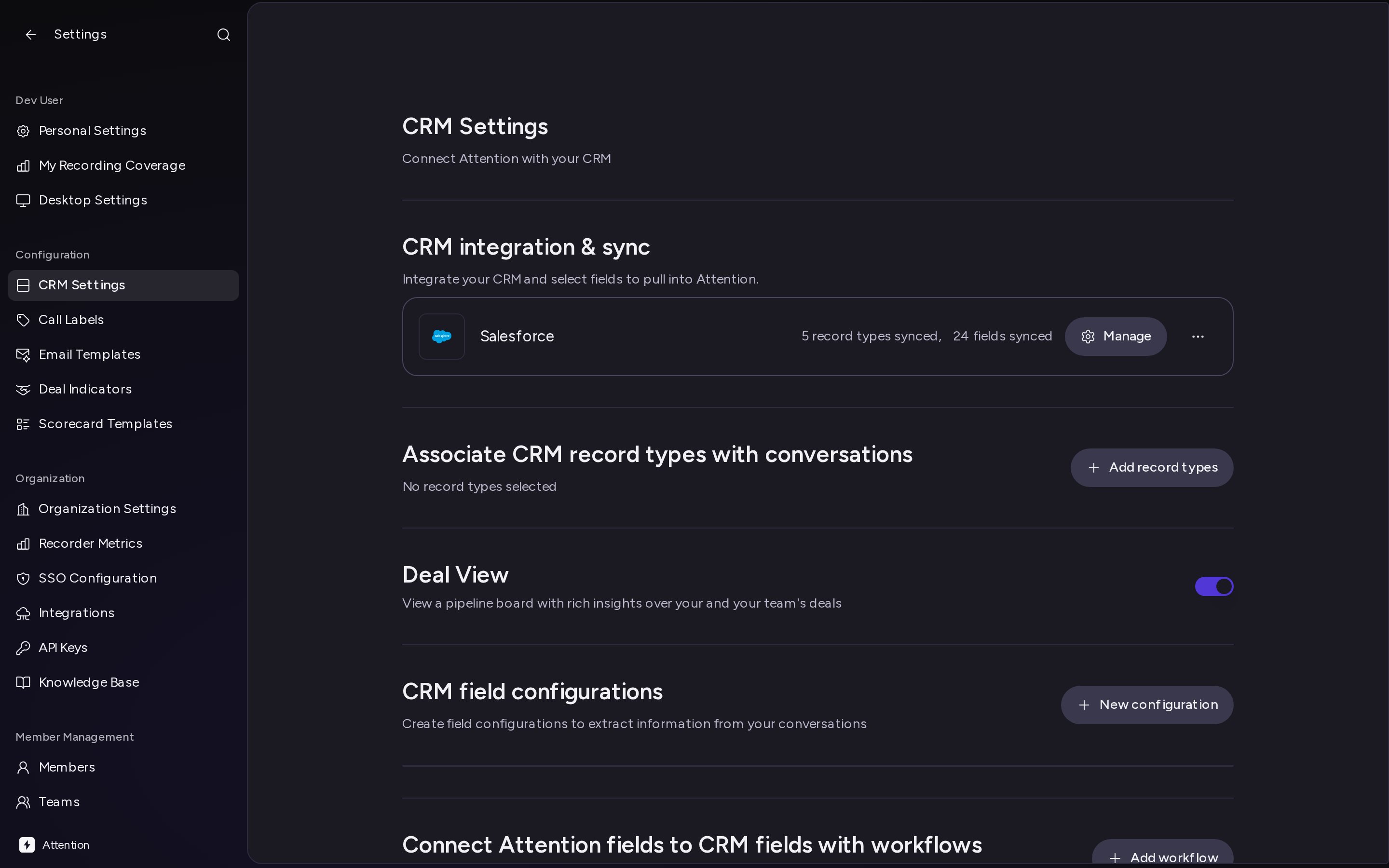
CRM integration & sync
To connect a CRM, click Add your CRM and follow the guide for your CRM: Once connected, your CRM appears as a card that shows how many record types and fields are synced. From the card you can:- Click Select fields to sync (right after you connect) or Manage to choose the record types and fields Attention syncs. The Manage page for your CRM opens. Check what you need and click Save.
- Open the card menu to Reconnect your CRM or Delete integration.
Sync warnings
Some record types power other sections of this page. When you uncheck one of them on the Manage page, a dialog such as Disable Contact sync? explains what stops working:- Contact: Auto Select stops working. Attention can no longer match calls to the right opportunities and accounts (Salesforce) or deals and companies (HubSpot) automatically. You can still pick a record on a call by hand.
- User (Salesforce) or Owner (HubSpot): Deal View needs these records to work.
- The other record types that calls can be linked to, such as Account, Lead and Opportunity in Salesforce, or Company, Deal and Pipeline in HubSpot: both Auto Select and Deal View need them.
Associate CRM record types with conversations
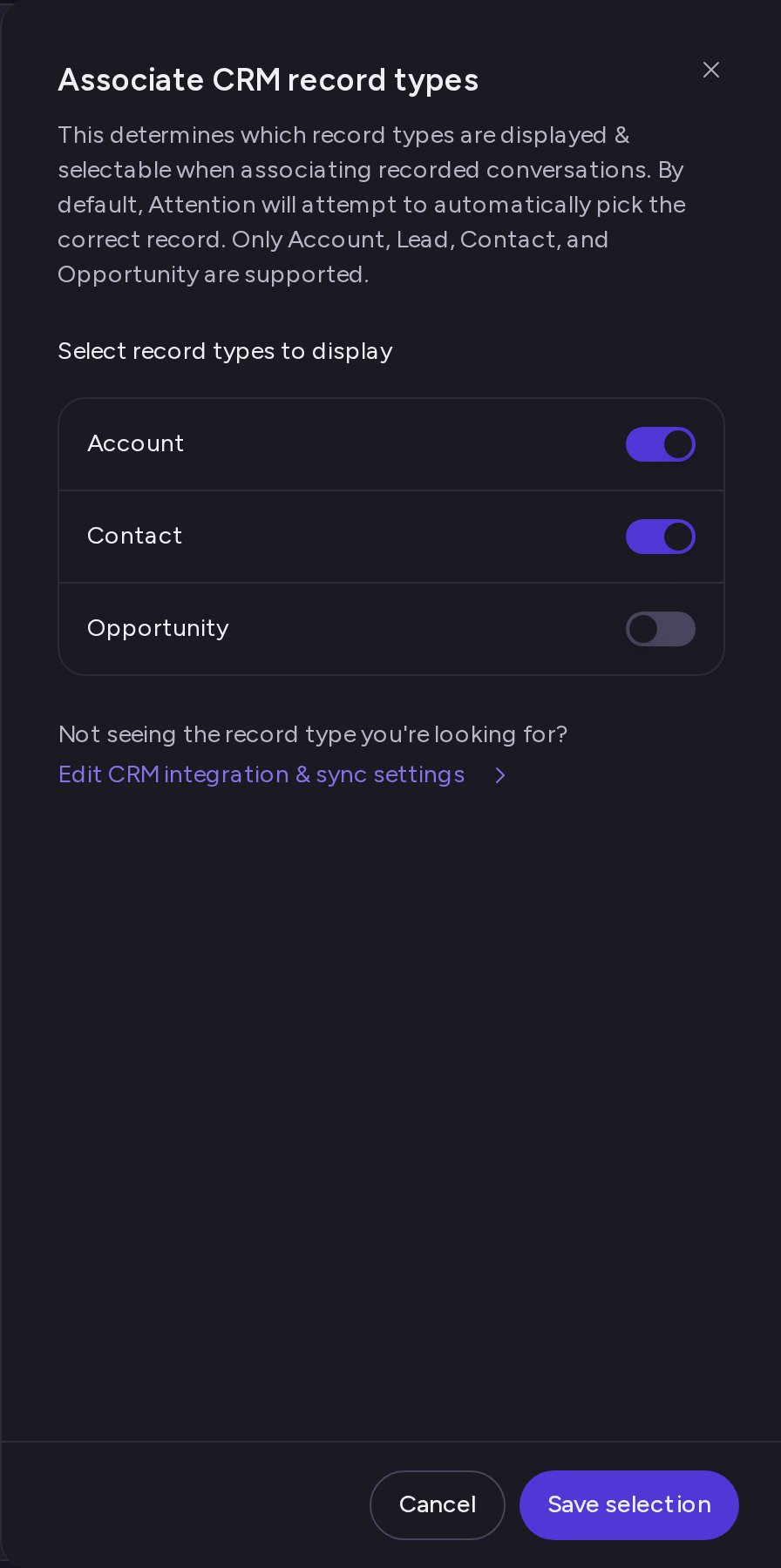
This section decides which record types are shown and can be selected when someone links a call to CRM records. Attention still tries to pick the right record for each call automatically; the sync warnings call this Auto Select. No record types are selected until you add them.- Click Add record types. The Associate CRM record types panel opens.
- Under Select record types to display, turn on each record type you want. The panel lists the supported record types that you sync:
- Salesforce: Account, Lead, Contact and Opportunity.
- HubSpot: Companies, Contacts and Deals.
- Click Save selection.
Deal View
Deal View adds a pipeline board with insights on your deals and your team’s deals. It is off by default. When you turn it on, Deals appears under Pipeline in the sidebar.- Turn on the Deal View switch.
- The Enable Deal View dialog lists the CRM record types and fields Attention syncs to power Deal View. Each record type has a badge:
- New sync: Attention starts syncing this record type with the fields listed.
- Add fields: the record type is already synced, and Attention adds the fields listed.
- Re-enable: syncing for this record type was turned off, and Attention turns it back on.
- Already synced: nothing changes.
- Click Confirm & Enable.
CRM field configurations and workflows
Attention has two versions of the field configuration section. Find yours by its title and description.V2: CRM Field Configurations
The section is titled CRM Field Configurations and reads “Create a configuration to define which fields Attention pulls from calls and pushes back to your CRM”. Follow Set Up CRM Field Configurations (V2).V1: CRM field configurations
The section is titled CRM field configurations and reads “Create field configurations to extract information from your conversations”. You send the values to your CRM with a workflow in Connect Attention fields to CRM fields with workflows. Follow Set Up CRM Field Configurations (V1).Need help? Reach out to support@attention.com.