

1. Open your email notifications
- Click your name at the bottom of the sidebar, then Settings. Personal Settings opens.
- Scroll to Email notifications and click the card to expand it.
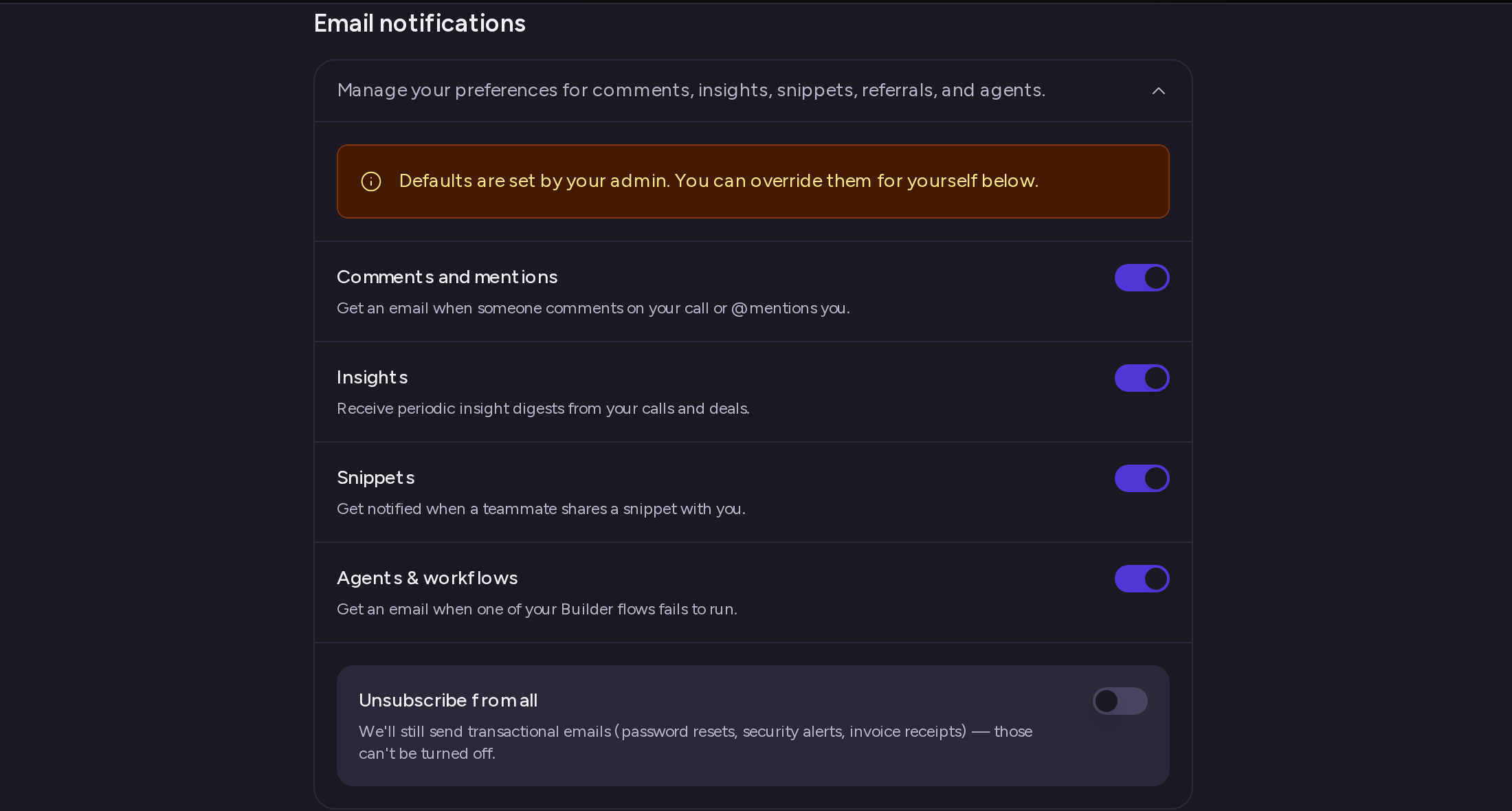
2. Know what each category sends
Every category is on until your organization or you turn it off.
3. Turn a category on or off
Click the switch on a category’s row. The change saves right away. When your choice is different from your organization’s default, the row shows an Overridden badge. Your choice applies only to you. Everyone else in your organization keeps the default.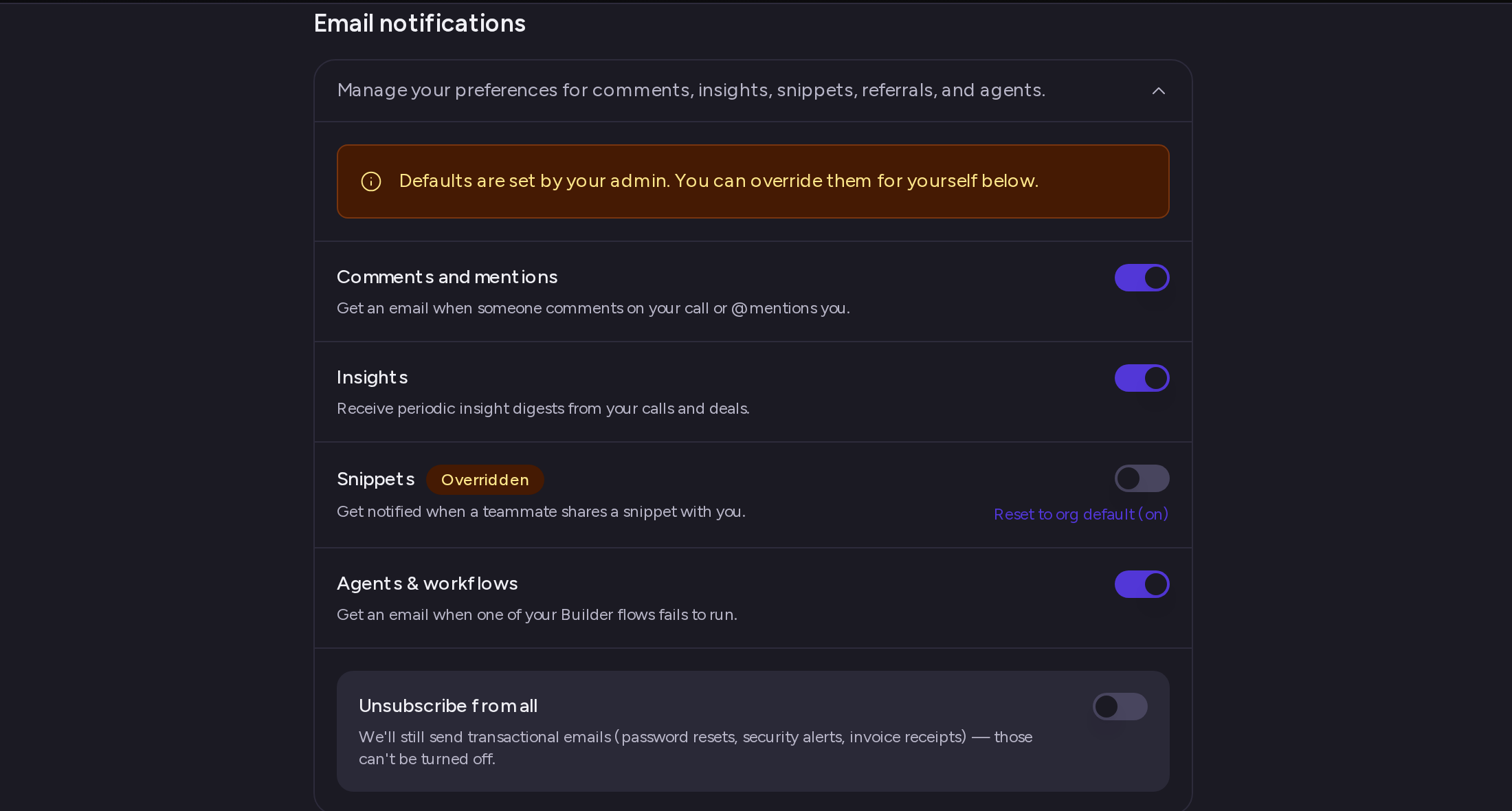
4. Go back to your organization’s default
On a row marked Overridden, click Reset to org default under the switch. The link shows the default in brackets, for example Reset to org default (on). The switch returns to the default and the Overridden badge goes away. From then on, that category follows your organization’s default, including any later change your admin makes to it.5. Unsubscribe from all
At the bottom of the card, turn on Unsubscribe from all. Every category switch turns off and locks, so you stop getting all the emails listed above.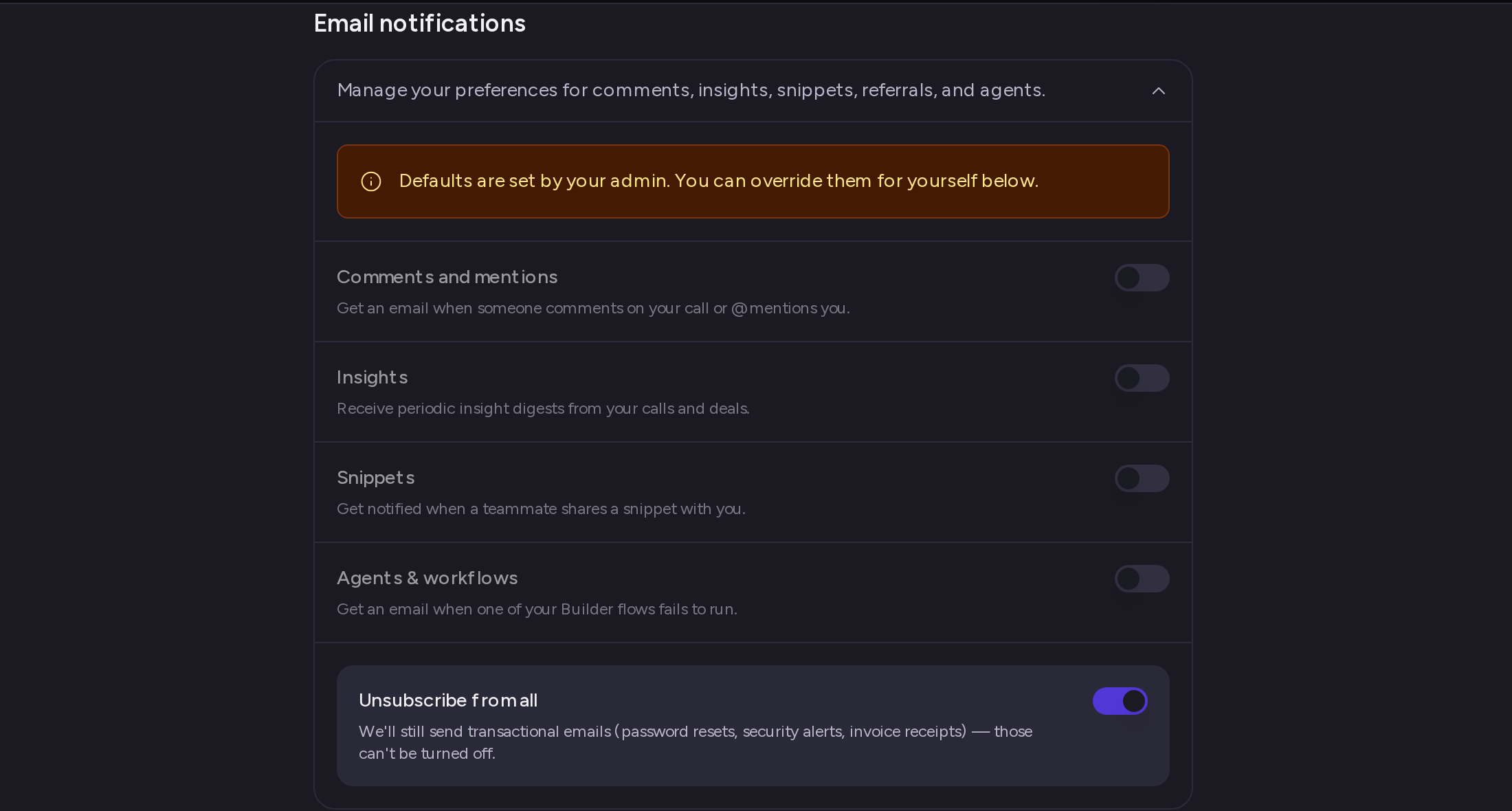
Emails you always get
These settings don’t cover transactional emails, such as password resets, security alerts and invoice receipts. Attention keeps sending those, even when Unsubscribe from all is on.Need help? Contact support@attention.com.