

Open Integrations
- In Attention, click your name at the bottom of the sidebar, then Settings.
- In the settings menu, click Integrations.
- Click Add integration.
Connect Granola
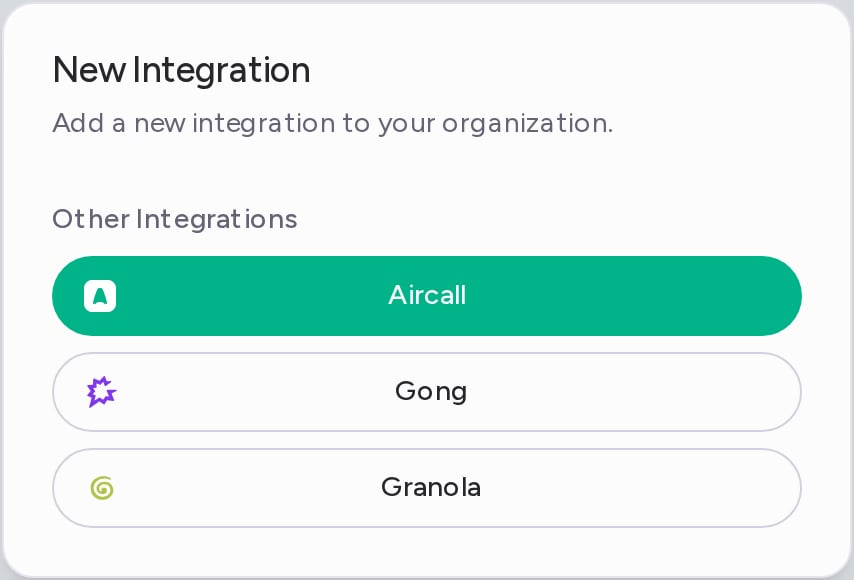
You need a Granola API key, which you create in Granola.- In the New Integration dialog, click Granola.
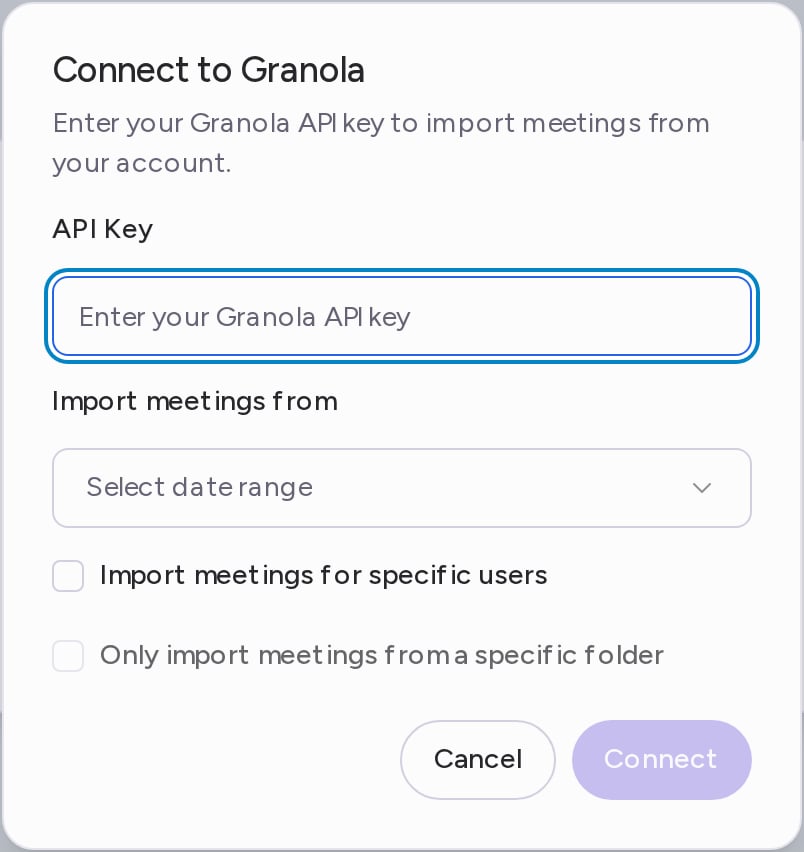
- In Connect to Granola, enter your API Key.
- Under Import meetings from, choose Past Week, Past Month, Past Year or Custom Date Range.
- To import only some people’s meetings, select Import meetings for specific users and add their email addresses. Press Enter after each one.
- To import a single folder, select Only import meetings from a specific folder, then pick the folder in Select a folder. The folder list loads from the API key you entered.
- Click Connect.
What gets imported
- Every Granola meeting in the date range you chose, with its title, attendees and transcript. Granola doesn’t share audio or video, so imported meetings have no recording.
- Each meeting goes to the Attention user whose email matches the meeting’s owner in Granola.
- After the first import, Attention keeps importing new Granola meetings, with the same email and folder filters.
- New meetings get scorecards, labels and CRM field updates like any other call. Past meetings from your date range come in without them.
Disconnect Granola
- On the Integrations page, open the ⋯ menu on the Granola row and click Delete.
- In the Granola Account Removal dialog, click Remove.
Need help? Contact support@attention.com or your Attention point of contact.